OrphoMan
Component for detecting spelling errors and typos on the site.
System settings
- mail_to — admin email for error notifications.
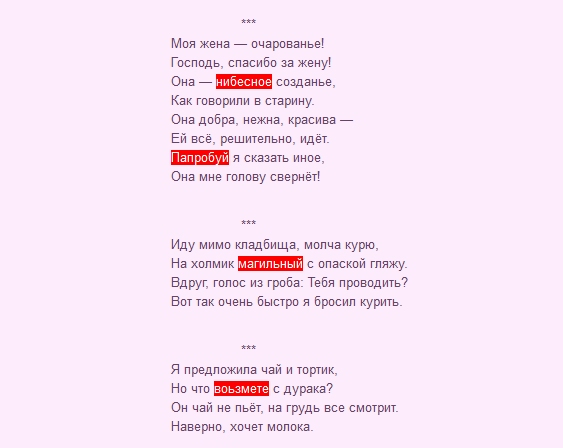
- highlight — Highlight errors on the page. Default: on. Highlight works only if the user is logged in to mgr context.
- auto_delete — Auto-delete errors when not found on the page. I.e. error was fixed, page refreshed on frontend, error is removed from the table. Default: on.
- tpl — Wraps the word in
<span class="error-text" title="{comment}">{text}</span>. Change CSS (class "error_text") to change highlight appearance. - email_subject — Notification subject template.
- email_body — Notification body template.
- frontend_css — Frontend CSS file. If empty, styles won't load.
- frontend_js — Frontend JS file. If empty, scripts won't load.
Getting started
After installation, set the admin email in system settings for notifications. No email — no notification. This is the most important setting. The rest can stay as is. To enable the component, place the Orphoman snippet somewhere. In a specific resource — only that resource will have error editing. In a template — all resources using that template. The Orphoman snippet has several parameters.
- min — minimum character count. Default: 5.
- max — maximum character count. Default: 100.
- tpl — dialog template.
- tplButton — "Found an error" button template at the bottom of the page. If empty, the button won't show.
- loadjGrowl — controls jGrowl loading. If jGrowl is already loaded, disable it here.
Example:
modx
[[!Orphoman? &min=`3` &max=`50`]]Usage: select an error, press Ctrl+Enter. On success you'll see a notification.
Mobile usage
On mobile: select the word, then tap the selection. A button appears to send the message.
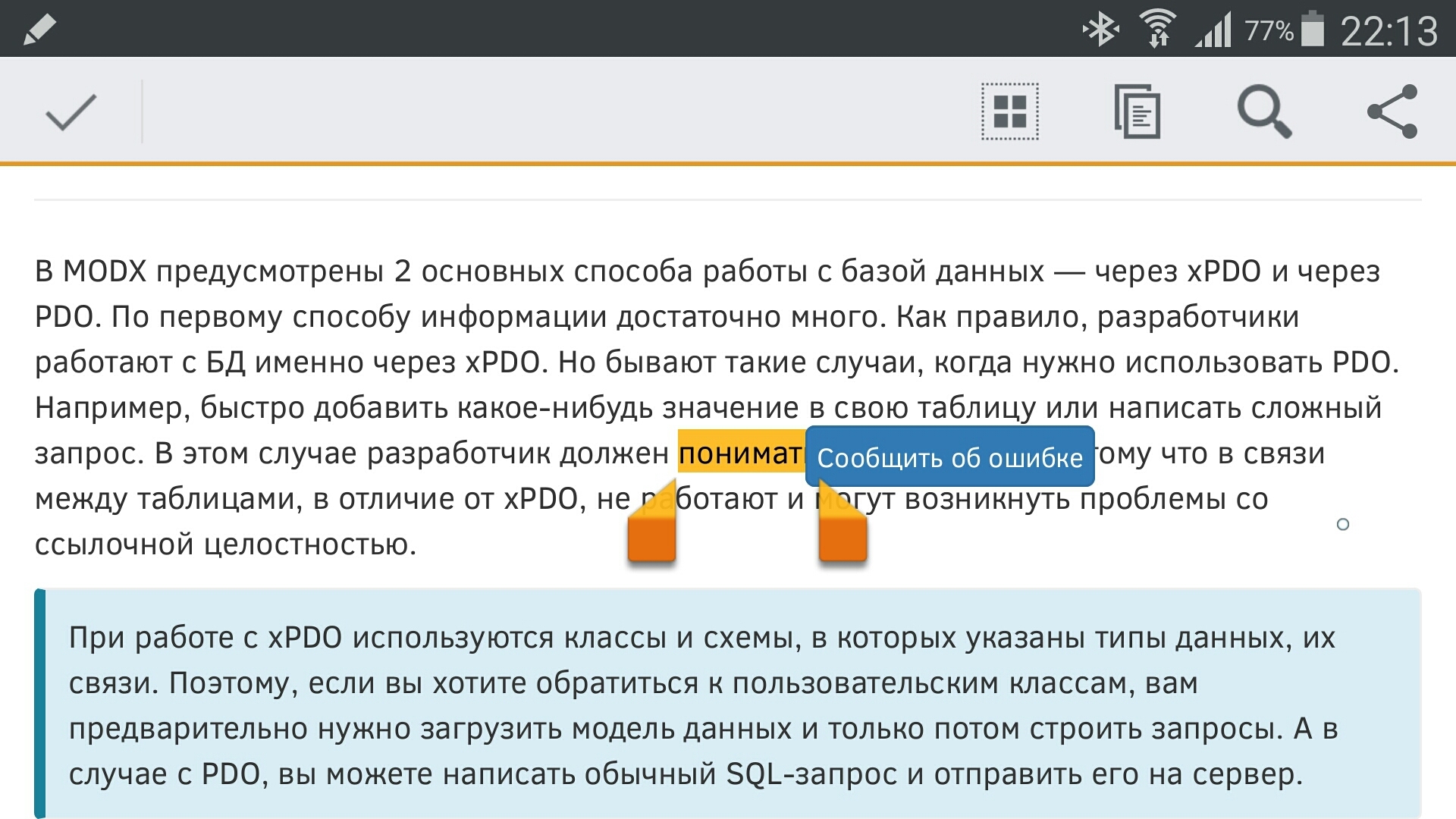
Then: dialog -> send -> result message. The error dialog adapts to mobile — size and position change with screen resolution and orientation.
Error management
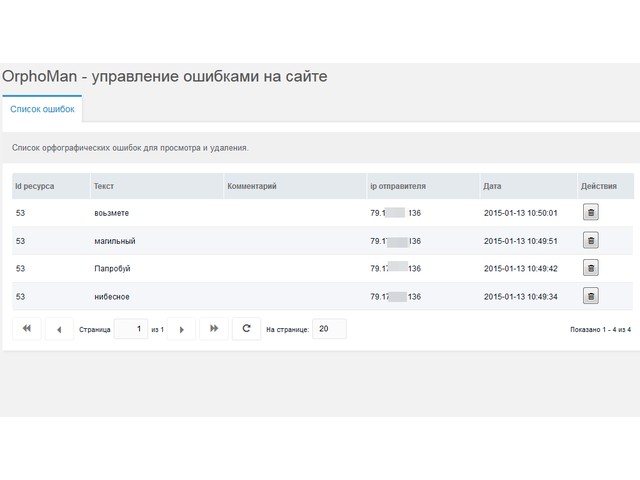
View all errors in Applications in the manager. Click an error in the table to go to the resource page.