Product and Prices
This menu manages product-only parameters.
All price changes are saved automatically; you can restore previous values on the Transactions tab.
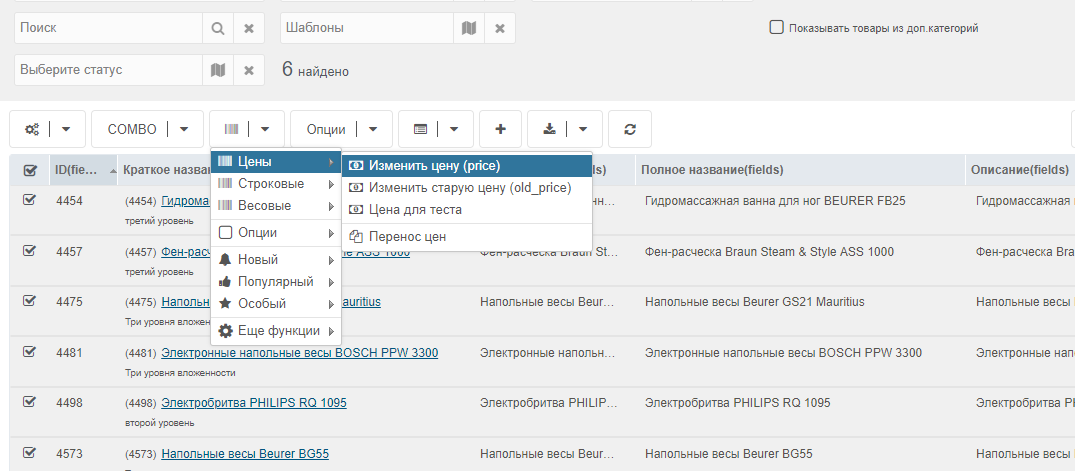
Prices
Change price
To manage prices, select the products and choose Prices -> Change price.
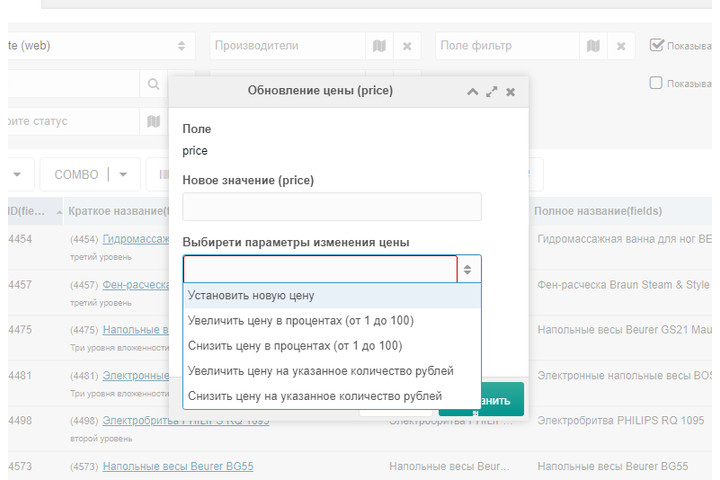
Price change parameters
- Set new price — sets the value you enter
- Increase price by percent — enter the percent (integers only)
- Decrease price by percent — enter the percent (integers only)
- Increase price by amount — adds the amount you specify (e.g. 1000 + 100 = 1100)
- Decrease price by amount — subtracts the amount you specify (e.g. 1000 - 100 = 900)
Price rounding parameters
- Don't round — choose if you don't want to round
- Round down — non-integer results are rounded down
- Round up — non-integer results are rounded up
Copy price
Copies the value from price to old_price.
To copy prices, select the products and choose Prices -> Copy prices.
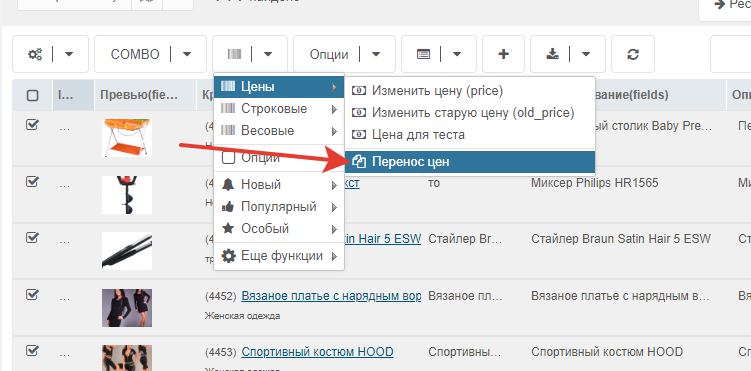
In the modal, choose the source field and the target field.
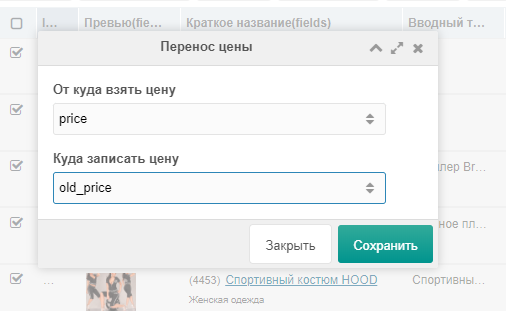
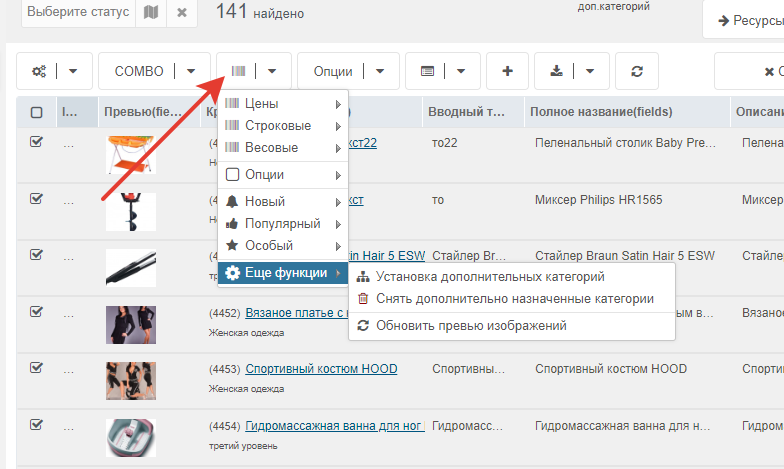
Update image previews
Updates all product image previews.
When useful:
- when the file source changed for all products and you need new previews
- when you added a watermark and need it on all images
- when you added a new image size (e.g. 200x200) and need to regenerate previews
This saves many hours of work.
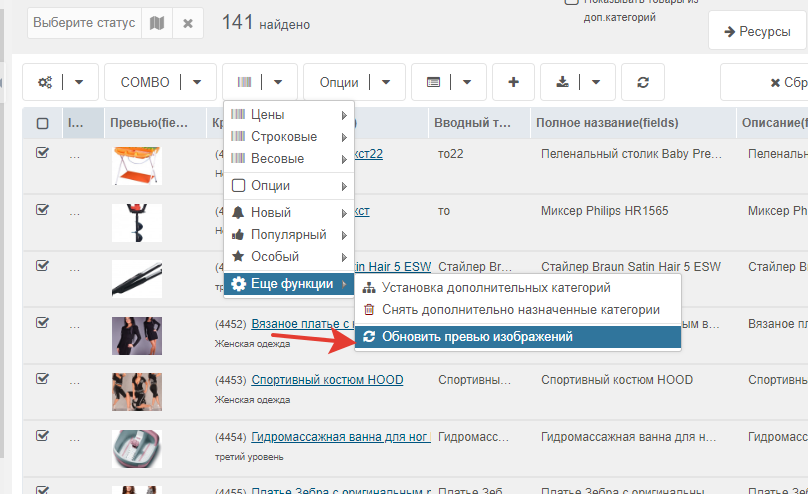
Each operation runs on the backend for one product, so you can select 1000 products at once. The operation may take from 1 second to 1 hour. You'll see product IDs update as it runs.
Options
Change values for tags, colors, sizes and other custom fields stored in options in table ms2_products as JSON.
Available operations:
- Set value
- Replace value
- Delete value
Select the products and choose Options -> tags.
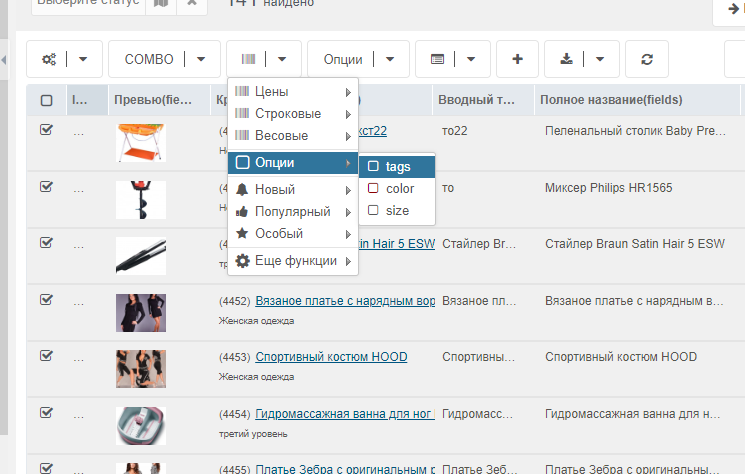
A window opens where you choose the action.
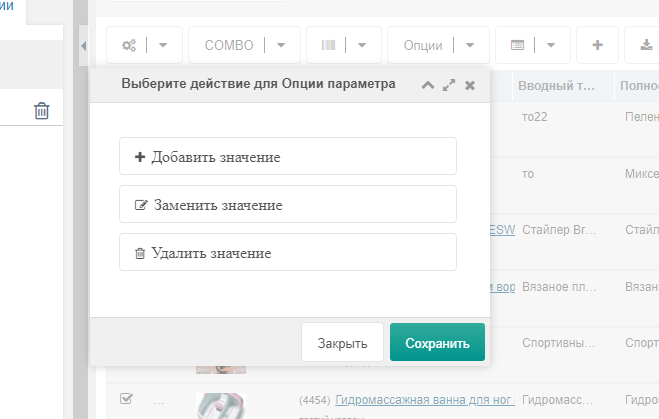
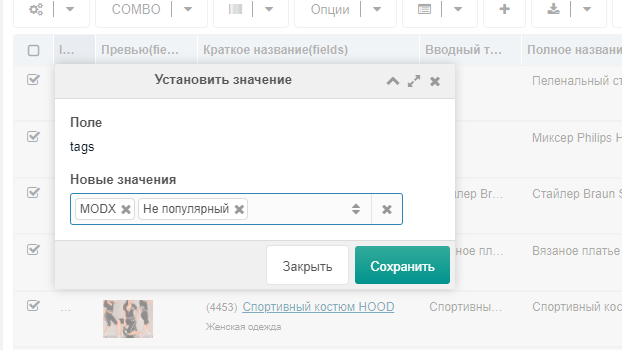
Options: Set values
Adds values to options. E.g. if Tags already had values, new selected values are added.
You can choose from the dropdown or add your own.
Осторожно
The input field works like on the product page.
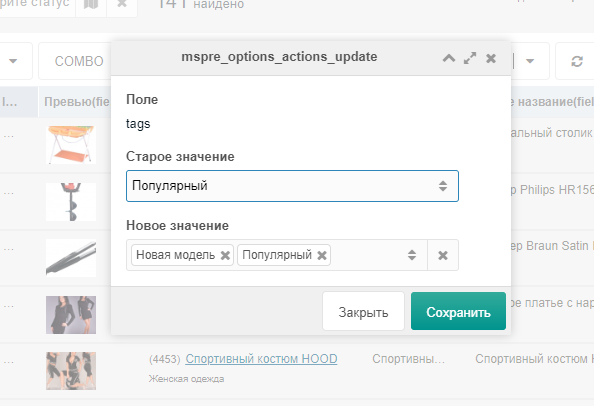
Options: Replace values
Replaces existing values. E.g. if Tags had Popular, select it in Old value.
Осторожно
Old values list only includes values from the selected products. If you selected 10 products with different values, choose one from the old value list. If any of the 10 have that value, it will be replaced with the value from "New value".
New value input works like on the product page.
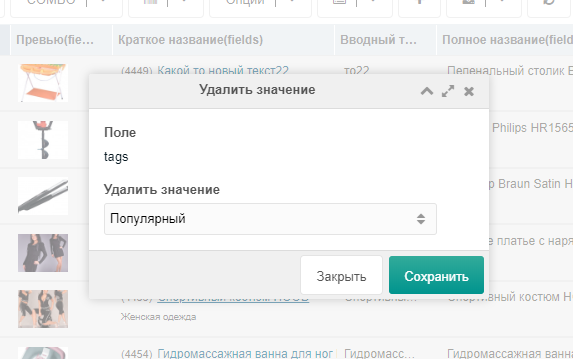
Options: Delete values
Removes values from the field.
E.g. if one product had Popular, it appears in the list. Select it and click save. The script finds all products with that value and removes Popular from them.
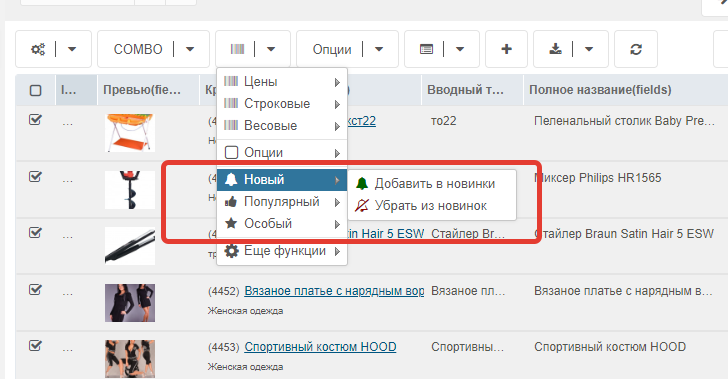
Flags
You can set/clear flags on selected products.
Available fields:
- New new
- Popular popular
- Special favorite
Additional categories
Categories added to each product in its card.
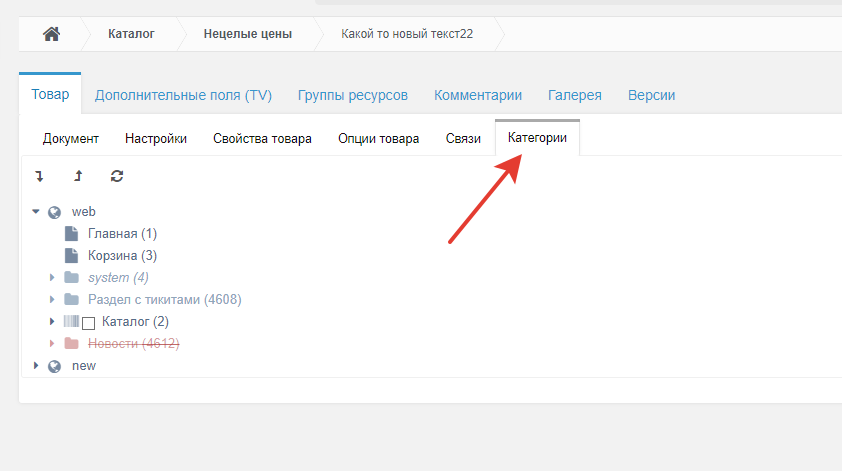
To set or clear categories:
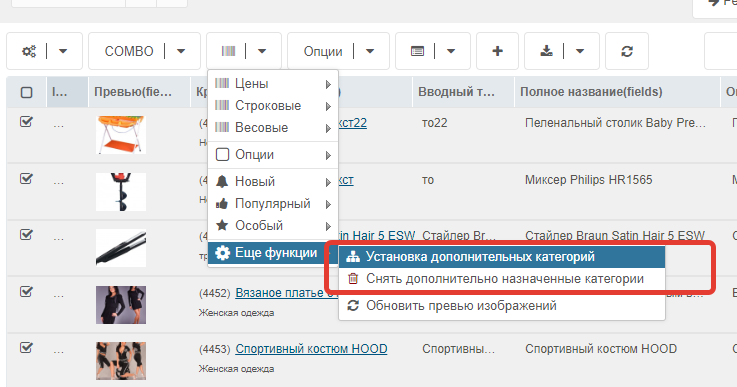
Additional categories: Set
Select products and choose "Set additional categories".
In the modal, check the categories and click save. 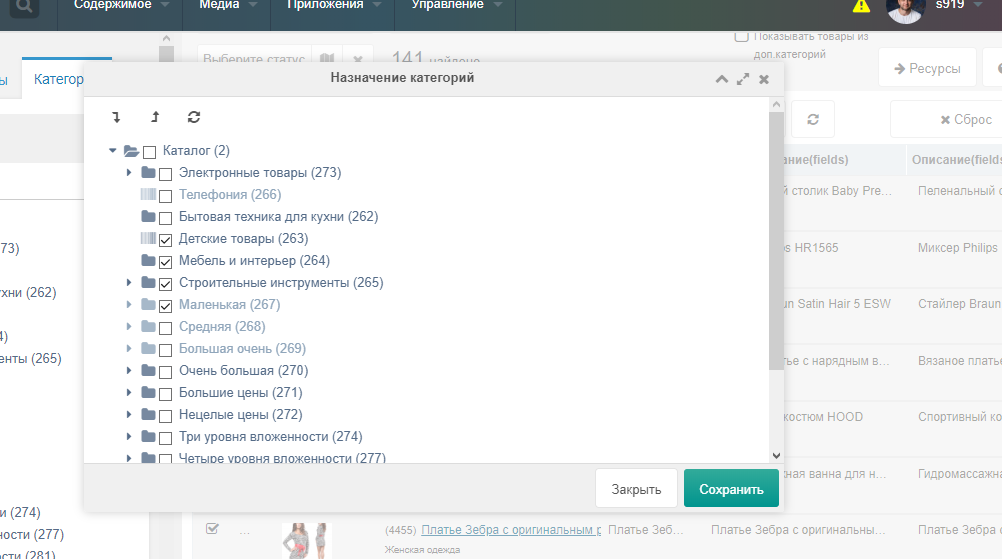
Additional categories: Clear
Select products and choose "Clear additional categories".
A request will remove all categories from the products.
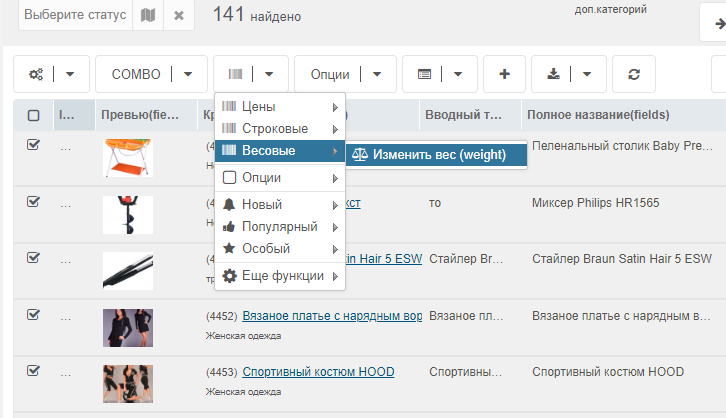
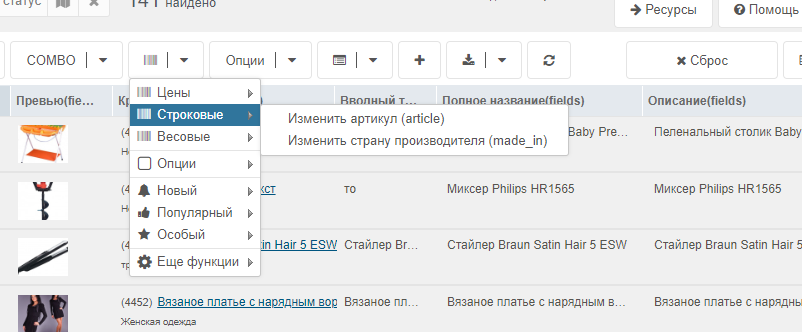
Change Article, country of origin and other text fields
Select the products and choose the corresponding menu item to change article or country of origin.
Input works like on the product card.
Осторожно
Custom fields are supported. List them in system settings (parameter mspre_field_string).
Change Weight and other weight fields
Select the products and choose the corresponding menu item to change weight.
Input works like on the product card.
Осторожно
Custom fields are supported. List them in system settings (parameter mspre_field_weight).