


msSMS
The component sends SMS automatically when orders are placed in the online store. It can send to the customer, manager(s), or both. It triggers on order status change; which statuses and how to react are configured in the admin panel.
To get started after installing:
- Register with one of the supported services
- On the "Providers" tab, set connection parameters
- On the "Events" tab, configure which status changes trigger messages
- Top up the SMS service account
Provider setup
Register with one of the supported SMS services (if you have not already). In the service dashboard you can get API connection parameters and enter them in the provider settings (as a JSON-encoded string). Enable the provider by checking "Active".
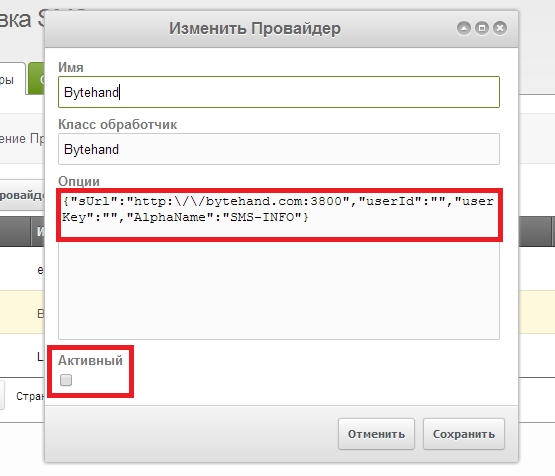
Check the provider’s site for required parameters. For built-in providers the parameter names are already set; you only need to fill in values.
Supported SMS services:
Event setup
The "Events" tab lists order statuses from the miniShop2 table. If the list is empty or you changed/added/deleted statuses, click "Refresh list" to sync.
On this tab you configure who receives messages, when, and what the message text is.
Example: user John Doe places an order for 1000. To send the customer "You made a purchase at ExampleShop for 1000. Your order number is 1403/5. Thank you!" and managers "User John Doe placed an order for 1000. Order number 1403/5", set the "New" status as in the image below.
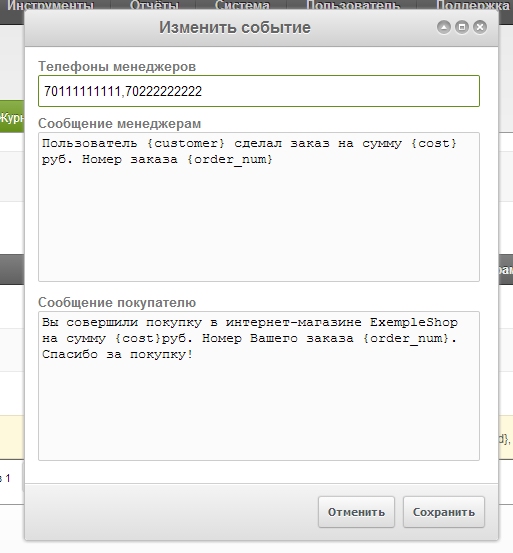
Leave the customer field empty to skip the customer message; leave manager phones empty to send only to the customer.
You can use placeholders in messages: {cost}, {order_id}, {order_num}, {customer} — replaced with order cost, order id, order number, and buyer name (receiver) respectively.
The component gets the phone number in this order:
- From checkout form data
- From profile field
mobilephone - From profile field
phone
If the phone is not found or its format does not match the service requirements, the message will not be sent. Getting the phone from the customer in the right format is your responsibility.
Log
The "Log" tab stores sent messages: date, provider, recipient type (manager/customer), phone, message text, status returned by the provider, and latest message status (providers usually queue and send in order). To refresh status, right-click a row and choose "Request status".
Statuses differ by provider; see the provider’s documentation.
Each provider has final statuses (e.g. delivered or rejected). For those, status cannot be requested again. If you try, you get "Status of message has been already received". These statuses are defined in each provider’s class.