



mspAssistBelarus
Getting started
Download mspAssistBelarus from the MODX Simple Dream add-on store.
To accept payments via Assist Belarus (belassist.by) you must first apply for registration.
For integration help contact technical support or the developer in Minsk.
Assist Belarus payment module setup
Important! Use only the test environment to verify payments.
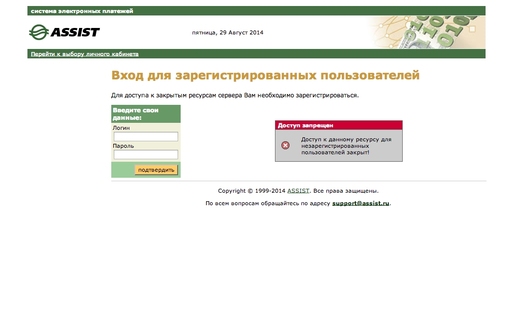
You need the login and password issued after registration. Sign in to the control panel and do the initial setup.
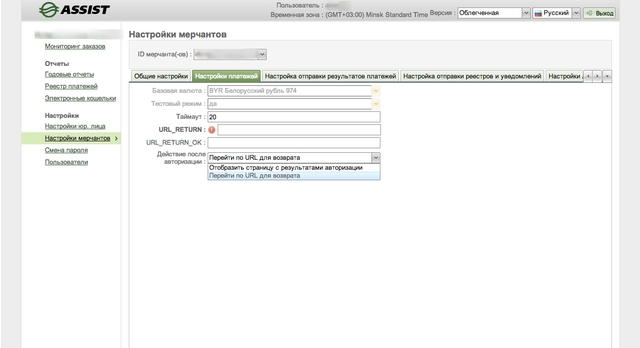
In the control panel go to "Merchant settings" to configure your store.
On the "Payment settings" tab there is "Action after authorization". Depending on the option, the user is either redirected back to your site or sees a payment result page with a button to return. For the first option you must set "URL_RETURN" to "site.ru/assets/components/minishop2/payment/assist.php?action=success", where site.ru is your site URL.
We recommend the button option so the component can set the return path.
Then configure payment result notifications on "Payment result delivery". This is for when the user paid but did not return to your site—Assist Belarus will notify your site that the payment was processed.
Enable "Send payment results" and set "Result URL" to "site.ru/assets/components/minishop2/payment/assist.php?action=notify", where site.ru is your site. The service can notify on various status changes; this implementation uses it for successful payments only.
Protocol: POST, signature: MD5. You choose the secret word; it is used to verify payments.

Other settings do not affect the module; you can adjust the cabinet as needed.
Installation and MODX setup
During installation enter your Assist Belarus credentials. You can skip and fill them later in system settings.
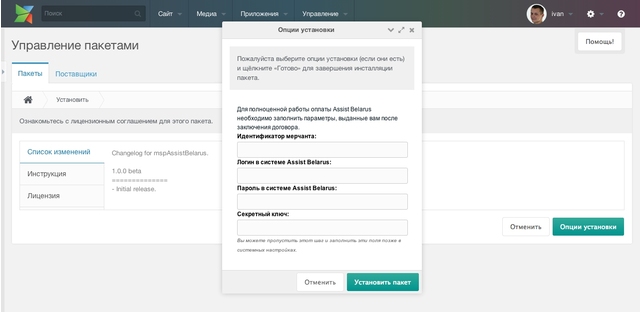
- Merchant ID
- Assist Belarus login — web services login issued after registration.
- Assist Belarus password — control panel password.
- Secret key — your secret key stored in Assist Belarus panel.
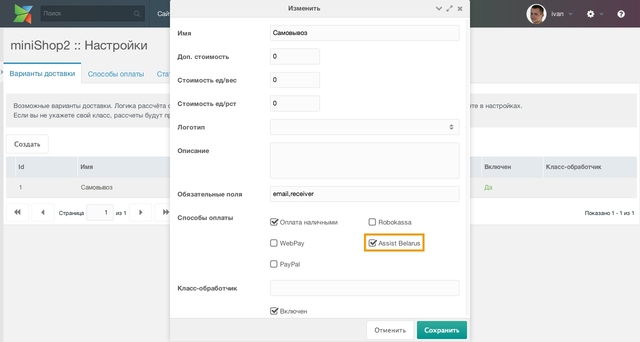
After installation enable the payment method in miniShop2 and add it to the required delivery method.
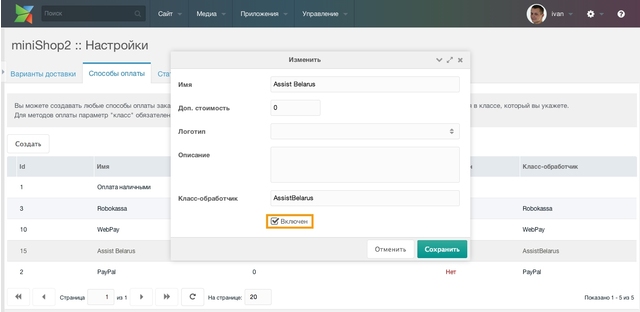
To switch from test to live, set ms2_payment_assistbelarus_developer_mode from "Yes" to "No".
System settings reference
| Key | Name | Default | Description |
|---|---|---|---|
| ms2_payment_assistbelarus_merchant_id | Merchant ID in Assist Belarus | Unique store (merchant) ID from registration. | |
| ms2_payment_assistbelarus_secret_key | Secret key | Random string set in Assist Belarus panel (Merchant settings -> Payment result delivery). Used for signature and payment verification. | |
| ms2_payment_assistbelarus_login | Assist Belarus login | Web services login; needed for payment verification. | |
| ms2_payment_assistbelarus_password | Assist Belarus password | Control panel password; needed for payment verification. | |
| ms2_payment_assistbelarus_checkout_url | Checkout request URL | URL where the user is sent to pay. From Assist Belarus support. | |
| ms2_payment_assistbelarus_gate_url | Payment verification URL | URL for payment verification requests. From Assist Belarus support. | |
| ms2_payment_assistbelarus_developer_mode | Test payment mode | Yes | "Yes" — all requests go to Assist Belarus test environment. checkout_url and gate_url are ignored. |
| ms2_payment_assistbelarus_currency | Payment currency | USD | ISO 4217 code. |
| ms2_payment_assistbelarus_language | Assist Belarus language | RU | Language for the payment page: RU, EN. |
| ms2_payment_assistbelarus_success_id | Success page | 0 | Resource ID after successful payment. Use cart page to show the order. |
| ms2_payment_assistbelarus_failure_id | Failure page | 0 | Resource ID after failed payment. Use cart page. |
| ms2_payment_assistbelarus_success_payment_id | Order status on success | 2 | Order status ID on successful payment. Edit statuses in miniShop2. |
| ms2_payment_assistbelarus_cancel_payment_id | Order status on cancel | 4 | Order status ID on cancelled payment. Edit statuses in miniShop2. |