



YandexMaps
Component allows creating Yandex Map and placing a list of objects on it (1 object = 1 resource). You can output a single object on the map by resource id.
To add a map to a resource, create a TV with type "YandexMaps" (appears after component installation).
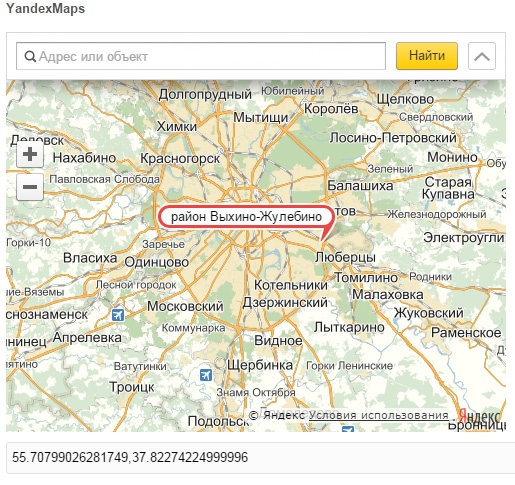
To specify object location, click on the map in the resource's "Additional fields" section.
TV field in admin
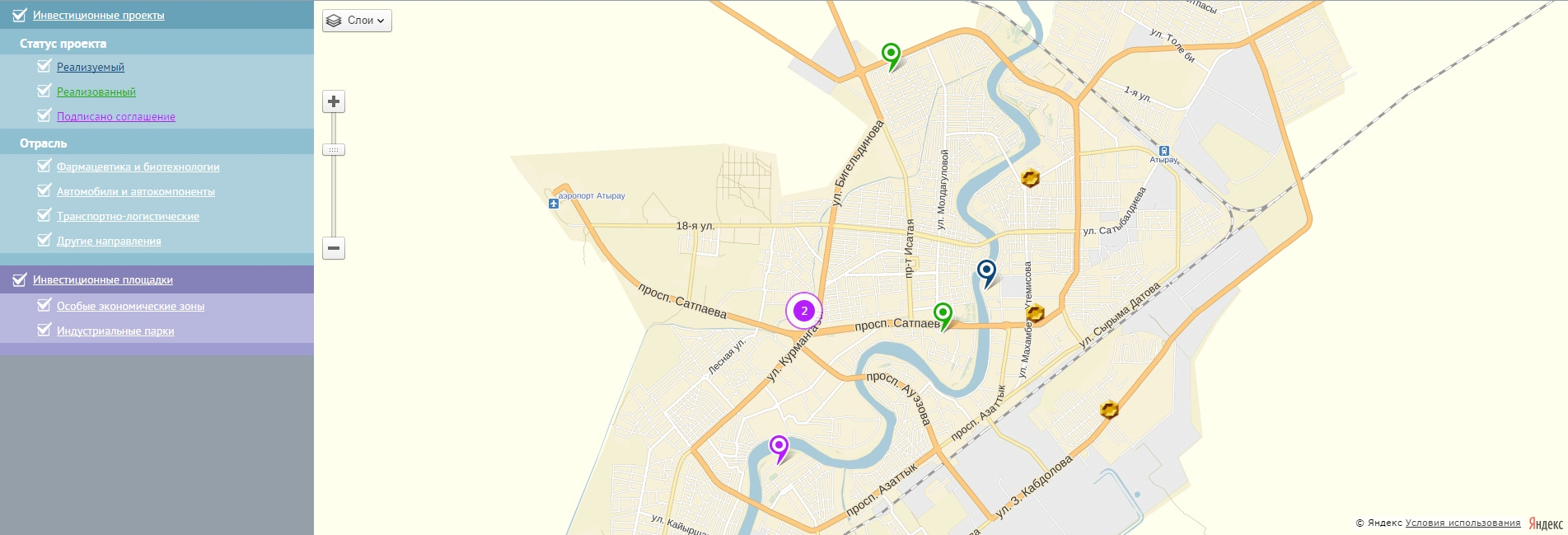
Map with multiple objects on frontend
YandexMaps snippet parameters
| Name | Default | Description |
|---|---|---|
| &tpl | tpl.yandexMaps | Template wrapper for filter link output to show/hide objects on the map |
| &tplFiltersItemsWrapper | tpl.yandexMaps.filtersItemsWrapper | Template wrapper for filter link output to show/hide objects on the map. |
| &tplFiltersItems | tpl.yandexMaps.filtersItems | Template for filter link output to show/hide objects on the map. |
| &idMap | yandexMap | Map id for HTML markup and JS initialization. |
| ¢erCoords | 55.75356,37.62001 | Coordinates for map center. |
| &zoom | 14 | Map zoom (zoom level). |
| &tvCoords | TV field name with type yandexMaps (where object coordinates will be stored). | |
| &tvAddress | TV field name with object address (if you want the component to determine coordinates for each object by its address in the TV). | |
| &addressPrefix | Prefix for address. Use when all addresses in "tvAddress" TV field omit country and city. Example: "Russia, Moscow, ". | |
| &objectsTypesJSON | JSON string with object types, parent ids, titles, icons or presets, and TV subfilters (and icon/preset assignment per option). | |
| &id | Resource id for single object on map. Example: [[*id]]. | |
| &markerIcon | Icon for single object. Example: "/images/map_marker.png". | |
| &markerPreset | islands#redDotIcon | Style key for single object. Example: islands#yellowStretchyIcon or islands#violetDotIcon. |
| &markerPresetText | Text for single object on preset. Example: "Swimming pool". | |
| &markerPresetFieldText | Field to extract text for single object on preset. Example: "menutitle". | |
| &fieldForBalloonContent | Which resource field to use for balloon description. | |
| &fieldForHint | Which resource field to use for hint on object hover. | |
| &showMoreLink | 0 | Whether to add "more" link to resource at end of balloonContent text. |
| &showMoreLinkTpl | @INLINE <p><a href="[[~[[+id]]]]" target="_blank">More</a></p> | Template for "more" link to resource at end of balloonContent text. |
| &classMapBlock | ymBlock | Class for map block. |
| &styleMapBlock | float:left; width:90%; height:100%; | Style for map block. |
| &idFiltersForm | ymFiltersForm | Id for geo-object filter form (enable/disable). |
| &classFiltersBlock | ymFiltersBlock | Class for filter link block (enable/disable) geo-objects. |
| &styleFiltersBlock | float:left; width:10%; height:100%; | Style for filter link block (enable/disable) geo-objects. |
| &classFiltersItem | ymFilters | Class for filter link (enable/disable) geo-objects (needed for click tracking by JS). |
Instructions
- Install the component.
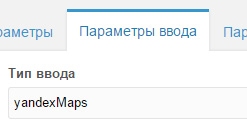
- Add a TV field (e.g. "coords"), and on the "Input parameters" tab specify type: "yandexMaps":
- Assign this field to templates that will be used for map object resources.
- Add a resource and assign the template mentioned above. On the "Additional fields" tab click on the map location where the object is. Use map search if needed.
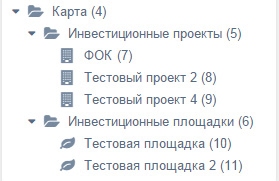
- Example tree for snippet calls in examples 4 and 5 (below):
Examples
Example 1 (single object output with custom icon)
modx
[[!yandexMaps?
  &id=`[[*id]]`
  &tvCoords=`coords`
  &markerIcon=`/images/cafe_marker_icon.png`
  &fieldForBalloonContent=`description`
  &fieldForHint=`pagetitle`
  &showMoreLink=`true`
]]
Example 2 (single object output using preset - "DotIcon")
modx
[[!yandexMaps?
  &id=`[[*id]]`
  &tvCoords=`coords`
  &markerPreset=`islands#violetDotIcon`
  &fieldForBalloonContent=`introtext`
  &fieldForHint=`menutitle`
]]
Example 3 (single object output using preset - "StretchyIcon", with text)
modx
[[!yandexMaps?
  &id=`[[*id]]`
  &tvCoords=`coords`
  &markerPreset=`islands#yellowStretchyIcon`
  &markerPresetText=`Swimming pool`
  &fieldForBalloonContent=`description`
  &fieldForHint=`pagetitle`
  &showMoreLink=`true`
]]
Example 4 (multiple objects output using "objectsTypesJSON" parameter)
modx
[[!yandexMaps?
  &tvCoords=`coords`
  &fieldForBalloonContent=`description`
  &fieldForHint=`pagetitle`
  &objectsTypesJSON=`[
    {
      "InvestProjects": {
        "parent":"5",
        "preset":"islands#violetStretchyIcon",
        "presetText":"Completed",
        "title":"Investment projects"
      },
      "InvestPlaygrounds": {
        "parent":"6",
        "icon":"/images/playgrounds_map_icon.png",
        "title":"Investment sites"
      }
    }
  ]`
]]
Example 5 (multiple objects with TV subfilters using "objectsTypesJSON" parameter)
modx
[[!yandexMaps?
  &tvCoords=`coords`
  &fieldForBalloonContent=`description`
  &fieldForHint=`pagetitle`
  &objectsTypesJSON=`[
    {
      "InvestProjects": {
        "parent":"5",
        "icon":"/images/projects_map_icon.png",
        "title":"Investment projects",
        "subFilters": {
          "status": {
            "title":"Project status",
            "options": {
              "0":{ "value":"In progress==1", "icon":"/images/projects_map_icon1.png" },
              "1":{ "value":"Completed==2", "preset":"islands#violetStretchyIcon", "presetText":"Completed" },
              "2":{ "value":"Agreement signed==3", "preset":"islands#blueStretchyIcon", "presetFieldText":"pagetitle" }
            }
          },
          "branch": {
            "title":"Industry",
            "options": {
              "0":{ "value":"Pharma and biotech==1" },
              "1":{ "value":"Automotive==2" },
              "2":{ "value":"Transport and logistics==3" },
              "3":{ "value":"Other==4" }
            }
          }
        }
      },
      "InvestPlaygrounds": {
        "parent":"6",
        "icon":"/images/playgrounds_map_icon.png",
        "title":"Investment sites",
        "subFilters": {
          "types": {
            "title":"",
            "options": {
              "0":{ "value":"Special economic zones==1", "icon":"/images/playgrounds_map_icon1.png" },
              "1":{ "value":"Industrial parks==2", "icon":"/images/playgrounds_map_icon2.png" }
            }
          }
        }
      }
    }
  ]`
]]