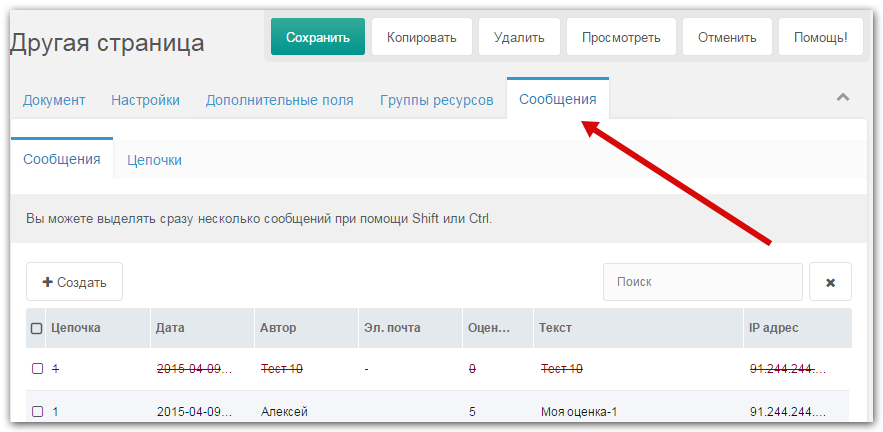
Interface
Managing messages via the Applications menu
After installing the component, a new "Messages" item appears in the manager Applications menu.
The section has two tabs: Messages and Threads.
Messages
This tab lists all site messages, sorted by creation date.
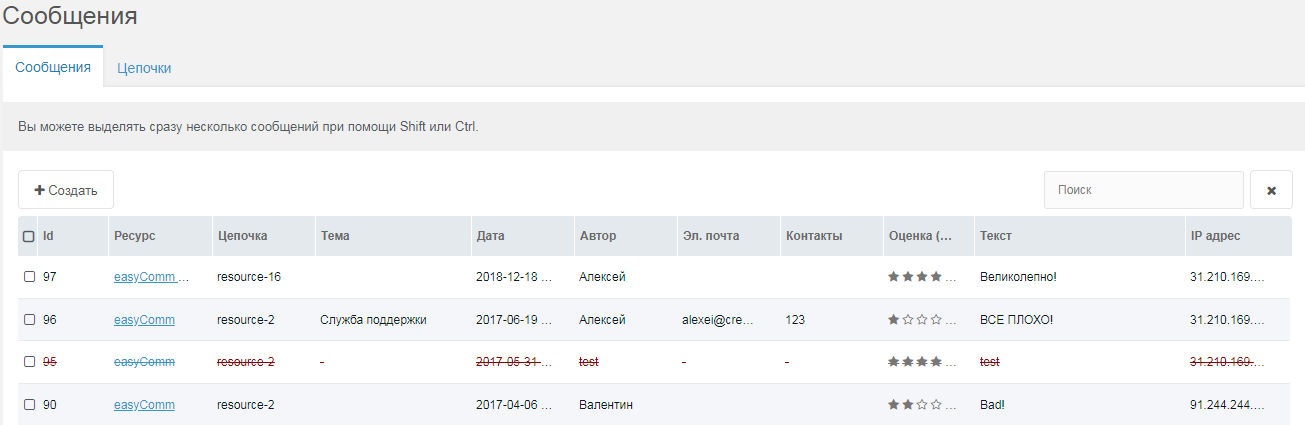
Each message belongs to a thread, and each thread to a MODX resource, so you can have several threads per resource (e.g. Reviews and Questions).
Creating/editing messages. Click "Create" for a new message; right-click a message and choose "Edit" to edit. A window opens with all fields. You must have a thread for the message first.
The message edit window has 4 tabs:
- Message — main message info
- Reply — fields for the manager’s reply
- Settings — internal settings
- History — creation/edit/delete dates and users
To change the message list and edit window layout, see "Plugins and customization".
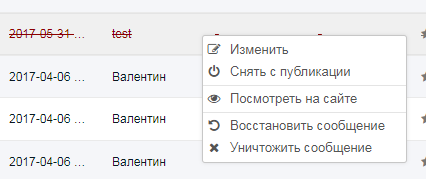
Messages can be published, deleted (soft-delete; can be restored) or destroyed. In the grid they are shown in different colors: gray, or struck through in red.
Threads
This tab lists all message threads.
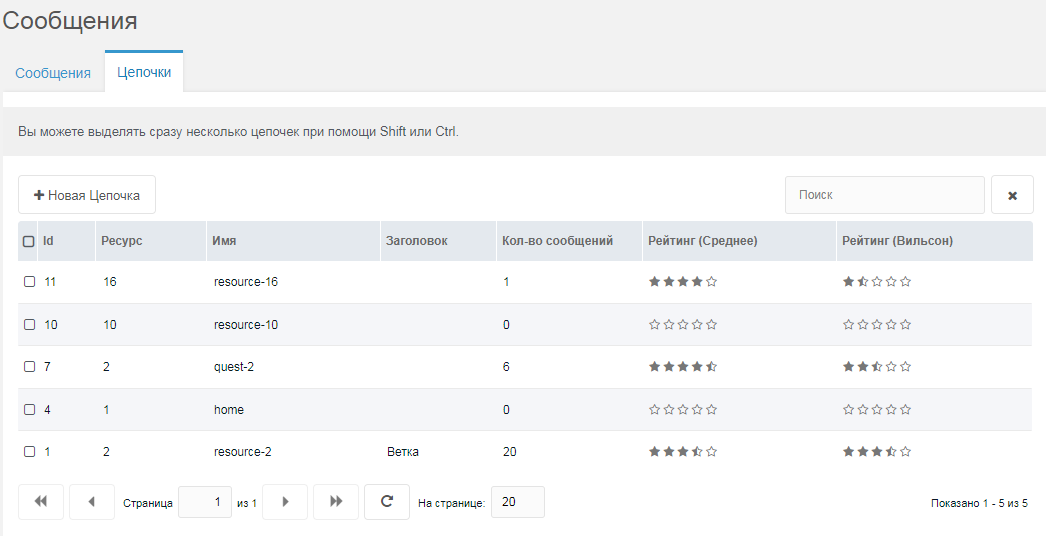
Each thread is tied to a resource and has a unique name (field name), default resource-[[*id]]. A resource can have several threads, e.g. reviews-[[*id]] (Reviews) and questions-[[*id]] (Questions).
You can set a Title for a thread (e.g. "Company reviews") for convenience in the manager.
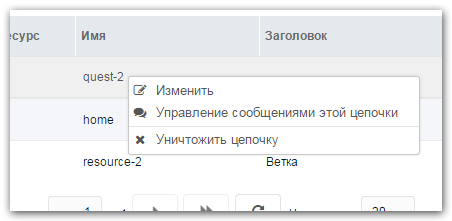
The thread context menu has "Manage messages of this thread", which opens a tab with only that thread’s messages.
Threads are created automatically when the add-message form is first shown on the site (when snippet ecForm is called).
Managing messages via the Messages tab on the resource
If the component setting to show the "Messages" tab is enabled, it appears when editing a resource. Its behavior is the same as in the Applications menu, but only messages and threads for the current resource are shown.