


miniShop2
Flexible and fast e-commerce component for MODX Revolution

Product file upload panel — a simplified version of the paid add-on ms2Gallery. Mainly for images, but can store other file types allowed by the media source.
Shown only when editing a product.
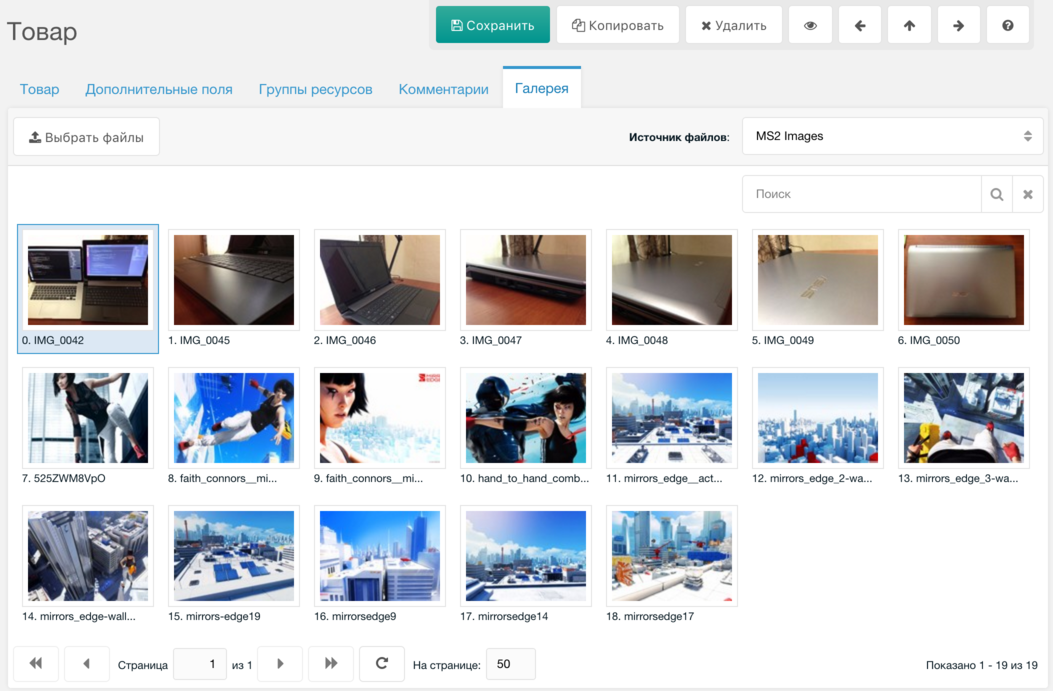
Main difference: thumbnails are generated on upload and phpthumbof and similar output filters are not used. This keeps output fast (direct links to ready images) and allows storing product files on external CDN (Amazon S3, Selectel Cloud Storage).

Files can be reordered by drag-and-drop; context menu and multi-select with Ctrl ⌘ Cmd and Shift are available.
The first image is the main product image and is shown on the "Document" tab. Its URL and thumbnail are stored in product properties image and thumb for catalog output without extra queries.
Each product has its own media source for upload settings. Main properties:
assets/images/products/jpg,jpeg,png,gif.jpg,jpeg,png,gifChanging the product media source does not copy already uploaded files — you must handle that yourself.
Use only h or w when constraining by one dimension.
[{"w":120,"q":90,"zc":"1","bg":"000000"},{"h":270,"q":90,"far":"1","bg":"ffffff"}]See phpThumb docs for more parameters.
When media source settings change, regenerate all thumbnails.
If you have few products, do it manually: select images and update via context menu.
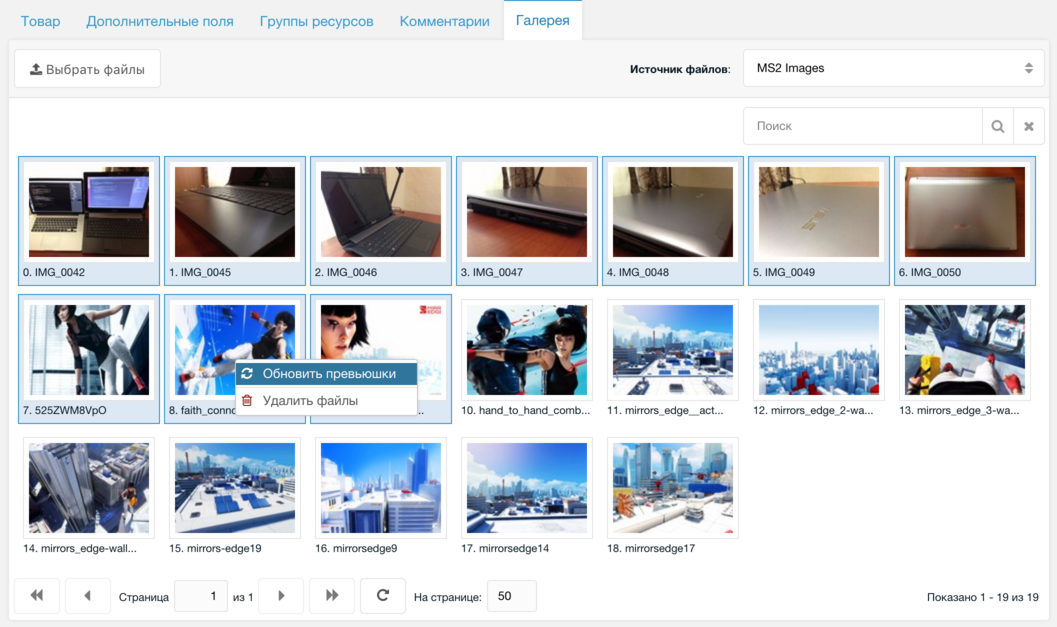
Or regenerate all images with a script:
<?php

$step = 5;
$offset = isset($_SESSION['galgenoffset']) && $_SESSION['galgenoffset'] ? $_SESSION['galgenoffset'] : 0;
$miniShop2 = $modx->getService('minishop2');
$modx->setLogLevel(MODX_LOG_LEVEL_ERROR);
$q = $modx->newQuery('msProductFile', array('parent' => 0));
$total = $modx->getCount('msProductFile', $q);
$q->sortby('product_id', 'ASC');
$q->sortby('rank', 'DESC');
$q->limit($step,$offset);
$resources = $modx->getCollection('msProductFile', $q);
foreach ($resources as $resource) {
  $modx->runProcessor('mgr/gallery/generate', array('id' => $resource->id),
    array('processors_path' => $modx->getOption('core_path').'components/minishop2/processors/'));
}

$_SESSION['galgenoffset'] = $offset + $step;
if ($_SESSION['galgenoffset'] >= $total) {
  $success = 100;
  $_SESSION['Console']['completed'] = true;
  unset($_SESSION['galgenoffset']);
} else {
  $success = round($_SESSION['galgenoffset'] / $total, 2) * 100;
  $_SESSION['Console']['completed'] = false;
}
for ($i=0; $i<=100; $i++) {
  if ($i <= $success) {
    print '=';
  } else {
    print '_';
  }
}
$current = $_SESSION['galgenoffset'] ?
           $_SESSION['galgenoffset'] :
           ($success == 100 ? $total : 0);
print "\n";
print $success . '% (' . $current . ')' . "\n\n";
Run this script from the server console, as thumbnail generation can take a long time.