Product indexing
To get similar products, do the following:
- Create products with images
- Run vectorization and indexing
Options and settings
1. Creating products
Go to Packages → ID image → Products and click Create products.
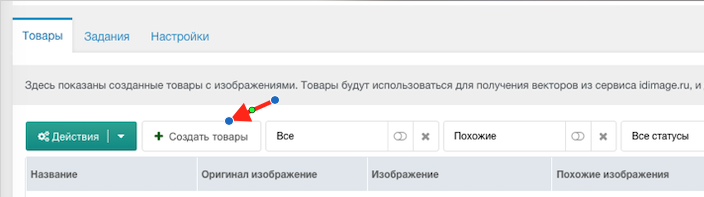
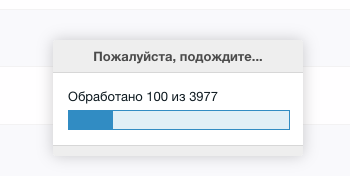
The creation process will start. Wait for it to finish.
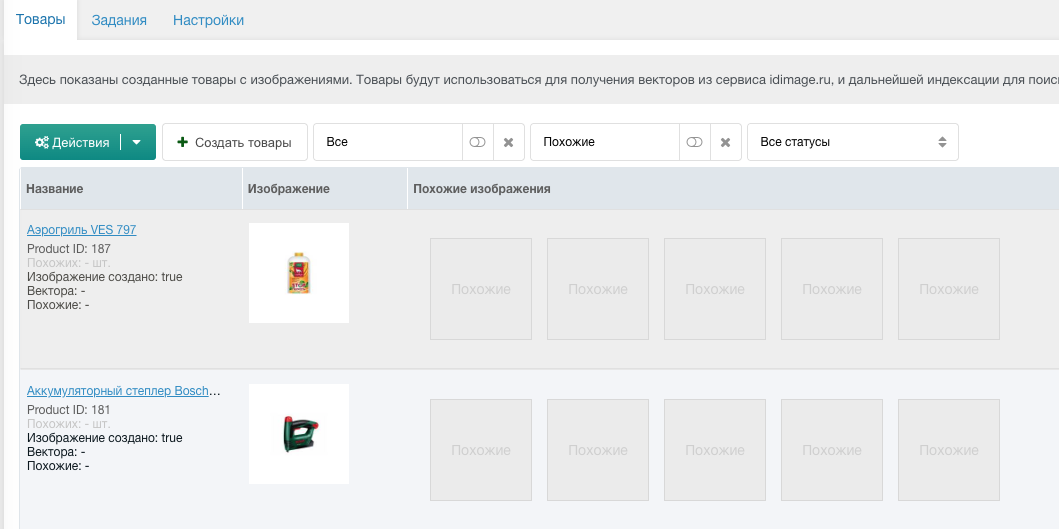
When it finishes, the list will show products ready for vectorization and indexing.
2. Getting vectors
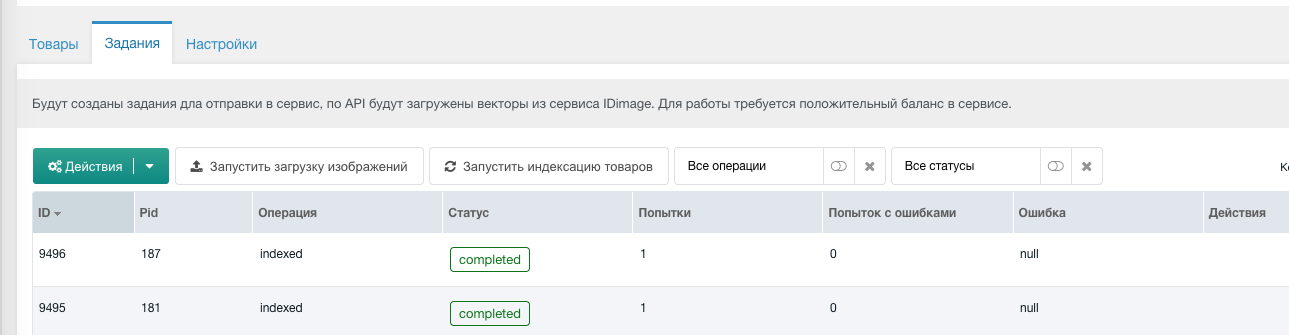
In Actions choose Upload images. A list of jobs will be created to send to idimage.ru.
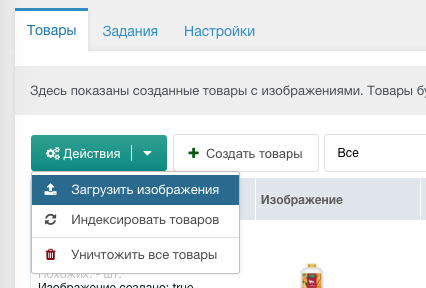
After the upload jobs are created you will be asked to run the queue. Click Yes.
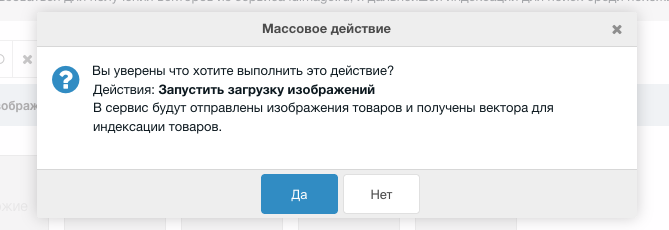
Wait for the upload to complete; do not close the window.
Important
- Getting vectors can take a long time. Each run processes 20 images.
- Run time depends on your connection and idimage.ru load; a single request can take 1 second or more.
3. Indexing products
In Actions choose Index products. A list of indexing jobs will be created.
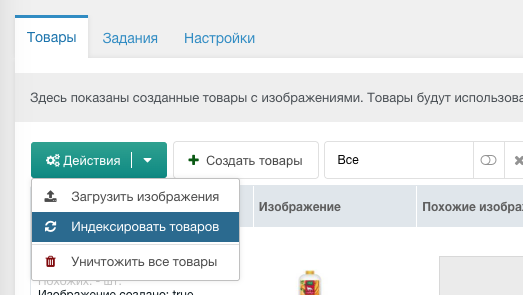
After the jobs are created you will be asked to run the queue for similar products. Confirm, or run the queue later on the Jobs tab.
Important
- Ensure all images have vectors.
- Indexing can take a long time depending on product count and server. More products means a longer run.
4. Placing the snippet on the page
MiniShop2 includes msProducts for listing products; we use it in the example.
Step 1: Add code to the product card template
Add this to the product card template:
fenom
{var $ids = $modx->runSnippet('idImageSimilar', [
    'pid' => $modx->resource->id,
    'min_scope' => 65,
    'limit' => 4
])}

{if $ids}
    {$modx->runSnippet('msProducts', [
        'resources' => $ids,
        'sortby' => "FIELD(msProduct.id, {$ids})",
        'parents' => 0,
    ])}
{/if}
Jobs
Jobs are used for indexing and vectorization. You can run the queue manually or set up background execution.