Quick start
After installing the component, a new menu item appears in the Manager: Packages → ID image.
1. Getting the token
- Go to the ID Image account.
- Copy the token shown in your account.
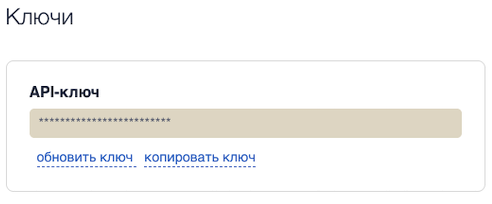
2. Entering the token in settings
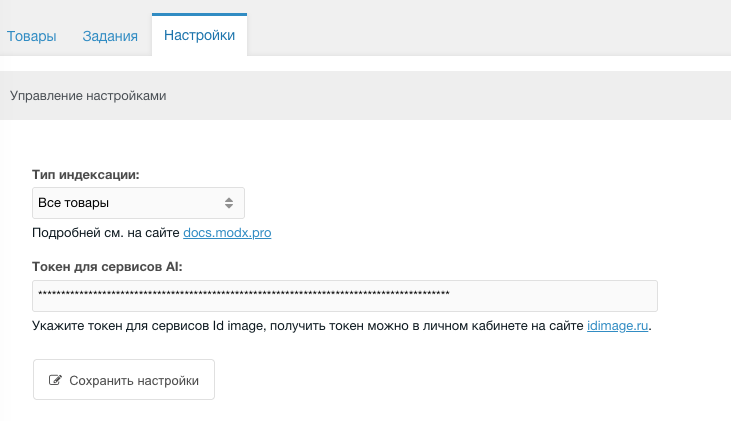
- Open the component page in the Manager.
- Go to the Settings tab.
- Paste the token you copied into the field.
- Save.
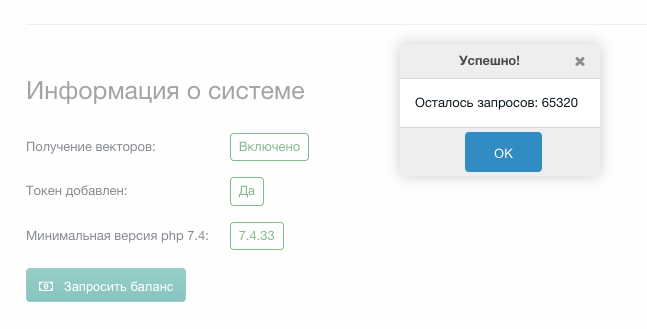
3. Balance check
- In System information ensure all checks passed.
- Request the current request balance to verify the token is set correctly.
Important
Your request balance at idimage.ru must be positive.
4 Product indexing
Follow the instructions for product indexing.
5 Placing the snippet
Place the snippet in the product card template or anywhere else:
modx
[[!idImageSimilar]]
[[!msProducts?
    &resources=`[[+idimage.ids]]`
    &sortby=`FIELD(msProduct.id, [[+idimage.ids]])`
    &tpl=`@FILE chunks/catalog/product.row.tpl`
    &parents=`0`
]]
fenom
{$modx->runSnippet('idImageSimilar', [
    'min_scope' => 65
])}

{var $ids = $modx->getPlaceholder('idimage.ids')}
{if  $ids}
  {$modx->runSnippet('msProducts', [
      'tpl' => '@FILE chunks/catalog/product.row.tpl',
      'resources' => $ids,
      'sortby' => "FIELD(msProduct.id, {$ids})",
      'parents' => 0,
  ])}
{/if}
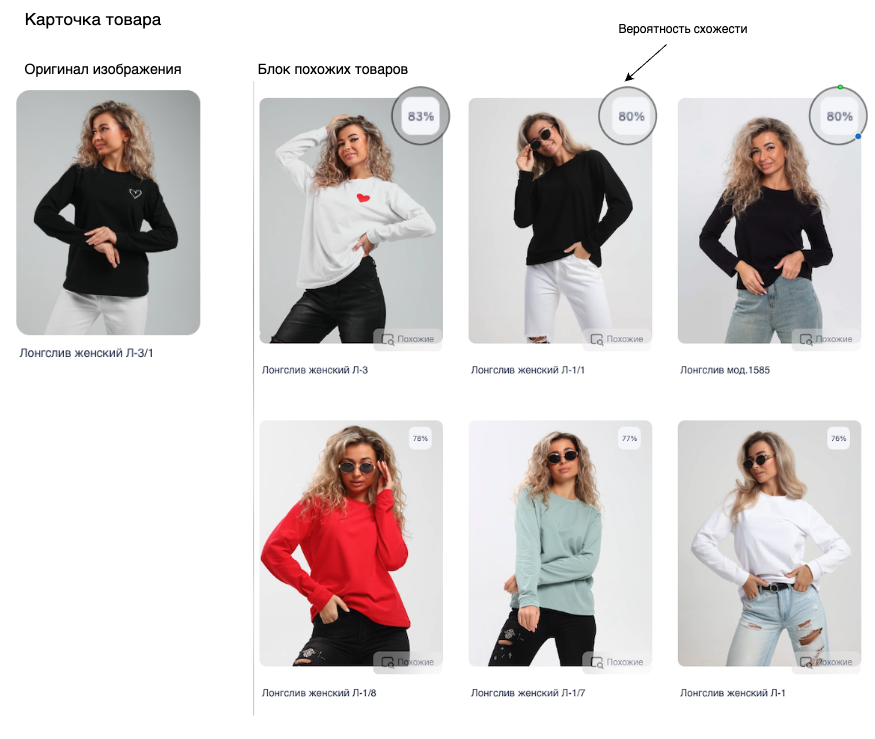
The page will show products ordered by similarity.
Example similar products block
Important
The idImageSimilar snippet only returns product IDs; it does not control how products are displayed.
Example product display on the site
This is just one possible result: