



msImportExport 1.0
Component for importing/exporting products MiniShop2 to/from site in CSV/XLSX, as well as export to Yandex.Market.
Video overview
Integration
msImportExport integrates with extras:
Catalog structure requirements
Base catalog (category) and all its subcatalogs must be of type "Product category". Any "Product category" without parent is considered a catalog.
Which file type to choose?
If the file has no content-type fields (fields that may contain newline characters), prefer CSV (utf-8) as import requires fewer resources and time.
Factors affecting import speed
- If the file has no content-type fields, prefer CSV (utf-8) for faster import.
- Do not include fields in the import file that will not be imported.
- Prefer product fields from minishop2 plugins or msFieldsManager over TV and options; each option is an extra SQL query to the database and MySQL subquery count is limited.
- Prefer local paths for images over http/https as downloading to server takes time.
- For the field specified in option "Product key for uniqueness": if it is pagetitle, speed will be lower as there is no DB index for it; add an index for custom key field.
- Number of existing products in miniShop2.
- If the import file is large, split it into smaller files as less time and resources are spent on repositioning the read pointer for each iteration.
- Import via cron also uses fewer resources and helps avoid timeout. See addon docs for server setup for large files in the section "Import large files".
- Other addons that fire on miniShop2 events and manipulate data.
Import
Product import
Import file must contain at least 2 required fields: pagetitle and the field specified in import settings in option "Product key for uniqueness" (default "article").
Main field settings:
parent — can contain category ID or name (pagetitle) to which the product belongs. If this field is not set for a product, depending on settings such product will be ignored or added to base catalog. When specifying category name in parent, it will be auto-created if missing. You can also specify nested categories (from base catalog) separated by the delimiter specified in settings in field "Additional delimiter for JSON fields" (default |). In that case, if any category does not exist it will be created. Example: Base category|category1|category2 in base catalog (Catalog) will create category category1 which will contain subcategory category2 used as parent for the product.
categories — assigns product to multiple categories; accepts names (pagetitle) or IDs. You can specify multiple categories via the delimiter from settings in field "Additional delimiter for JSON fields" (default |). If any category does not exist it will be created. Via 2nd additional delimiter (default %) you can specify nested additional category which will be created if missing.
Example:
| parent | categories |
|---|---|
| category1 | sub_category1|sub_category2%sub_sub_category2 |
Product will be created in category1 but also available in sub_category1 and sub_sub_category2.
vendor — vendor ID or name; vendor will be created if not found.
gallery — path to image for gallery: local (relative to "Base directory for images") or http/https URL (slower). Use delimiter | for multiple images.
Example: assets/pic/pic2.jpeg|assets/pic/pic3.jpg.
alias — usually skip; MODX creates it from pagetitle. pagetitle must be unique per category.
Additional options and TV — custom options and TV are supported; lists use delimiter | (default).
Example color import: Green|Red.
Import categories
You can import only categories. Import file must contain at least fields: pagetitle, parent, and the field specified in import settings in option "Product key for uniqueness".
parent can contain ID or chain of parent category names (pagetitle) separated by the delimiter from settings in field "Additional delimiter for JSON fields" (default |). Missing categories will be created.
Example:
| pagetitle | parent |
|---|---|
| category3 | Base category|category1|category2 |
In this example category3 will be created in category2; the entire parent chain will also be created.
Import links
Import file must contain 3 fields:
- link — link ID from miniShop2 link settings list
- master — main product ID
- slave — subordinate product ID
If at import main and subordinate product IDs may differ (import file from another site export), use another identifier (e.g. article) and set its name in import settings in option "Product key for uniqueness".
Example:
| link | master_article | slave_article |
|---|---|---|
| 1 | 00000100 | 00000200 |
| 1 | 00000100 | 00000300 |
Gallery import
Supported: import to native miniShop2 gallery and MS2Gallery 2.0+. When using MS2Gallery for products, note that MS2Gallery syncs images with native miniShop2 gallery, i.e. image data is duplicated in 2 DB tables, so import is slower than with native gallery. If you choose MS2Gallery, set it in import settings option "Gallery type" in dropdown "MS2Gallery".
Import file must contain at least 2 fields:
- Identifier to find product (id, article, etc.). Its name must be set in import settings in option "Product key for uniqueness".
- file — path to image: local (relative to "Base directory for images") or http/https URL (slower).
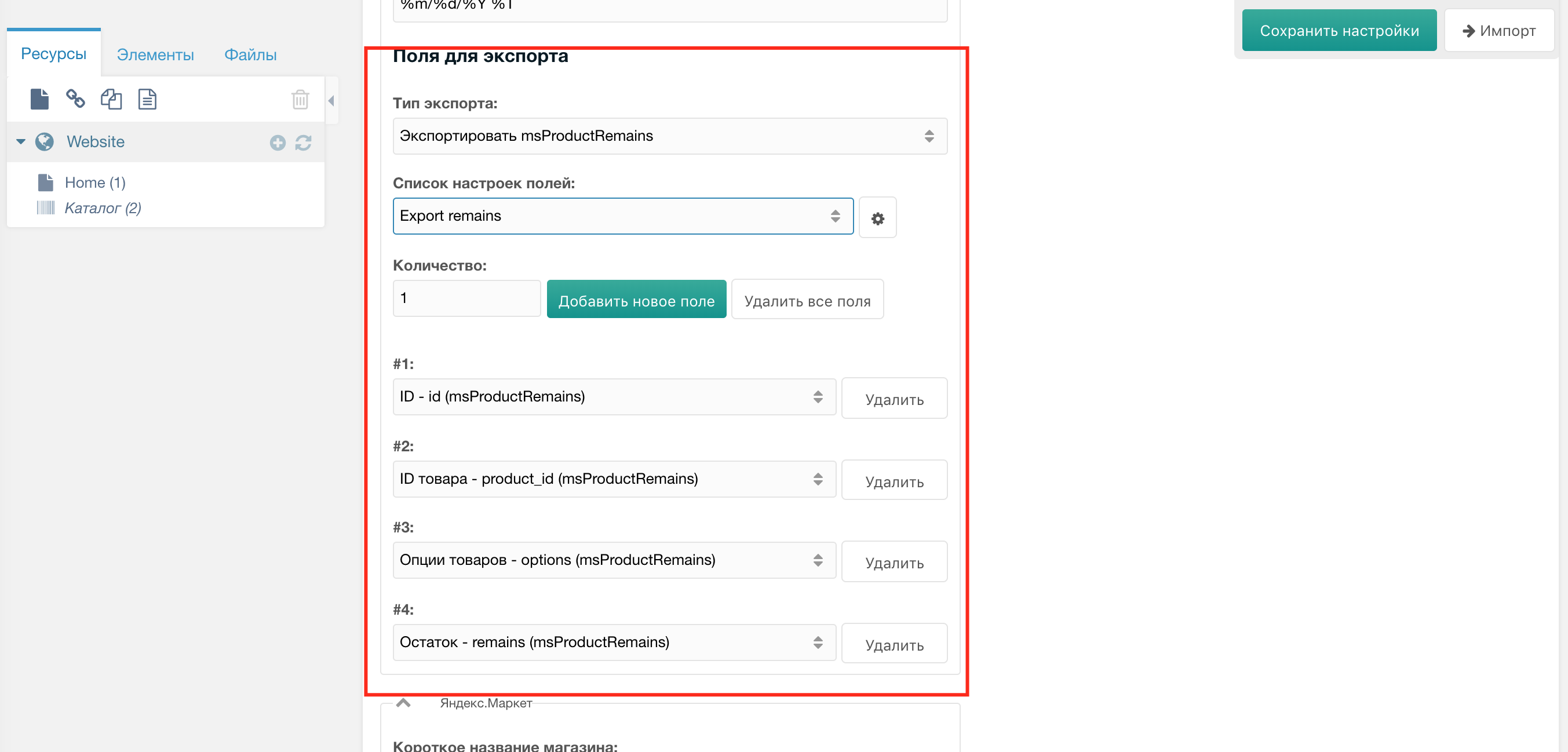
Import msProductRemains
If msProductRemains 2.1.18-pl+ is installed, you can import product stock.
To quickly update stock, import file must contain 2 fields: stock ID and stock value.
Example:
| mspr:id | mspr:remains |
|---|---|
| 2 | 1 |
| 3 | 2 |
Import/update files for stock options can be:
- Stock ID
- Stock options
- Stock (optional)
| mspr:id | mspr:options | mspr:remains |
|---|---|---|
| 2 | Red|S | 1 |
| 3 | Red|M | 2 |
- Product ID
- Stock options
- Stock (optional)
| mspr:product_id | mspr:options | mspr:remains |
|---|---|---|
| 3 | Red|S | 1 |
| 3 | Red|M | 2 |
- Value of "Product key for uniqueness" field
- Stock options
- Stock (optional)
| article | mspr:options | mspr:remains |
|---|---|---|
| article-1 | Red|S | 1 |
| article-1 | Red|M | 2 |
Important! Stock options must match order in msProductRemains settings (mspr_options key) and use delimiter from "Additional delimiter for JSON fields".
Export stock to get your import file structure.
Import msOptionsPrice2
If msOptionsPrice2 is installed, you can import product modifications.
Main modification fields:
- name — modification name
- type — price modification type: 1|2|3 (=|+|-)
- price — price
- old_price — old price
- article — article for modification (not same as product)
- weight — weight
- count — quantity
- image — image (must contain name of image that already exists for product)
- active — whether modification is active: 0|1
All fields used for product modification have suffix "(msOptionsPrice2)" in dropdown. For "Auto-detect fields" to work, modification fields must have prefix "msop:".
There are 2 ways to import modifications:
Import only modifications (product must already exist). In "Import type" select "Import OptionsPrice2". File must contain the field from option "Product key for uniqueness".
Example:
article msop:name msop:type msop:price msop:active msop:image msop:time 00000100 Display and touchscreen replacement 1 600 pic3.jpeg 2 hours 00000100 Battery replacement 1 700 2 hours msop:time — custom variable that can be created via additional options or plugin system.
Classic product import: along with regular product fields, modification fields with suffix "(msOptionsPrice2)" appear.
Example:
article pagetitle color msop:name msop:type msop:price msop:active msop:image msop:time 00000100 Test product 1 Red Display and touchscreen replacement 1 600 pic3.jpeg 2 hours 00000100 Test product 1 Red Battery replacement 1 700 2 hours 00000200 Test product 2 Red
Each method has pros and cons. Use first when product already exists. Use second when product may not exist yet. Downside of second: for each modification of the same product, the product itself is also updated.
Quick product data update
Quick update updates only product data (ms2_products table). No TV or additional options are updated, but data added via minishop2 plugin system or msFieldsManager are updated. Updates go via SQL queries, bypassing modX processors. Import file must contain the field from option "Product key for uniqueness" for each product.
Export
Before exporting, configure which fields to export for each export type.
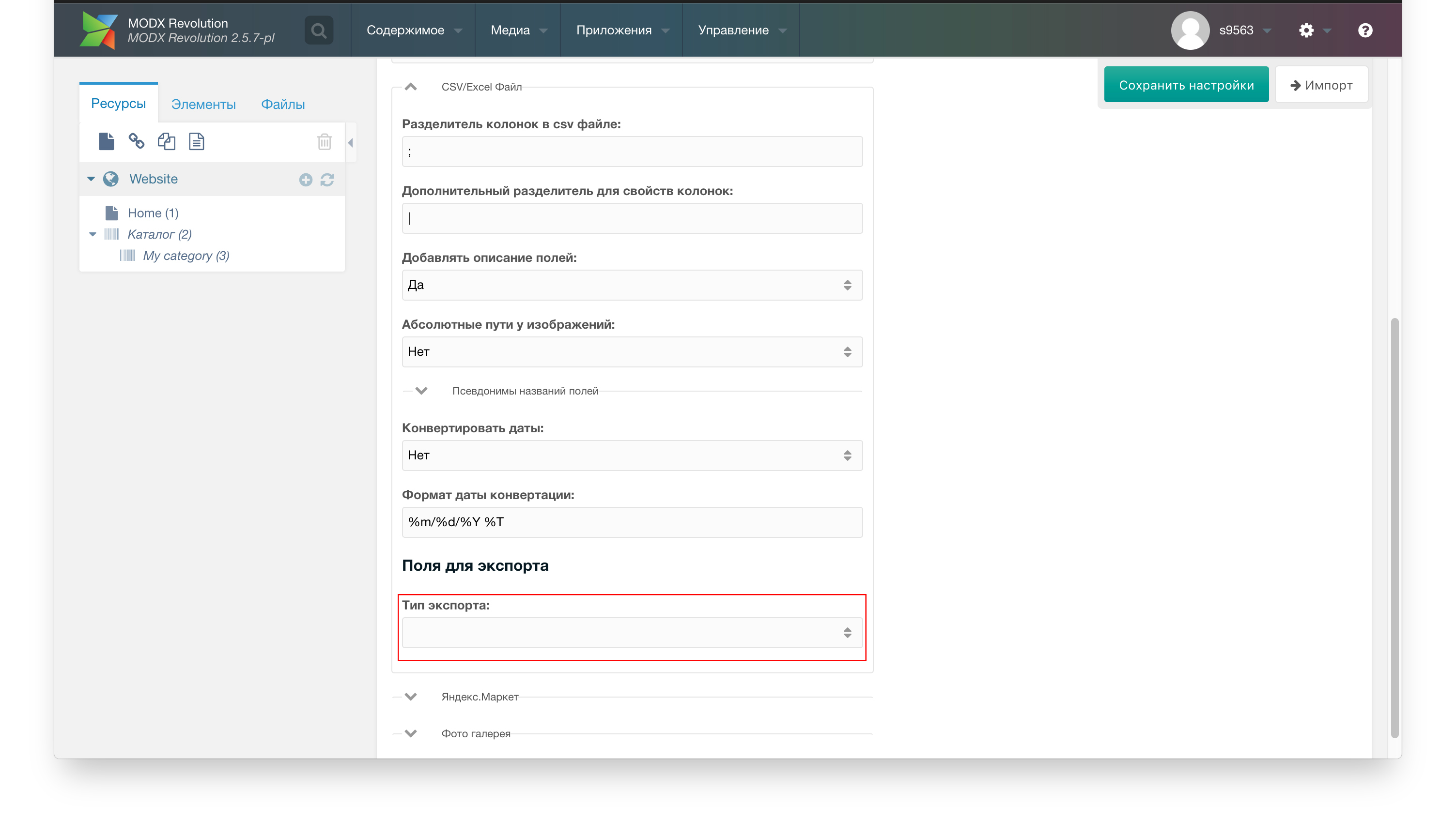
Field configuration: tab "Export settings", section "CSV/Excel File":
Select export type
Create (if not exists) name for field settings; click gear icon
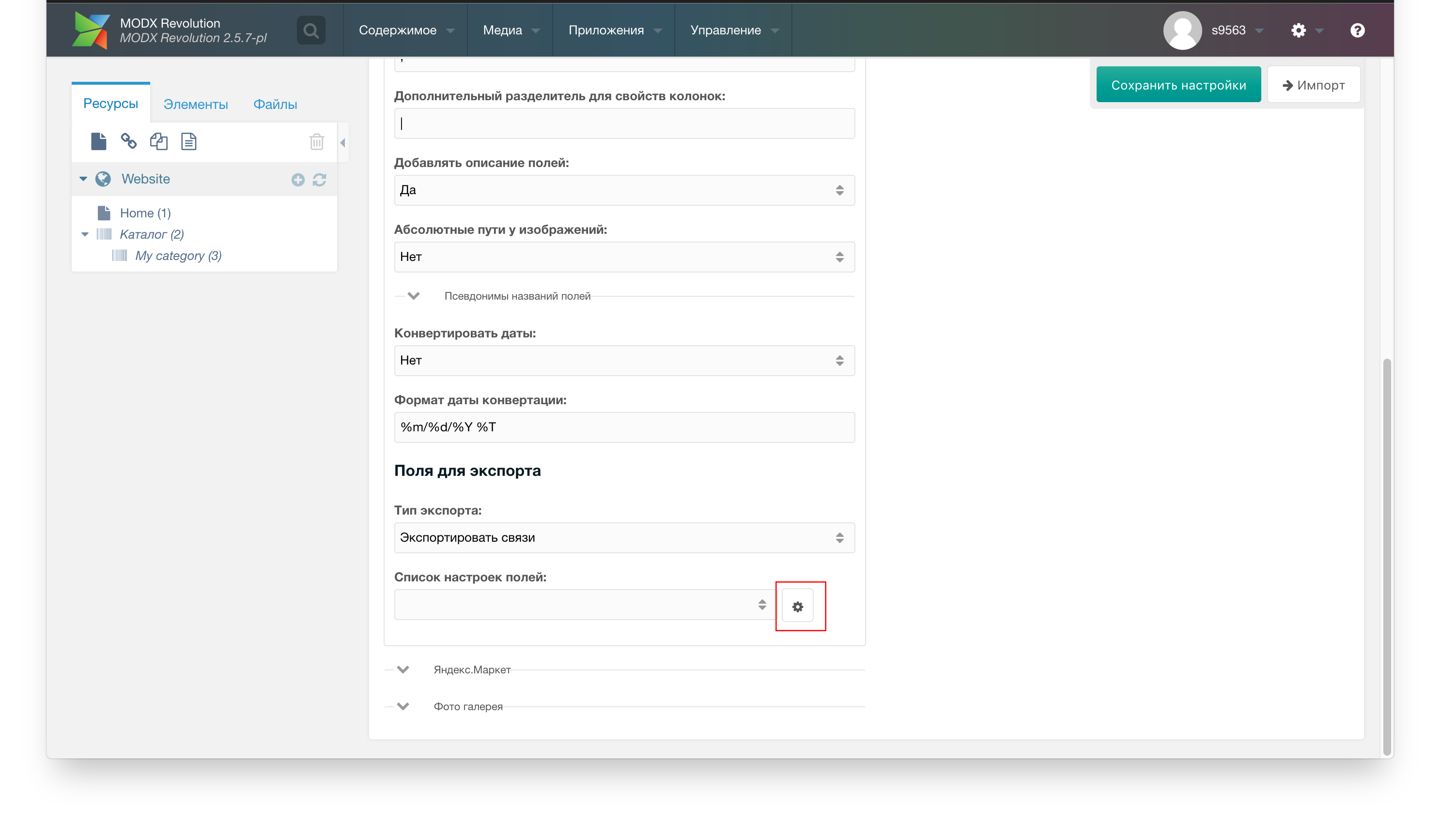
Select field settings name in list "List of field settings"

Add required number of fields, select names from dropdown, then click "Save settings"
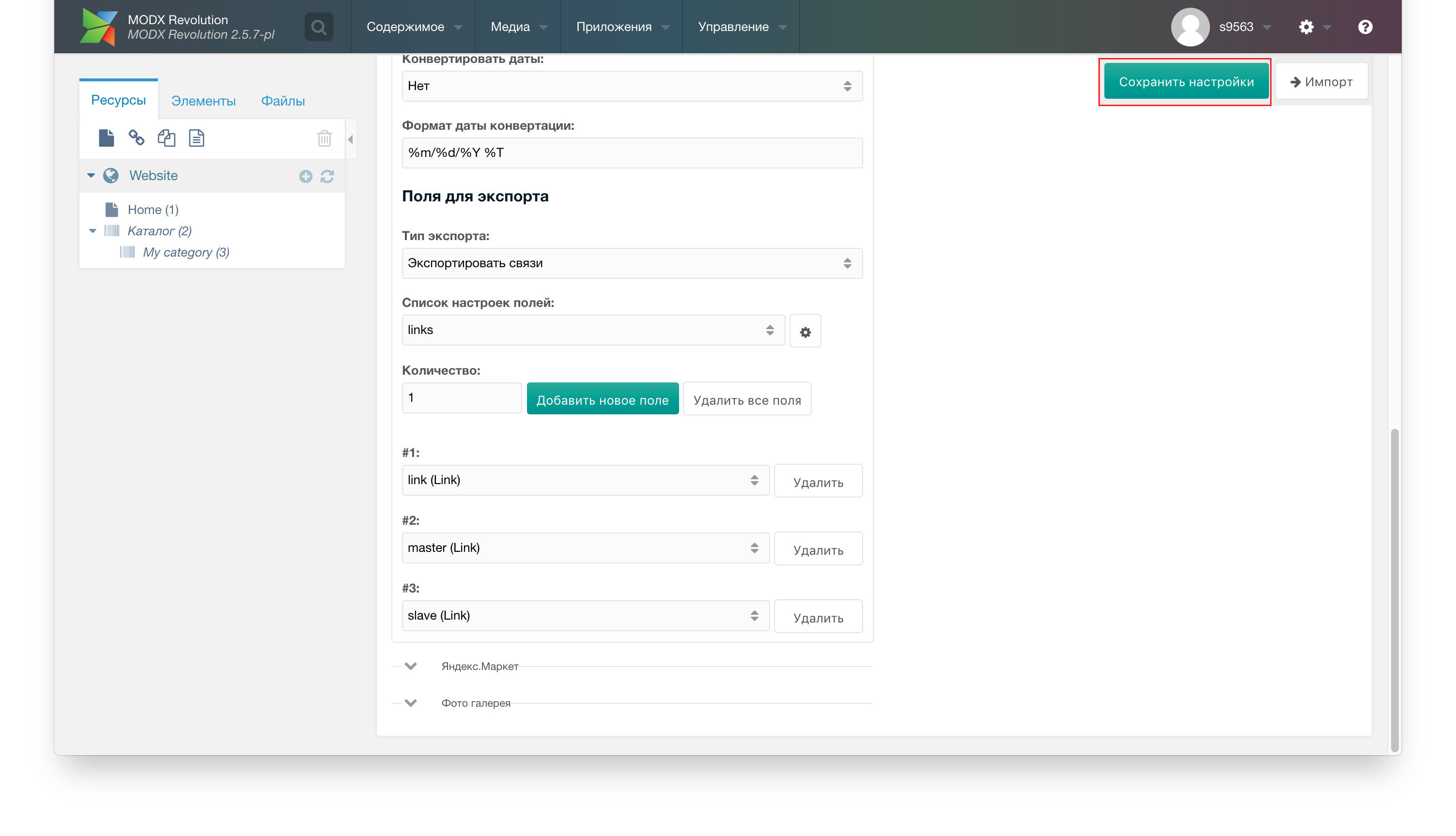
After creating field settings, proceed to export by selecting values from lists.
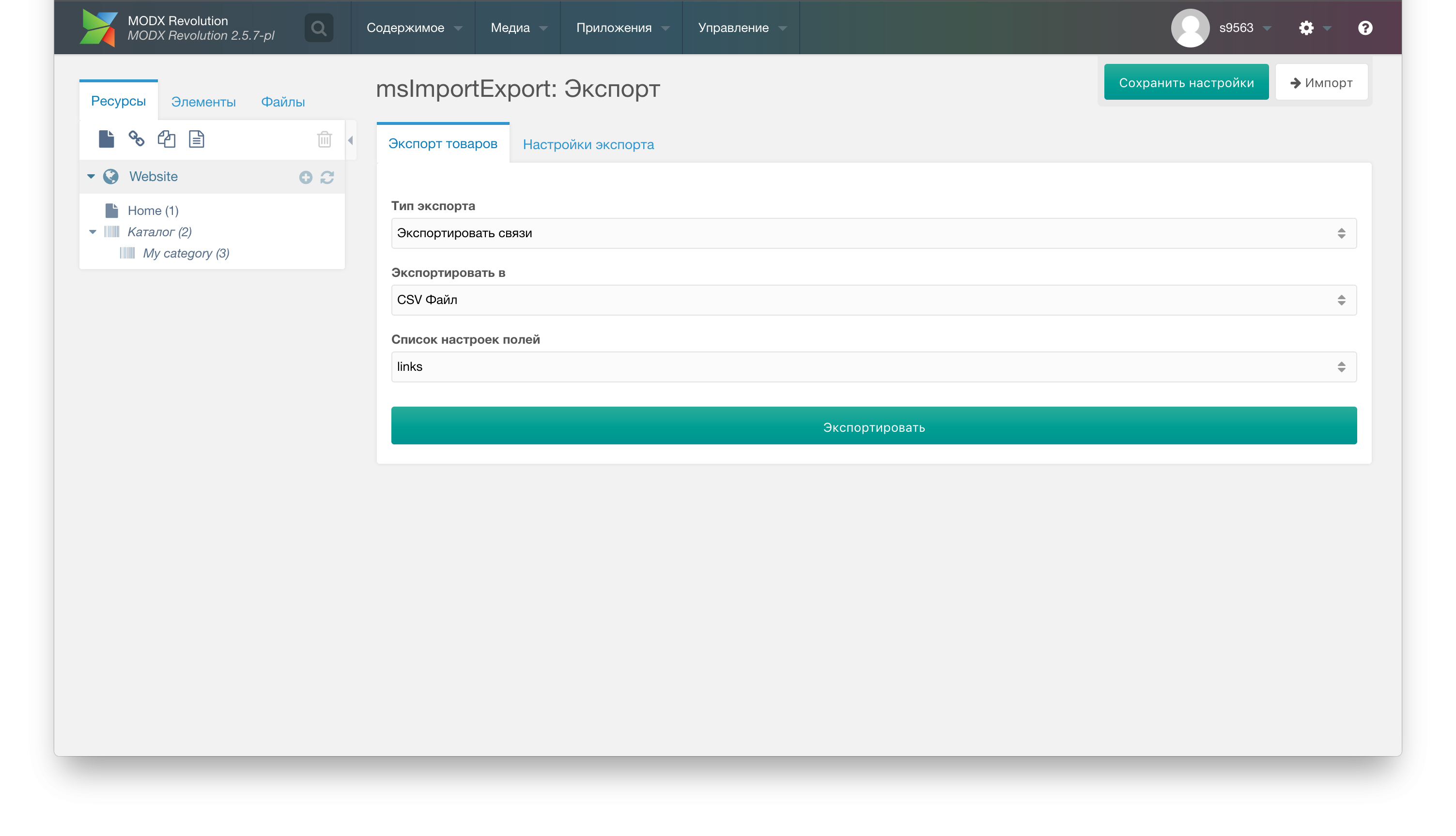
For exporting modifications (msOptionsPrice2) to Yandex.Market, add your field names (from additional options or plugin system) in export settings to list "Product characteristic fields".
Snippet MsieBtnDownloadPrice
MsieBtnDownloadPrice — snippet to output download button for price list on frontend.
Parameters:
- tpl — chunk for download button. Default msieBtnDownloadPriceTpl
- usergroup — user groups (comma-separated) to show download button to
- res — categories (comma-separated) for result search. Default: limited to current parent
- preset — ID of export field settings. If not set, export file will have: pagetitle, price, href
- to — file format csv|xlsx. Default xlsx
- filename — file name
- where — JSON-encoded string with additional query conditions
- element — Snippet name that returns product IDs (comma-separated) for price list. You can pass params:
&element=`mySnippet@myParams`.&returnIds=`1`is added automatically.
Example: products with price > 0
modx
[[MsieBtnDownloadPrice? &where=`{"Data.price:>":0}`]]Repeated download of same price list is blocked for 3 minutes. Change block time in component system settings: /manager/?a=system/settings

CRON Import
Go to import settings and find section "Cron"
Click "Add task"; in the opened window fill the fields (path to import file or http/https URL; task execution time as in classic cron)
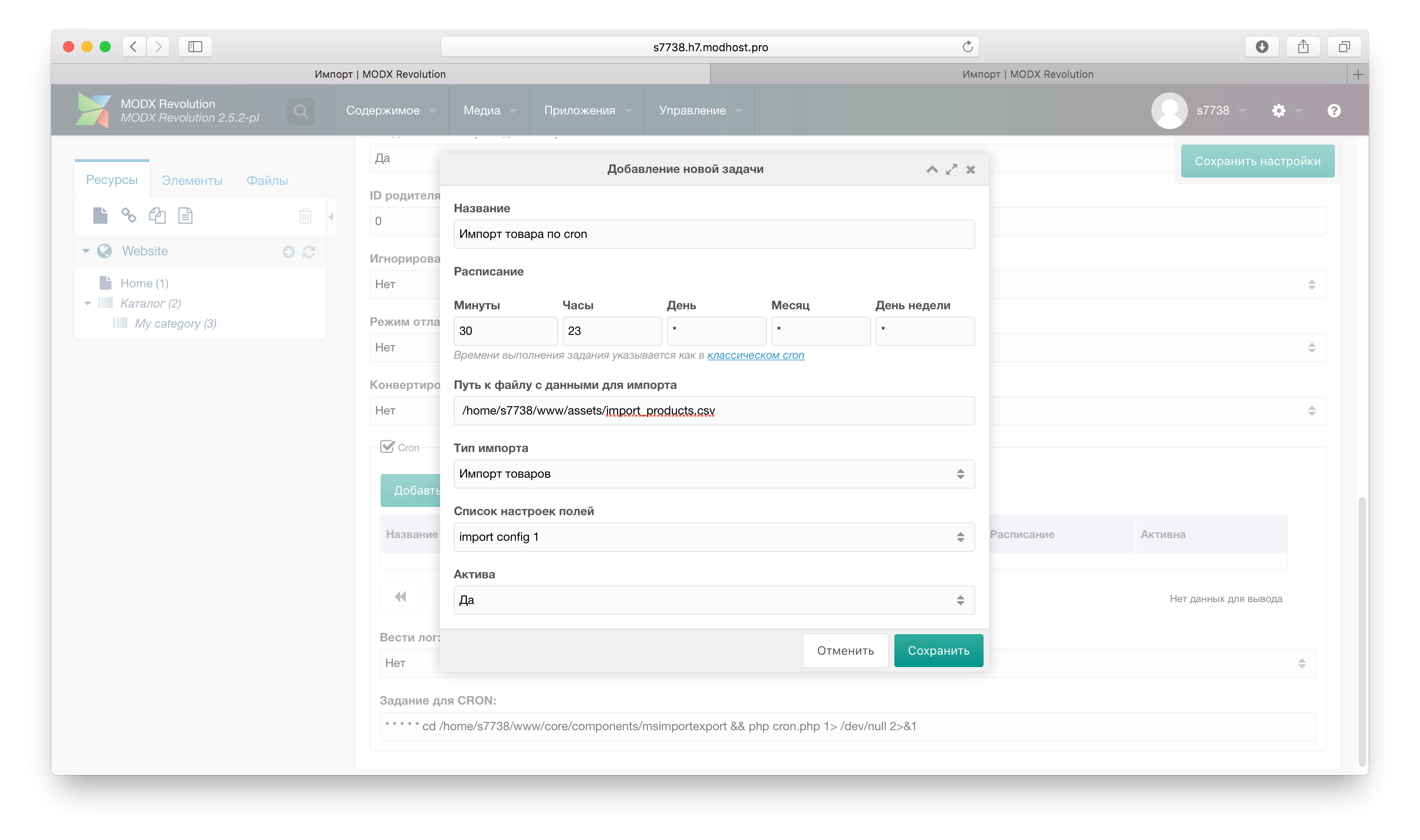
Click Save
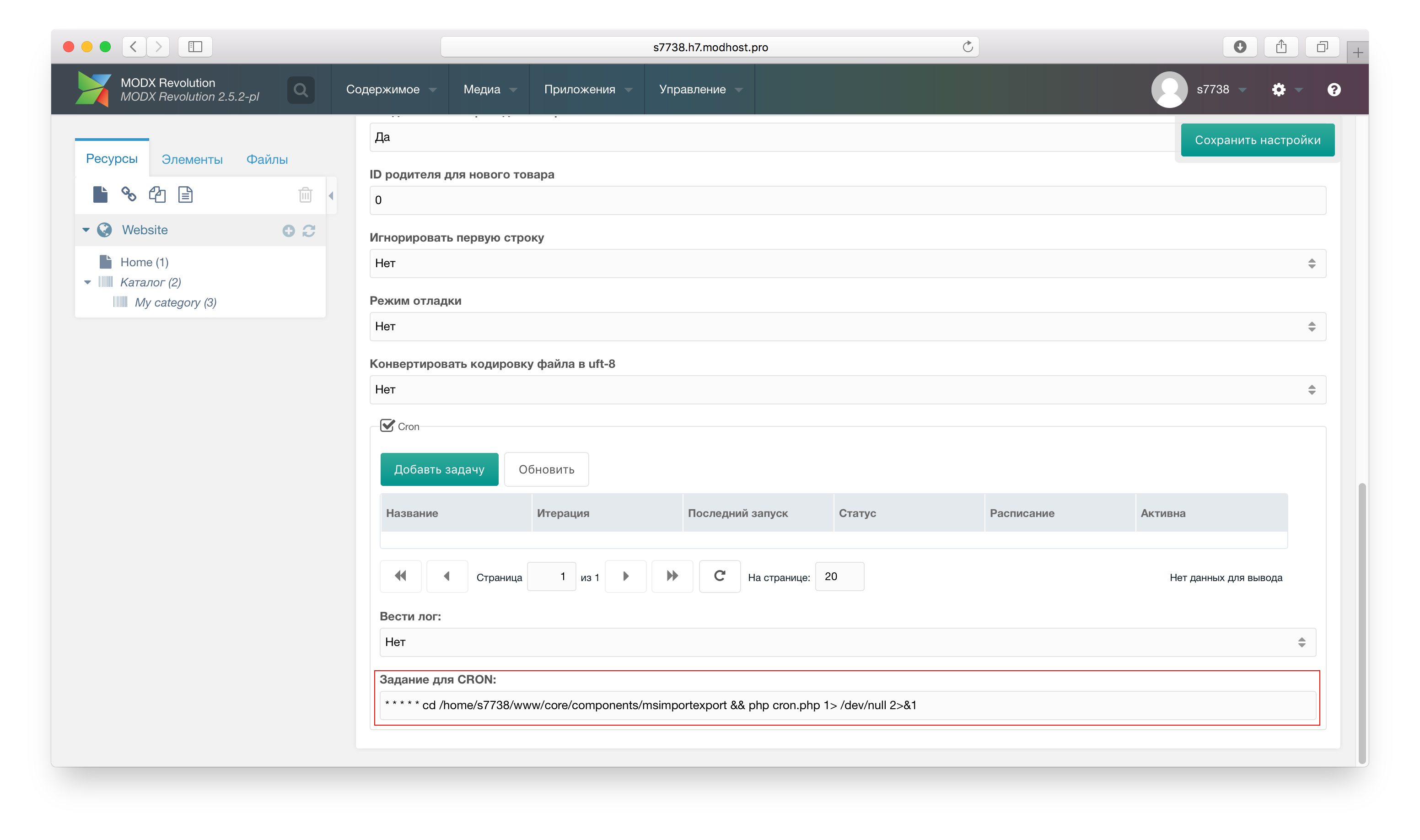
Add the URL from "CRON task" to cron on your server
Cron on beget.ru servers
On beget.ru creating "daemon" processes is forbidden, so for cron import to work you need additional settings:
- In modX system settings enable "Wait for background script completion" (key
msimportexport.cron_wait) - Remove the "&" symbol at the end of the cron script
console
...... /core/components/msimportexport/cron.php 1> /dev/null 2>&1 &CRON Export
To export via cron, call: /assets/components/msimportexport/export/export.php
Parameters:
- token — unique value from export settings, Cron section
- to — (csv|xlsx|xml) default csv
- type — (products|categories|links|options_price2|gallery) default products
- path — directory to save file; default assets/components/msimportexport/export
- preset — ID of export field settings
- filename — file name (without extension)
- categories — category IDs (comma-separated) to export products from; default from general export settings
- save — save to server at path or output to stream (1|0) default 0
Example URL for wget: /assets/components/msimportexport/export.php?token=5321a3450db953783b7076a7e72072bb&to=xlsx&type=products&preset=1&save=0.
Example console command:
sh
php /assets/components/msimportexport/export.php token=5321a3450db953783b7076a7e72072bb to=xlsx type=products preset=1 save=1MIGX
For MIGX field export, write a plugin (msieOnBeforeExport event) for correct JSON export.
Plugin example
php
<?php
/**
 * @var modX $modx
 * @var int $preset
 * @var string $section
 * @var array $fields
 * @var array $srcData
 * @var array $destData
 */
// Array of field setting IDs for which to use this plugin http://prntscr.com/kkwx4r
$presets = array(1,2);
if (!empty($presets) && !in_array($preset, $presets)) return;
switch ($modx->event->name) {
  case 'msieOnBeforeExport':
    if ($section == 'data') {
      $keys = array_flip($fields);
      $tvs = array('tv.my_migx_field','tv.my_migx_field2'); // TV fields to convert to string (prefix tv. required)
      foreach ($tvs as $tv) {
        if (!isset($keys[$tv]) || empty($srcData[$tv])) continue;
        $index = $keys[$tv];
        $destData[$index] = json_encode($srcData[$tv], JSON_UNESCAPED_UNICODE);
      }
      $modx->event->returnedValues['destData'] = $destData;
    }

  break;
}
MIGX import is similar to regular fields; difference: data must be JSON. To check format, export the field or find its value in the database.
Events
You can write plugins for these events:
msieOnStartImportProduct — before import start.
- file — path to import file
- msie — Msie instance with all methods
msieOnBeforePrepareImportProduct — before import data processing.
- data — import input data
- fields — array of import field names
- msie — Msie instance with all methods
msieOnEqualPageTitleImportProduct — when adding/updating product whose pagetitle already exists in same catalog (same parent). If unhandled, modX will error:
uri: Resource with identifier ID already uses URI.
alias: Resource with identifier ID already uses URI.

Please enter unique alias or use "Freeze URI" to manually replace it.- mode — (create|update)
- productId — ID of product with same pagetitle
- srcData — import input data
- destData — data prepared for import processor
- fields — array of import field names
- msie — Msie instance with all methods
This event is disabled by default (option "Check product name for duplicates") as it adds extra DB query; enable only if you may have duplicate pagetitles in same parent.
Example handler:
php
<?php
/** @var modX $modx */
switch ($modx->event->name) {
  case 'msieOnEqualPageTitleImportProduct':
    $postfixAliasFieldName = 'article';
    $destData = $modx->event->params['destData'];
    $postfixAlias = isset($destData[$postfixAliasFieldName]) ? $destData[$postfixAliasFieldName] : '';

    if ($postfixAlias && $destData['pagetitle']) {
      $res = $modx->newObject('modResource');
      $alias = $res->cleanAlias($destData['pagetitle']);
      $delimiter = $modx->getOption('friendly_alias_word_delimiter', null, '-');
      $destData['alias'] = $alias . $delimiter . $postfixAlias;
      $modx->event->returnedValues['skip'] = false; // do not skip import as unique alias was created
      $modx->event->returnedValues['destData'] = $destData;
    }

    break;
}
msieOnBeforeImportProduct — before product import.
- mode — (create|update)
- srcData — import input data
- destData — data prepared for import processor
- fields — array of import field names
- msie — Msie instance with all methods
msieOnAfterImportProduct — after product import.
- mode — (create|update)
- srcData — import input data
- destData — data prepared for import
- data — product data
- fields — array of import field names
- msie — Msie instance with all methods
msieOnCompleteImportProduct — after import of all products.
- data — comma-separated IDs of imported/updated products
- msie — Msie instance with all methods
Example: unpublish products not in import file:
php
<?php
/** @var modX $modx */
switch ($modx->event->name) {
  case 'msieOnCompleteImportProduct':
    // Array of field setting IDs for this plugin http://prntscr.com/kkwx4r
    $presets = array();
    if (!in_array($preset, $presets)) return;
    if (!$ids = $modx->event->params['data']) return;
    $sql = "UPDATE {$modx->getTableName('msProduct')} SET published = 0 WHERE class_key = 'msProduct' AND id NOT IN ({$ids});";
    // $sql = "UPDATE {$modx->getTableName('msProductData')} SET my_custom_field = 0 WHERE id NOT IN ({$ids});";
    $modx->exec($sql);

    break;
}
msieOnStartUpdateProduct — before product update start.
- fields — array of field names
- preset — field settings ID
- msie — Msie instance with all methods
msieOnBeforePrepareUpdateProduct — before update data processing.
- data — input data
- fields — array of field names
- msie — Msie instance with all methods
msieOnBeforeUpdateProduct — before product update.
- data — data prepared for update
- fields — array of field names
- msie — Msie instance with all methods
Set skip=true to skip product update.
Example:
php
<?php
/** @var modX $modx */
switch ($modx->event->name) {
  case 'msieOnBeforeUpdateProduct':
    $modx->event->returnedValues['skip'] = true; // skip product update
  break;
}
msieOnCompleteUpdateProduct — after update of all products.
- msie — Msie instance with all methods
msieOnStartImportOptionsPrice2 — before import of all modifications.
- file — path to import file
- preset — field settings ID
- msie — Msie instance with all methods
msieOnBeforeImportOptionsPrice2 — before modification import.
- productId — product ID
- msie — Msie instance with all methods
msieOnAfterImportOptionsPrice2 — after modification import.
- data — modification data
- productId — product ID
- msie — Msie instance with all methods
msieOnCompleteImportOptionsPrice2 — after import of all modifications.
- msie — Msie instance with all methods
msieOnCompleteImportGallery — after import to photo gallery.
- msie — Msie instance with all methods
msieOnCompleteImportLinks — after import of links.
- msie — Msie instance with all methods
msieOnBeforeExportQuery — before SQL data selection query:
- type — (products|categories|links|options_price2)
- preset — field settings ID
- data — array of SQL query parameters
- fields — array of field names
- msie — Msie instance with all methods
Example — add condition: product price > 100, preset 3 or 5:
php
<?php
/** @var modX $modx */
$presets = array(3,5); // Field setting IDs for this plugin http://prntscr.com/kkwx4r
if (!empty($presets) && !in_array($preset, $presets)) return;
switch ($modx->event->name) {
  case 'msieOnBeforeExportQuery':
    $where = $modx->fromJSON($modx->getOption('where', $data, '[]', true));
    $where['Data.price:>'] = 100;
    $data['where'] = $modx->toJSON($where);
    $modx->event->returnedValues['data'] = $data;

    break;
}
msieOnCompleteExport — after export complete.
- to — (csv|xlsx|xml)
- type — (products|categories|links|options_price2)
- file — file path
- msie — Msie instance with all methods
msieOnBeforeExport — before export of each element.
- type — (products|categories|links|options_price2)
- srcData — input data
- destData — prepared data
- fields — array of field names
- msie — Msie instance with all methods
Example — modify price for new product before creation:
php
<?php
/** @var modX $modx */
switch ($modx->event->name) {
  case 'msieOnBeforeImportProduct':
    if ($mode == 'create') {
      $modx->event->params['destData']['price'] = $modx->event->params['destData']['price'] + 100;
      $modx->event->returnedValues['destData'] = $modx->event->params['destData'];
    }
    break;
}
Import large files
If your import files are large, you may need to configure the server:
Edit php.ini: increase upload_max_filesize and post_max_size
Increase timeout for Apache or Nginx
a) Nginx and PHP-FPM (Nginx will wait 300 seconds)
nginxhttp { ... fastcgi_connect_timeout 300s; fastcgi_send_timeout 300s; fastcgi_read_timeout 300s; ... }b) Nginx as proxy (Nginx + Apache)
nginxserver { ... proxy_connect_timeout 300s; proxy_send_timeout 300s; proxy_read_timeout 300s; send_timeout 300s; ... }Restart Nginx after config changes:
nginx -s reloadMySQL my.cnf: increase max_allowed_packet and wait_timeout. Restart MySQL after changes.