



Cart
Call parameters, placeholders and the data structure live in the snippet reference: msCart.
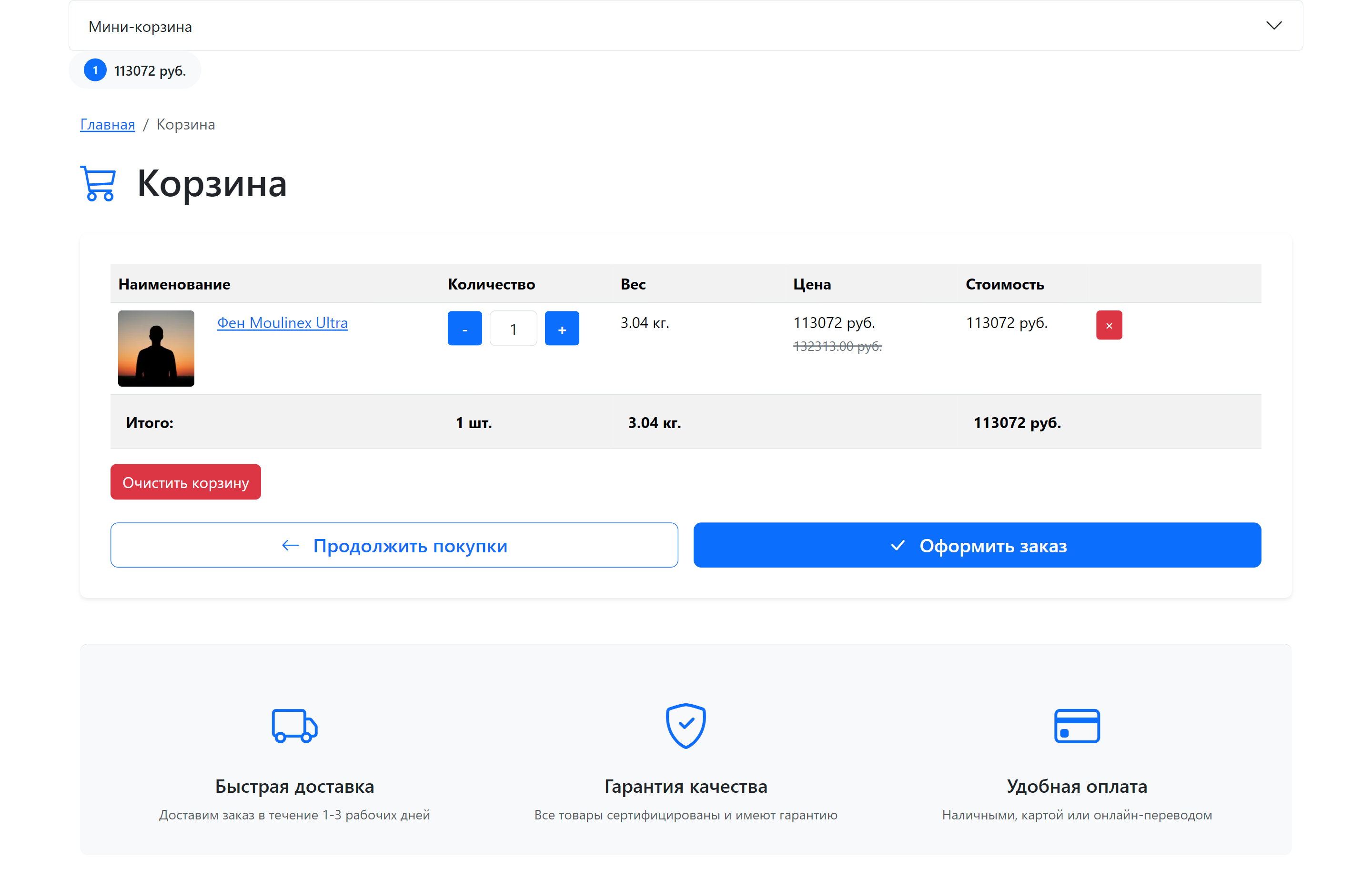
Built-in chunks
tpl.msCart — full cart
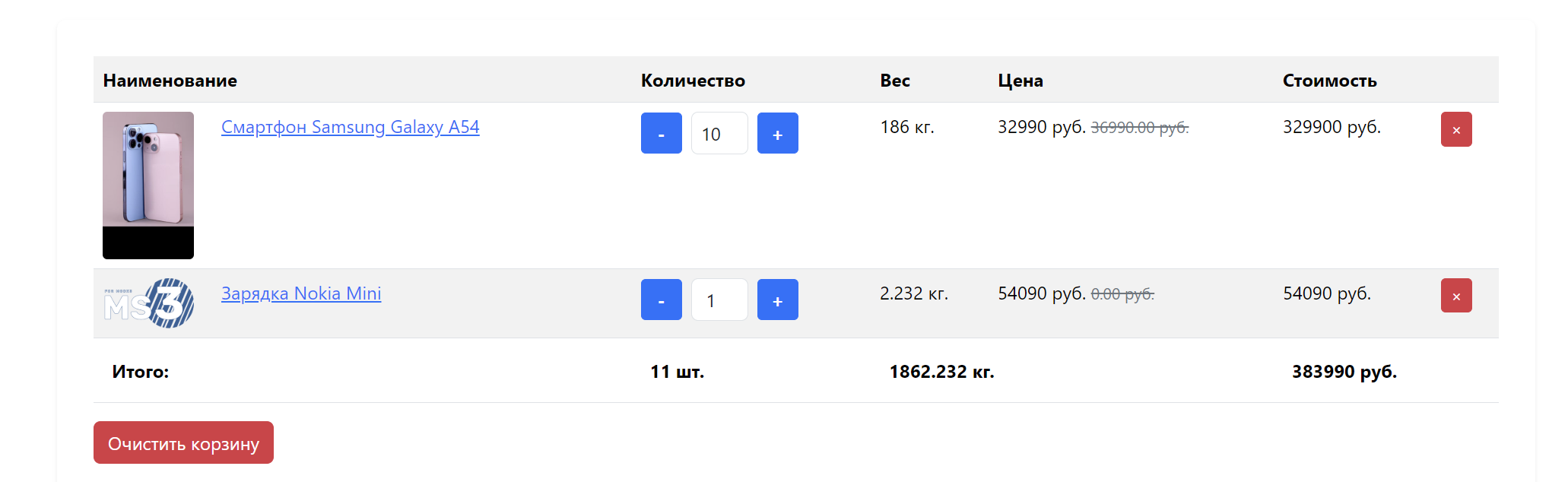
Tabular output: image, name with a link, option selection, «+» and «−» buttons, line removal, totals row.
fenom
{'!msCart' | snippet : [
    'tpl' => 'tpl.msCart',
    'includeThumbs' => 'small'
]}
tpl.msMiniCart — compact cart
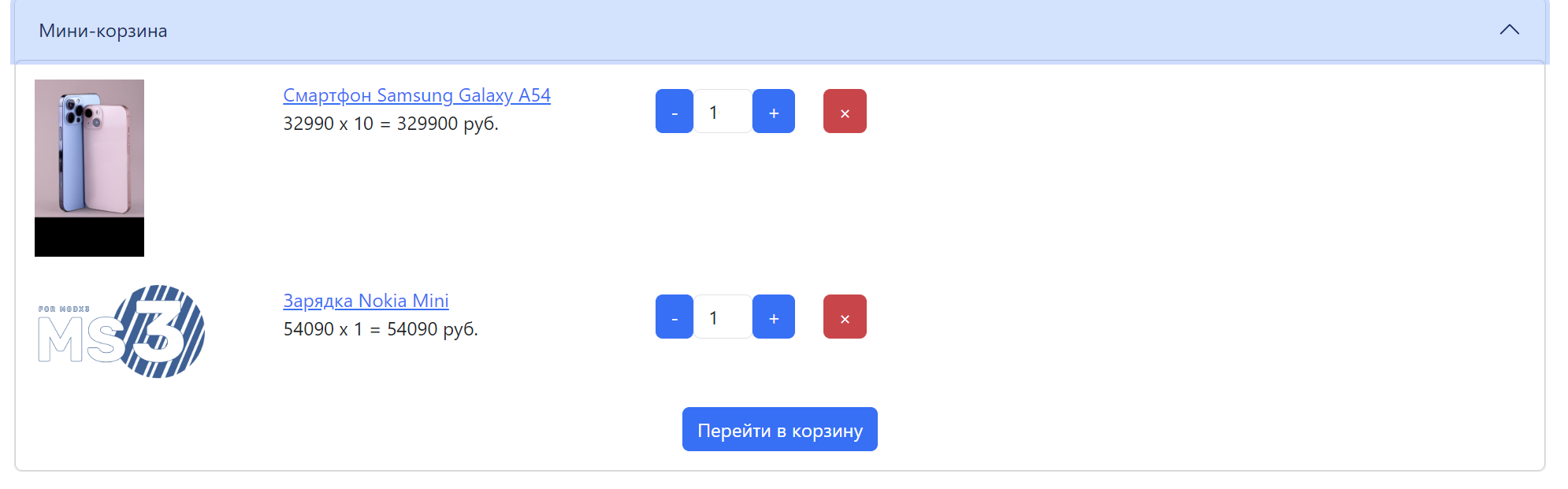
A compact product list and a button to the cart page — for the site header or a sidebar.
fenom
{'!msCart' | snippet : [
    'tpl' => 'tpl.msMiniCart',
    'includeThumbs' => 'small'
]}
Your own markup
Copy a default chunk under another name and pass it in the tpl parameter. Default chunks use Bootstrap 5, but the markup can be adapted to any CSS framework.
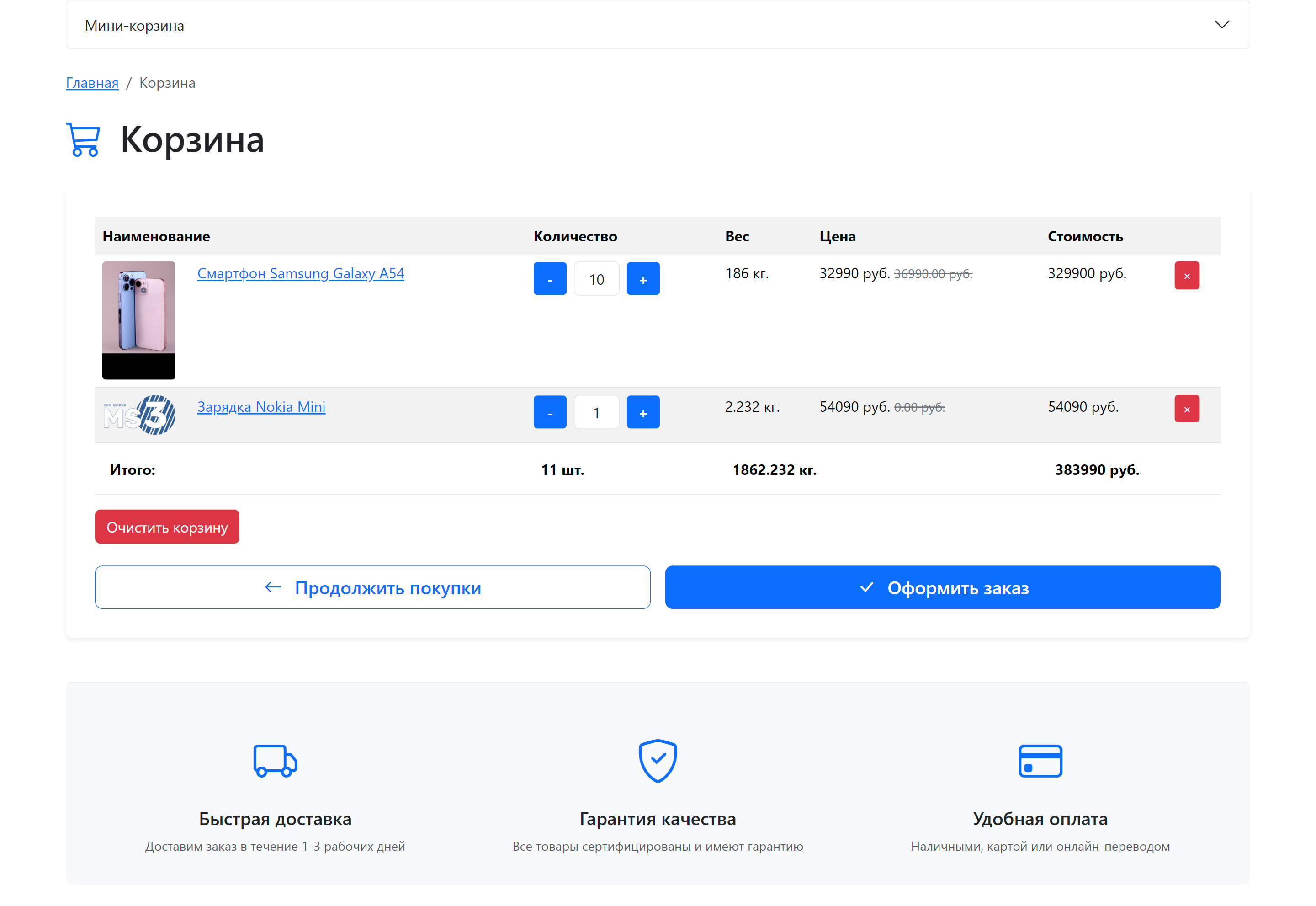
Demo cart page template
core/components/minishop3/elements/templates/cart.tplThe template shows the recommended page structure:
- an
msCartcall with theselectorparameter — for auto-update; - «Continue shopping» and «Checkout» buttons — JavaScript hides them when the cart is empty;
- breadcrumbs, a heading with the description from
introtext, a benefits block, styles and responsiveness.
Usage
- Create a template in MODX (Elements → Templates).
- Copy the contents of
cart.tplinto it, or point to the file path. - Assign the template to the cart page.
Inheritance
The demo template uses Fenom inheritance ({extends 'file:templates/base.tpl'}). Make sure the base template exists, or replace it with your own structure.
Configuration
| Key | What it sets |
|---|---|
System setting ms3_order_page_id | ID of the checkout page — the target of the «Checkout» button |
Lexicon ms3_frontend_continue_shopping | «Continue shopping» button text |
Lexicon ms3_frontend_checkout | «Checkout» button text |
Forms and actions
The script intercepts the submit of a form marked with the ms3_form class or the data-ms3-form attribute and reads the hidden ms3_action field from it. Either mark is enough; the default chunks set both at once. A button with attributes instead of a form does nothing.
Allowed values of ms3_action:
| Value | What it does | Required fields |
|---|---|---|
cart/add | Add a product | id, count |
cart/change | Change quantity | product_key, count |
cart/changeOption | Change an option on a line | product_key, options[...] |
cart/remove | Remove a line | product_key |
cart/clean | Empty the cart | — |
A line is addressed by product_key, not by product ID: the same product with different options gets different keys.
The ms3_action value and the Web API path are spelled differently
cart/changeOption is the form field value read by JavaScript. POST /api/v1/cart/change-option is the same action's address in the Web API. These are two names for one action, not a typo: camelCase in the form, hyphenated in the path.
fenom
{* Add a product *}
<form method="post" class="ms3_form">
    <input type="hidden" name="id" value="{$id}">
    <input type="hidden" name="count" value="1">
    <input type="hidden" name="ms3_action" value="cart/add">
    <button type="submit">Add to cart</button>
</form>

{* Change quantity *}
<form method="post" class="ms3_form">
    <input type="hidden" name="product_key" value="{$product.product_key}">
    <input type="hidden" name="ms3_action" value="cart/change">
    <input type="number" name="count" value="{$product.count}" min="0">
    <button type="submit">Update</button>
</form>

{* Change an option: one options[...] field per option *}
<form method="post" class="ms3_form">
    <input type="hidden" name="product_key" value="{$product.product_key}">
    <input type="hidden" name="ms3_action" value="cart/changeOption">
    <select name="options[size]">
        <option value="M">M</option>
        <option value="L">L</option>
    </select>
</form>
Removing a line and emptying the cart work the same way: a form with the same class, the right ms3_action value and the fields from the table.
A quantity of zero removes the line
The quantity form uses min="0": submitting zero takes the product out of the cart. Set min="1" if you do not want that.
Changing options
If a line has options (size, colour), changing the combination goes through POST /api/v1/cart/change-option. The body takes product_key and options; without product_key the response is 400.
On the server CartMutationHandler recalculates the line key and fires two events: msOnBeforeChangeOptionsInCart before the change and msOnChangeOptionInCart after it.
The event names differ by more than the prefix
The first one has «Options» in the plural, the second «Option» in the singular. A plugin attached to a name that does not exist simply never fires.
From JavaScript — ms3.cartAPI.changeOption(productKey, options).
Product fields in markup
The full list is in the reference: msCart placeholders.
Line options
Selected options arrive in two shapes. As an array:
fenom
{if $product.options?}
    {foreach $product.options as $name => $value}
        <span>{$name}: {$value}</span>
    {/foreach}
{/if}
And as separate fields prefixed with option_:
fenom
{if $product.option_size?}
    <span>Size: {$product.option_size}</span>
{/if}
Fields with a dot in the name
Vendor fields arrive as flat keys vendor.name, vendor.logo — not as a nested array. Reach them with square brackets:
fenom
{if $product['vendor.name']?}
    <p>Vendor: {$product['vendor.name']}</p>
{/if}
Dot notation does not work here
Fenom reads {$product.vendor.name} as a lookup into a nested vendor array, which does not exist — and prints nothing, without an error.
Thumbnails
The field name matches the size name passed to includeThumbs. With 'includeThumbs' => 'small,medium' the chunk gets {$product.small} and {$product.medium}.
fenom
{if $product.small?}
    <img src="{$product.small}" alt="{$product.pagetitle}">
{/if}
The thumb field is something else
{$product.thumb} is always there: it is a product column, not a result of includeThumbs. Asking for includeThumbs => 'small' and then reading thumb gives you something other than what you requested.
Multiple carts on a page
A page may hold any number of carts, each with its own chunk. The selector parameter ties a call to a markup block: it is the CSS selector of the wrapper whose contents are re-rendered after every cart operation.
fenom
{* Mini-cart in the site header *}
<div id="header-mini-cart">
    {'!msCart' | snippet : [
        'tpl' => 'tpl.msMiniCart',
        'selector' => '#header-mini-cart',
        'includeThumbs' => 'small'
    ]}
</div>

{* Main cart on the page *}
<div id="main-cart">
    {'!msCart' | snippet : [
        'tpl' => 'tpl.msCart',
        'selector' => '#main-cart',
        'includeThumbs' => 'medium'
    ]}
</div>
How it works
A call with selector registers a «token → selector» pair in JavaScript. After the customer acts, the server re-renders HTML for each registered token and returns it to the client, where the script puts the result into the matching element.
Without selector two carts stop updating
When selector is not set, the script looks for a target block through a fallback list: #ms3oc-cart-live, #msb-test-cart, #msCart, [data-ms-cart], .msCart. The result is written only when exactly one element matched. Two carts mean two matches, and neither updates: nothing is reported, the HTML arrives from the server and goes nowhere.
Set selector on every call when the page holds more than one cart. The «+» and «−» buttons do not re-render the cart without selector at all, even when the block is the only one.
Cart scripts
| File | Purpose |
|---|---|
js/web/ms3.js | Main ms3 object, initialization of all modules |
js/web/core/CartAPI.js | API client for cart operations (add, remove, change, clean) |
js/web/ui/CartUI.js | Adding, removal, emptying, option changes, block re-rendering |
js/web/ui/QuantityUI.js | «+» and «−» buttons, the quantity input |
js/web/core/TokenManager.js | Cart authorization token management |
js/web/core/ApiClient.js | HTTP client for server requests |
The full module map is on the Frontend JavaScript page.
Loading scripts
Scripts are loaded by the MiniShop3 plugin on the OnLoadWebDocument event — that is, on every page of the site, not only where cart snippets are called.
The file set is defined by the ms3_frontend_assets system setting: a list of 18 paths, styles and scripts mixed together, order matters. Add your own files there when needed.
One of these files does not exist
There is no bundled ms3.min.js: a single compressed file is built only for the admin side. Frontend scripts load separately — ms3.js expects the others to be present already and will not work on its own.
The ms3:ready event
Fires after MiniShop3 initializes.
javascript
document.addEventListener('ms3:ready', function() {
    console.log('MiniShop3 is ready');
});
The ms3:cart:updated event
Fires after cart operations. detail carries cart, items, status and render.
javascript
document.addEventListener('ms3:cart:updated', function (e) {
    // detail may be missing — check before reading it
    const data = e.detail;
    if (!data) {
        return;
    }
    console.log('Cart updated:', data.cart, data.items, data.status);
});
The event also arrives without data
Cart re-rendering dispatches it with data, while clearing the order form dispatches it with no detail at all. A handler that reads fields straight away will throw in the second case. Check that detail is there.
The same place dispatches it when the cart did not change: clearing the order resets the draft fields, not the lines. If you count analytics on this event, account for the false trigger.
Programmatic control
ms3.cartUI — an action together with markup re-rendering:
javascript
// Add product
await ms3.cartUI.handleAdd(productId, count, options);

// Change quantity
await ms3.cartUI.handleChange(productKey, newCount);

// Remove product
await ms3.cartUI.handleRemove(productKey);

// Clear cart
await ms3.cartUI.handleClean();
The low-level ms3.cartAPI — a server request without markup update:
javascript
await ms3.cartAPI.add(productId, count, options);
await ms3.cartAPI.change(productKey, count);
await ms3.cartAPI.remove(productKey);
await ms3.cartAPI.clean();

// Get the cart contents
const cart = await ms3.cartAPI.get();