


HybridAuth
Authorization via social networks and other services

Getting API keys for Google
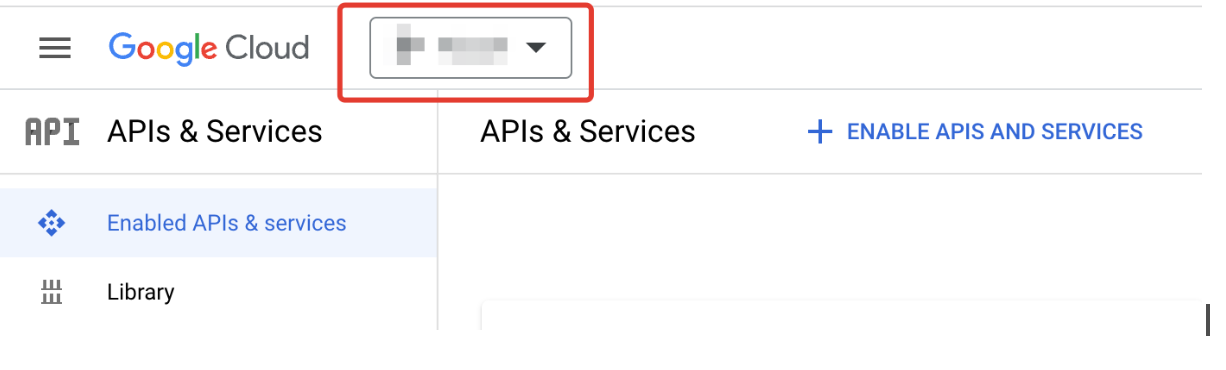
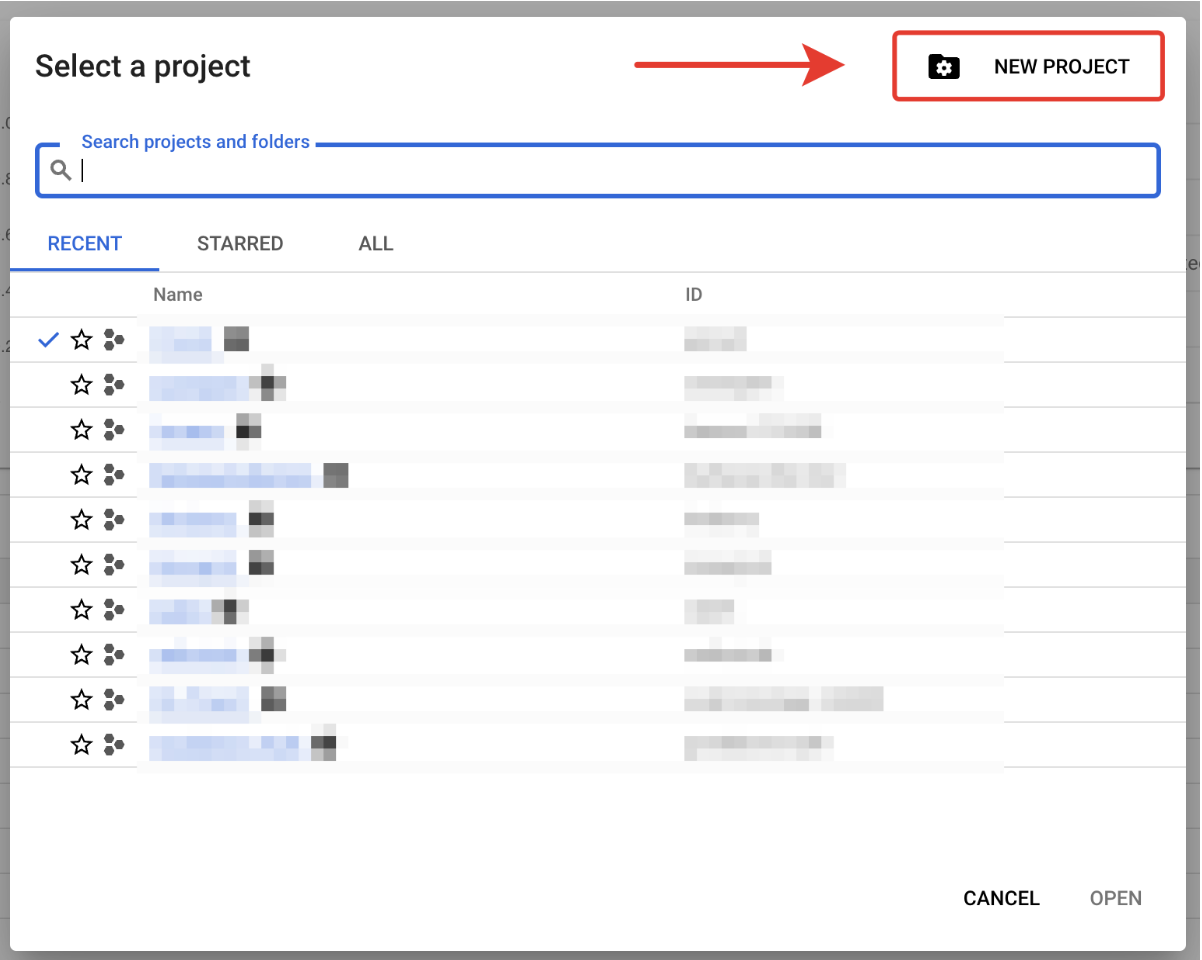
After creating the project, configure it:
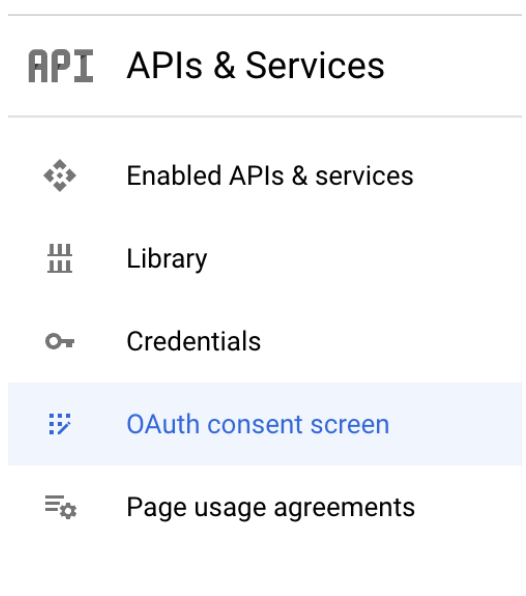
Select OAuth consent screen
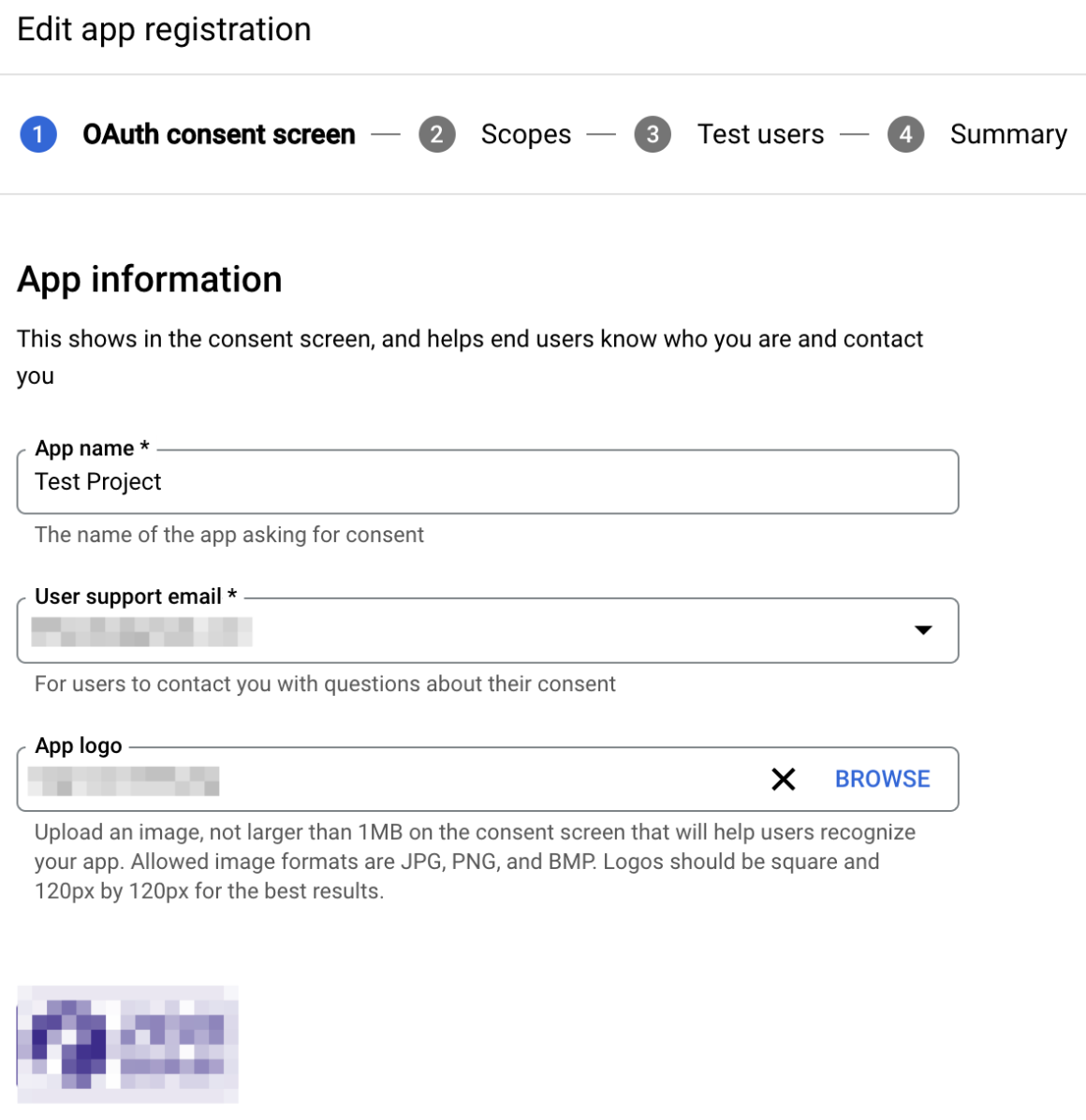
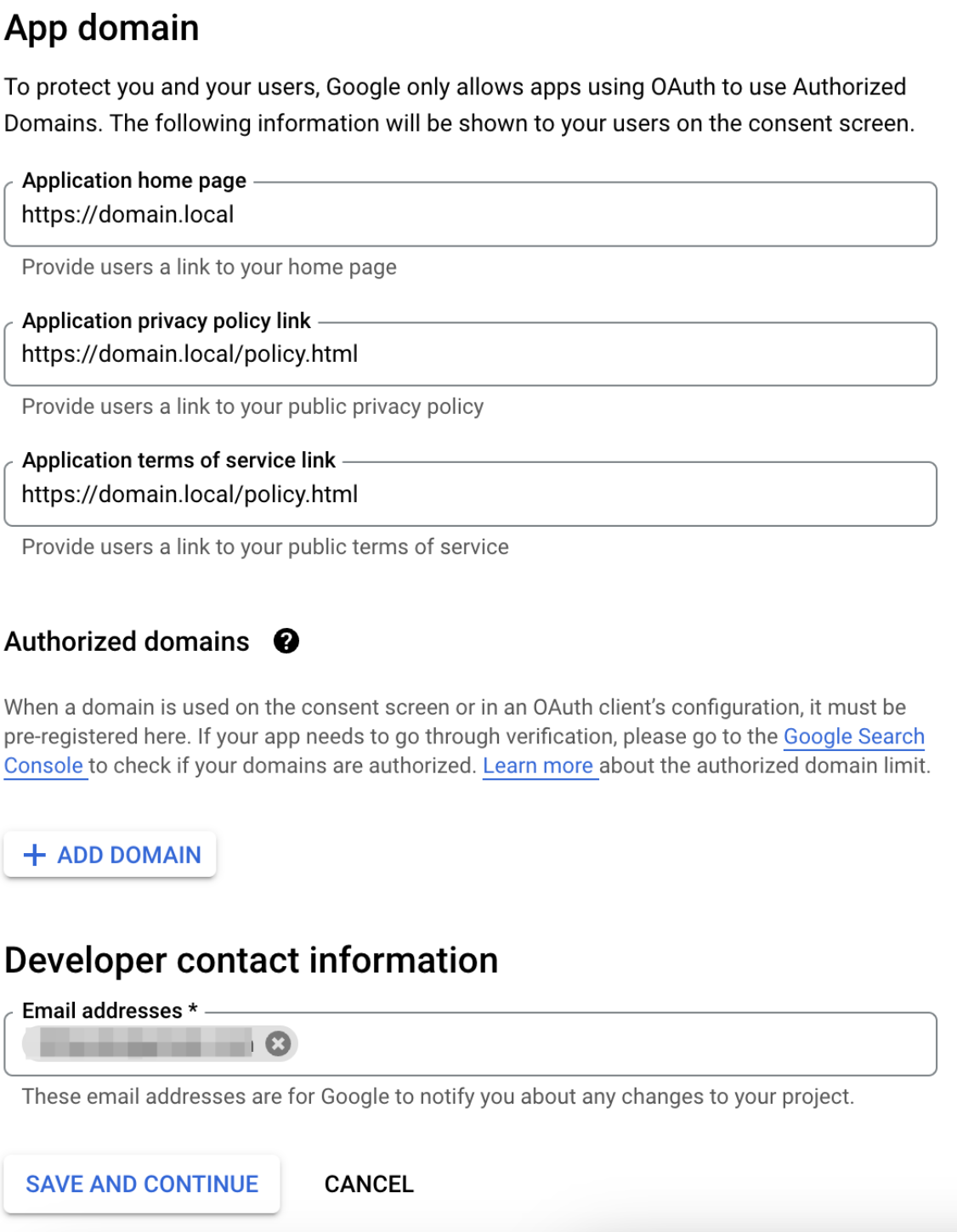
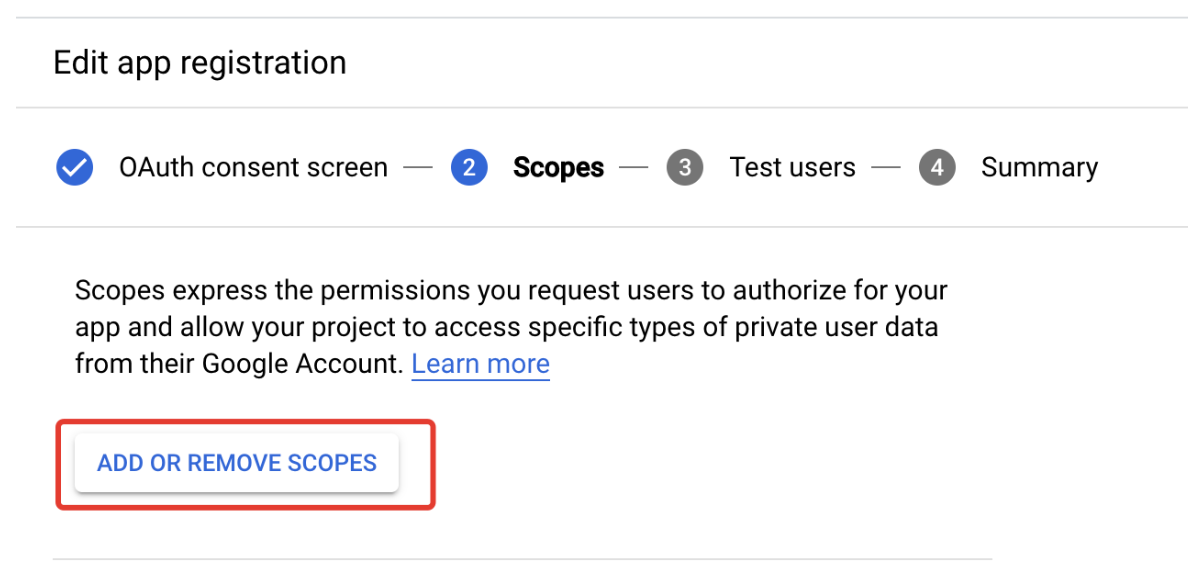
Complete the steps:
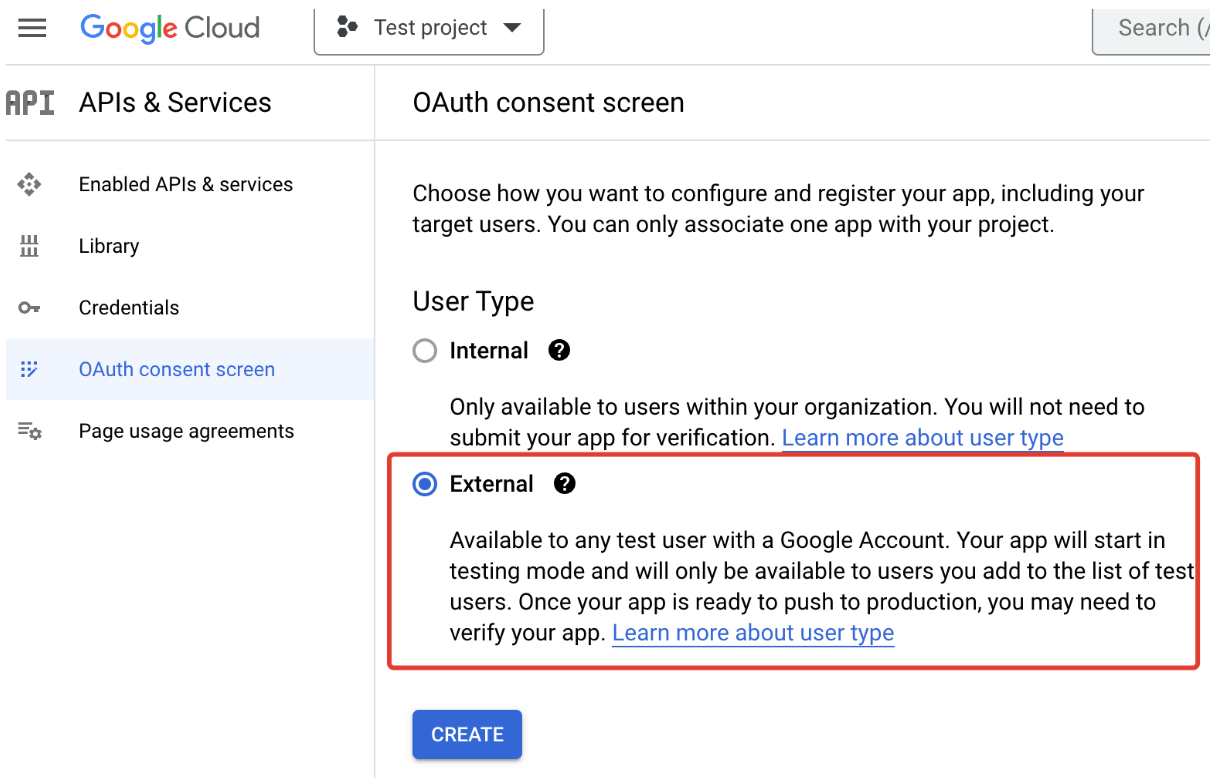
Important
The values you add must match the component's system settings. By default there are 2 scopes (enough for user name and email): "scope":"https://www.googleapis.com/auth/userinfo.profile https://www.googleapis.com/auth/userinfo.email"
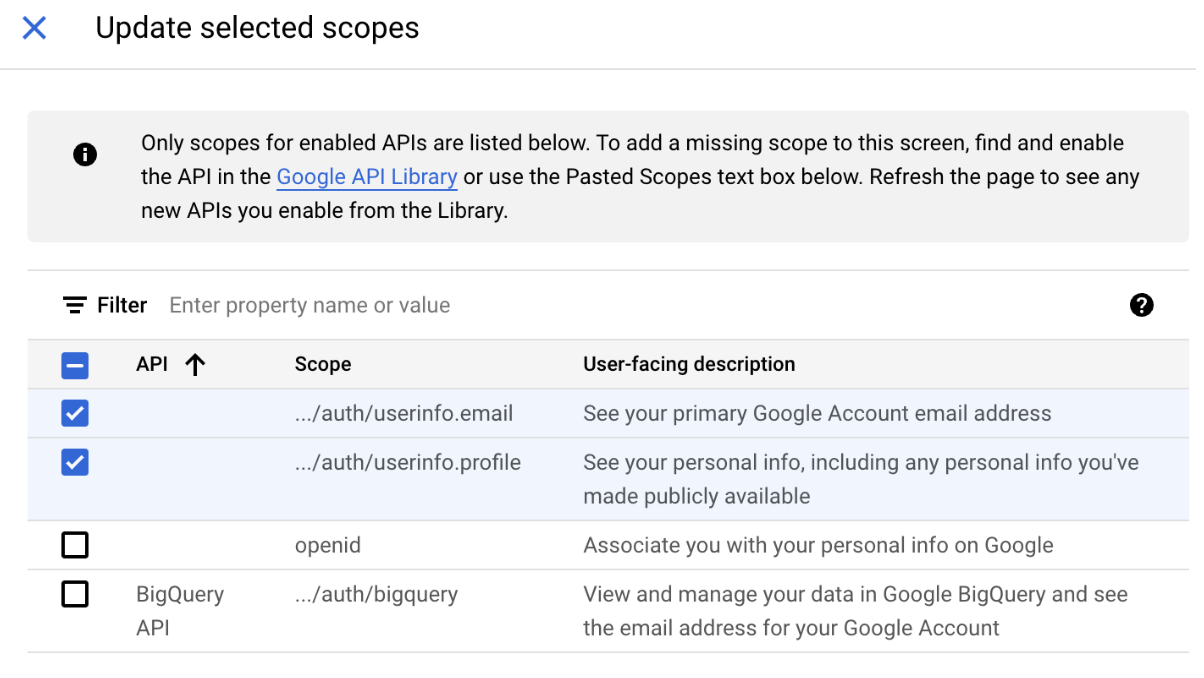
After selecting the scopes, they appear in the list.
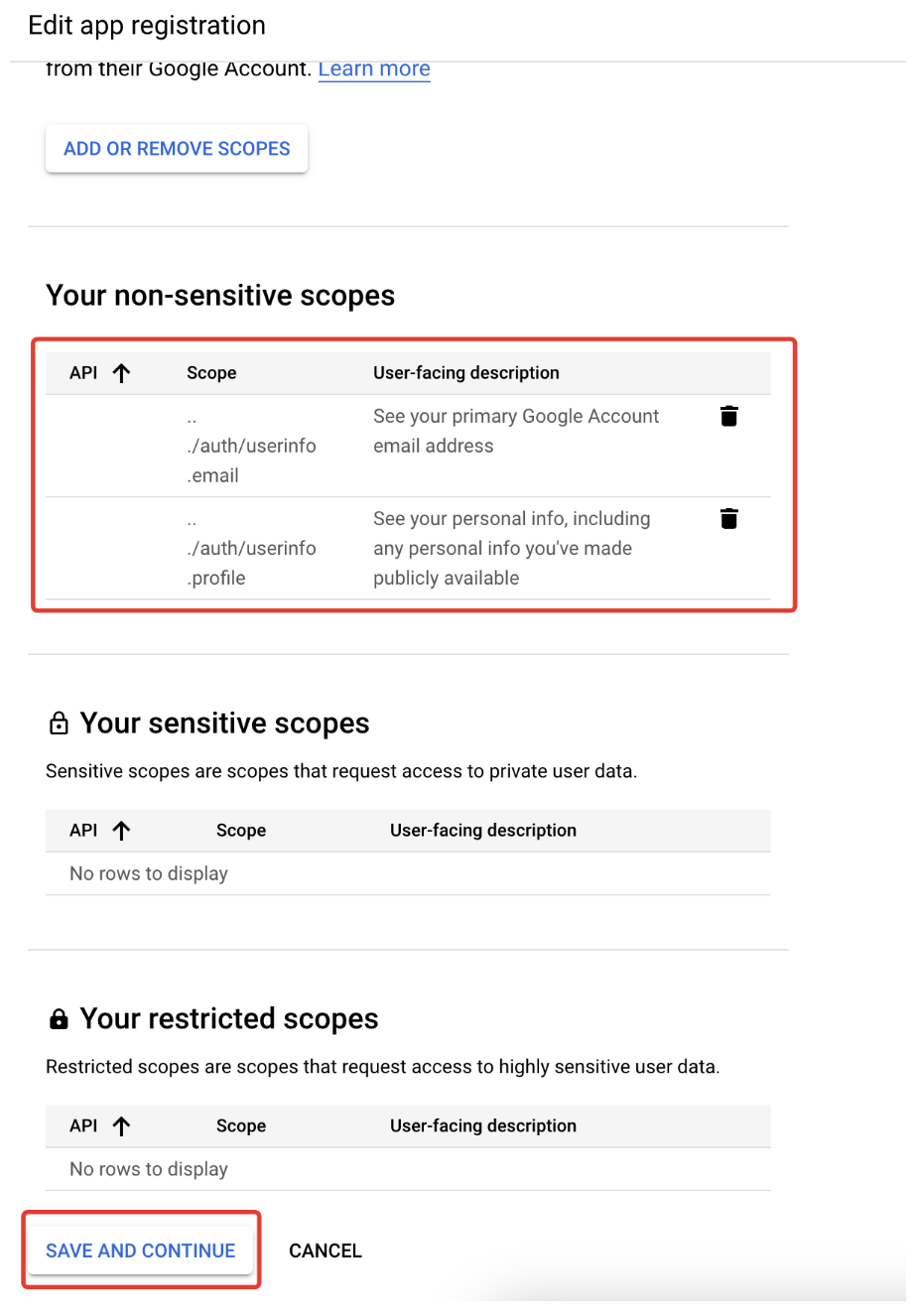
You can add several test users (email addresses) to test before verifying your project.

On the Summary step, review the data and finish this section.
Next, get the credentials:
Select Credentials → Create Credentials → OAuth client ID
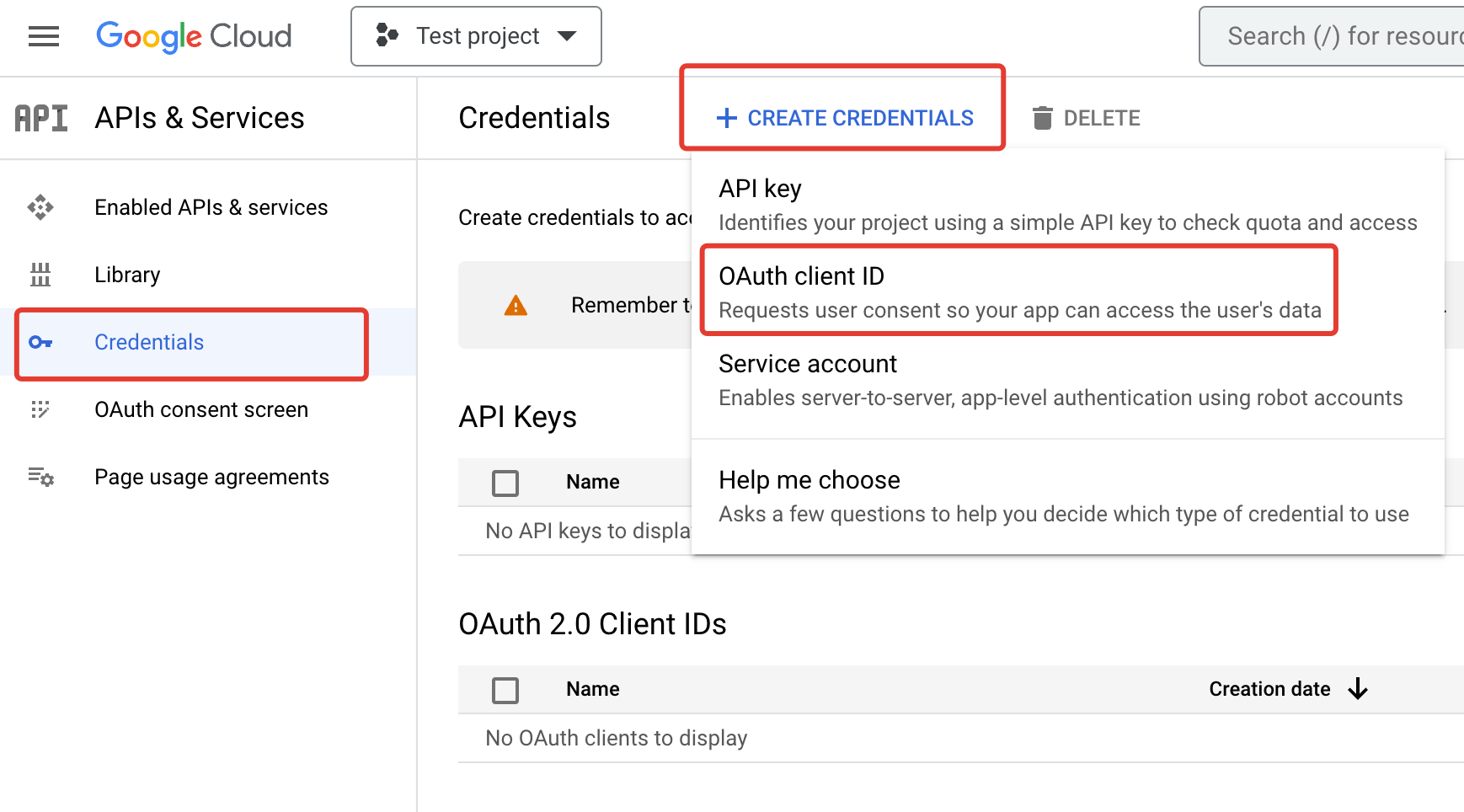
Choose Web application and set the redirect URL to https://domain.com/?hauth.done=Google

After clicking Create you get the client ID and secret.
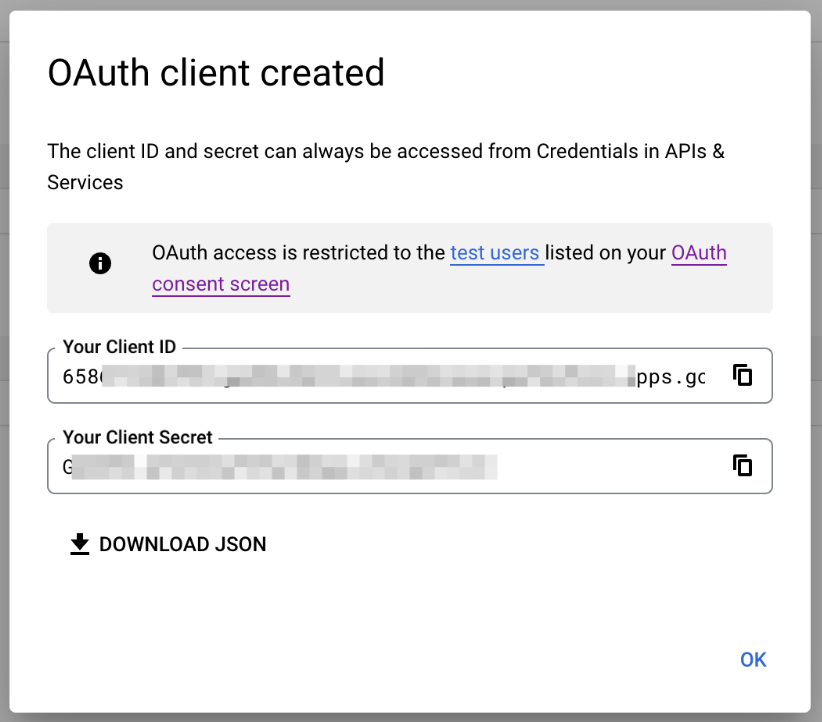
Enter these in your site's system settings.
Service-side setup is done at this point.
You can submit the app for verification and publish it (until then, only test users can sign in; others will see an "app not verified" warning).
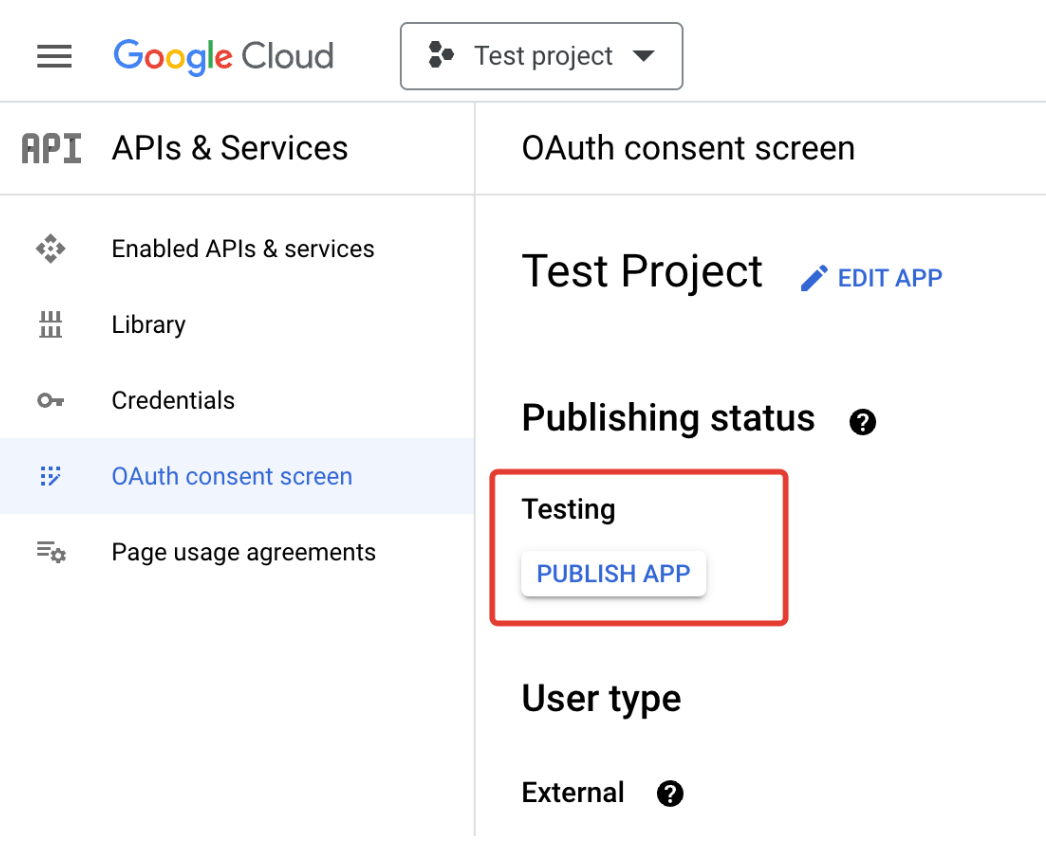
Important
To pass verification you must:
"By using Google services, you entrust us with your personal information. Google is used for sign-in. For more on Google's Privacy Policy and Terms of Service see here."