



List editing
Most fields have built-in handlers that open field editors so you don't need to run bulk actions.
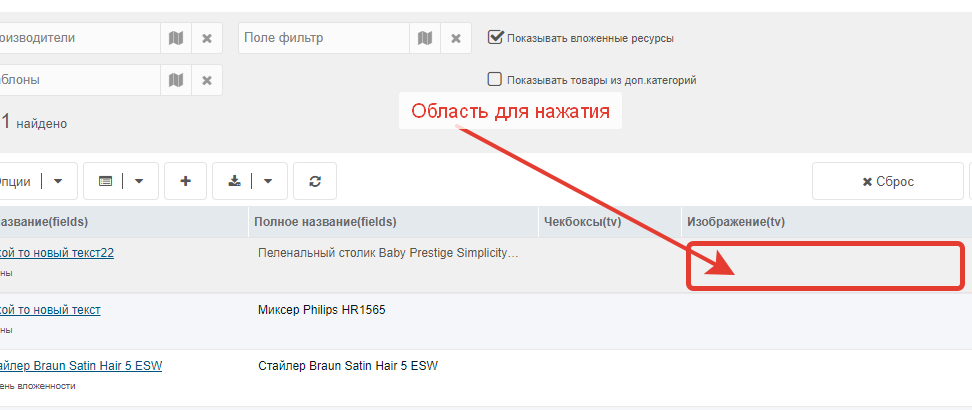
Click in the field area for the resource
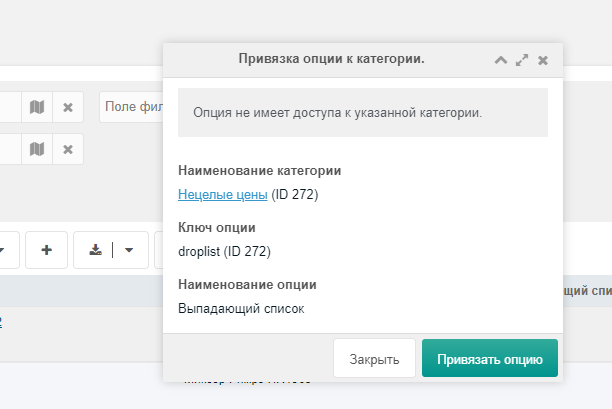
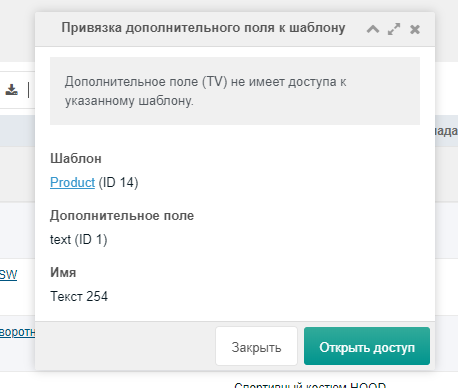
Category binding and template access
Some options and TV parameters may not be bound to a category or may not have template access. A special mechanism checks option or TV availability before opening the edit modal.
Binding option to product category
Granting TV parameter template access
Editing TV parameters
Images
To edit a TV with input type Image, double-click the field area for the resource.
A modal will open where you select the image
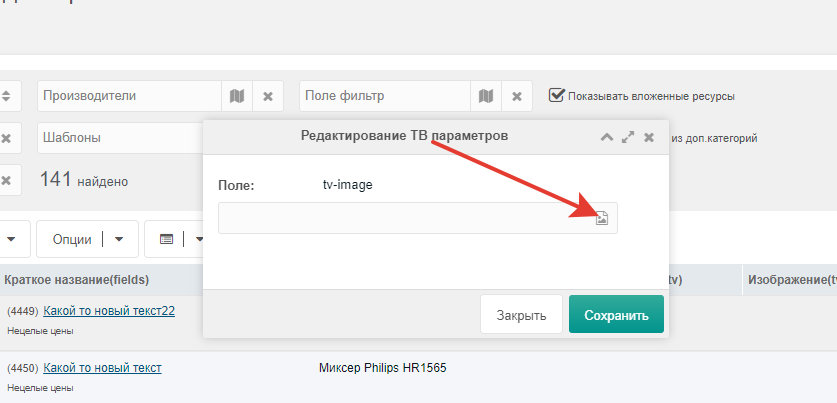
File manager opens
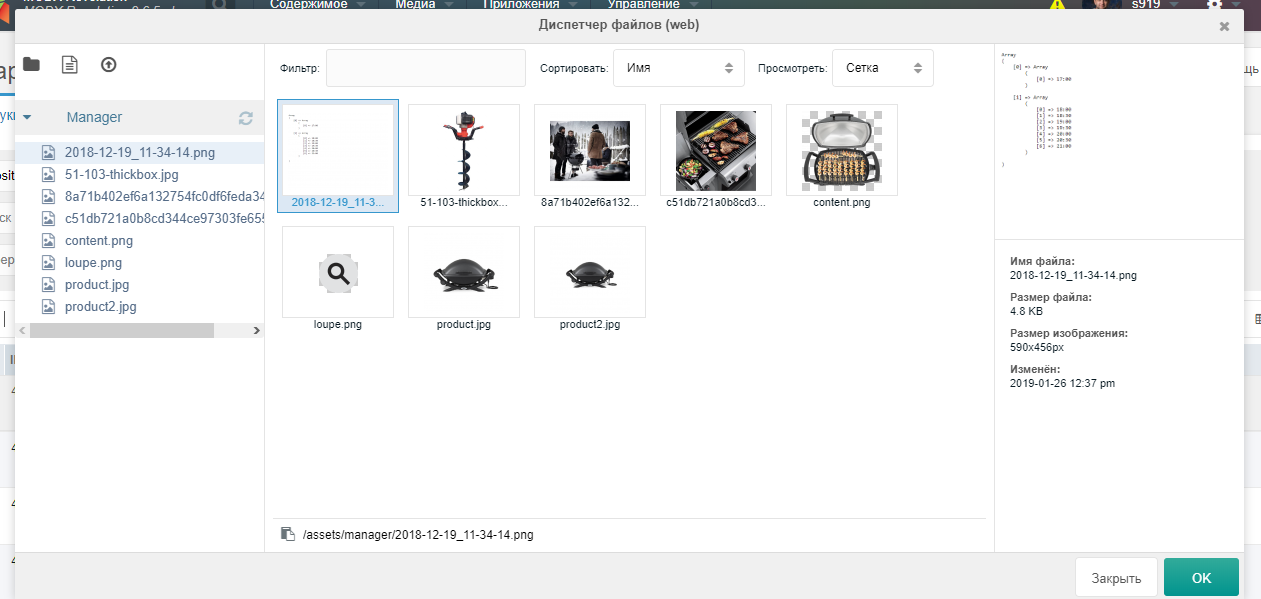
Select the image
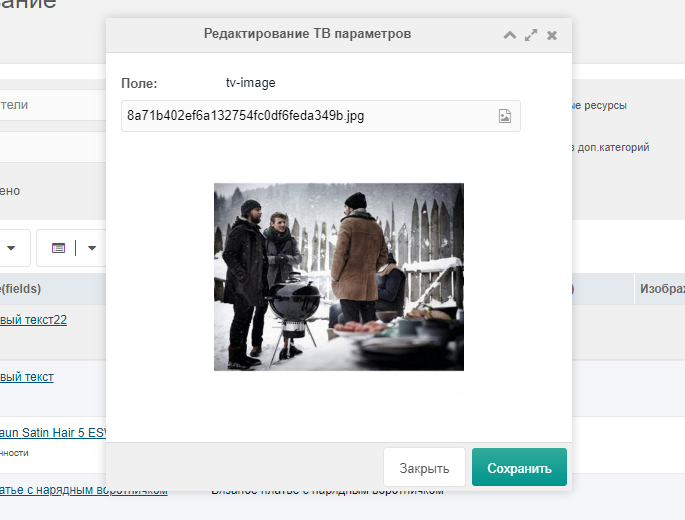
And click save
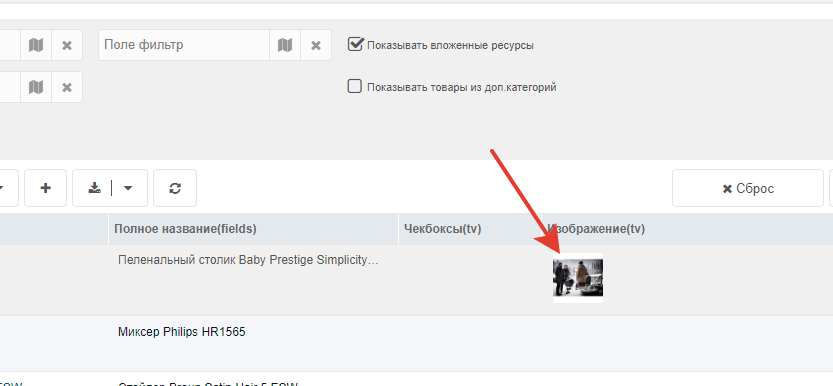
miniShop options
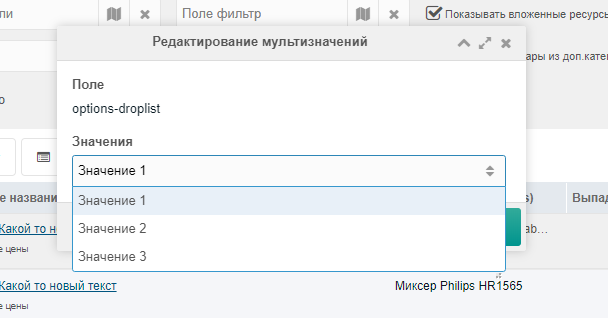
Dropdown
Editing dropdown list
Input types
Standard and custom fields
Handlers for standard fields were set manually; check the demo for edit capability.
Осторожно
Not all fields can be edited. If a field doesn't edit, check the demo. If it doesn't edit there either, it's not editable.
- Login:
manager - Password:
manager
TV parameters
Modal opens with input type according to Input type
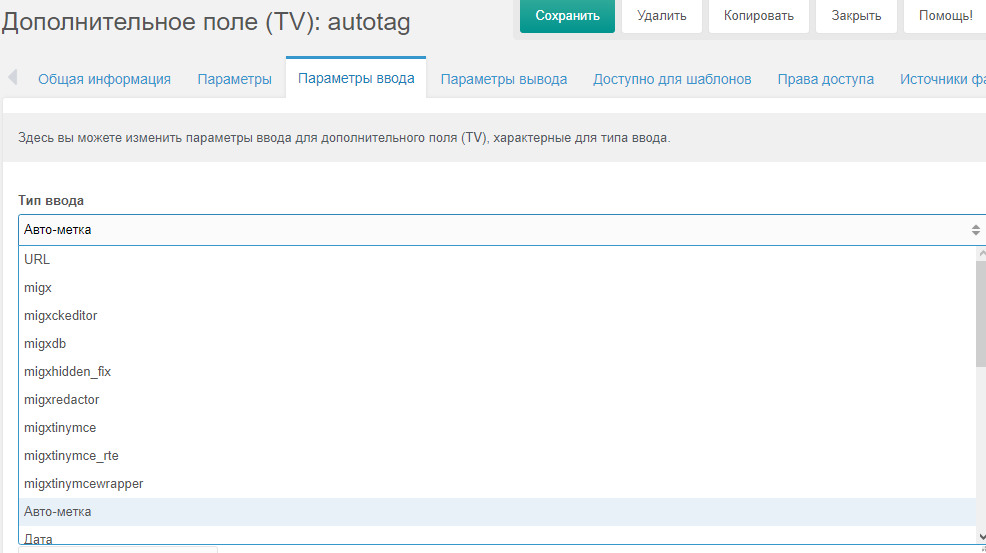
Осторожно
Editing is supported only for standard TV parameters shipped with MODX. If a field doesn't edit, ensure it's not custom and not installed by another component.
miniShop2 options
Modal opens with input type according to Option type
Осторожно
Editing is supported only for standard options shipped with miniShop2. If a field doesn't edit, ensure it's not custom and not installed by another component.