



Customers
Open Extras → MiniShop3 → Customers. Here you get the CustomersGrid grid and dialogs to edit the profile and addresses.
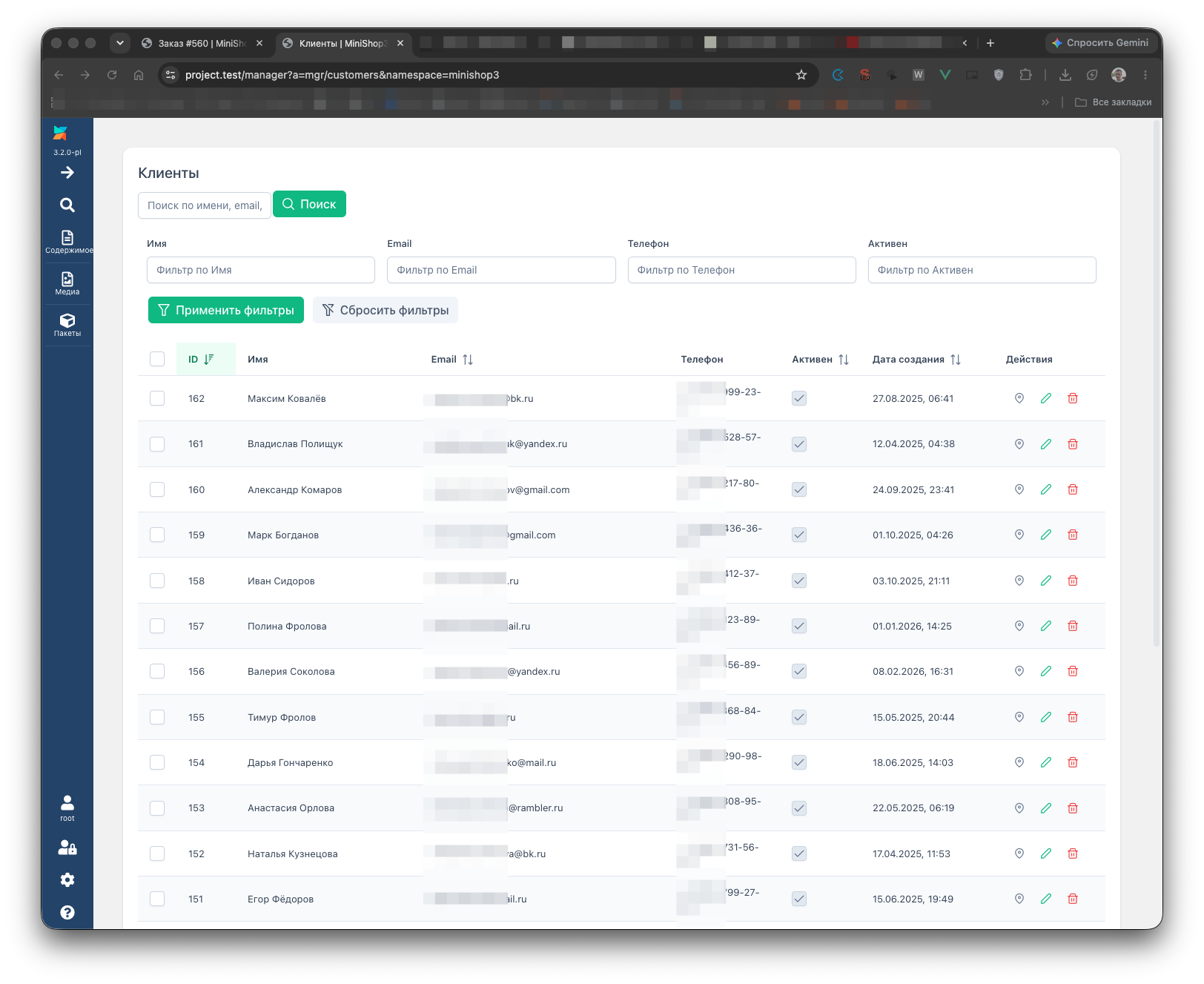
List
Rows show email, name, phone, dates, and verification flags (if those columns are enabled in the grid config). Search and pagination go through /api/mgr/customers. Bulk delete: DELETE /api/mgr/customers/bulk (permission msorder_remove).
Customer permissions (do not confuse with orders): list — msorder_list, customer card — msorder_view, edit — msorder_save, delete — msorder_remove. The order card is read with msorder_list and written with msorder_save.
Profile
Click a row or the Edit action. The dialog edits msCustomer fields: name, email, phone, and editable Object Extension fields. Save goes to Manager REST.
Addresses
A separate dialog works with customer addresses:
| Method | Path |
|---|---|
GET | /api/mgr/customers/{id}/addresses |
POST | /api/mgr/customers/{id}/addresses |
PUT | /api/mgr/customers/{id}/addresses/{addressId} |
DELETE | /api/mgr/customers/{id}/addresses/{addressId} |
The customer sees the same addresses on the frontend: Shipping addresses.
Link to orders
An order has customer_id. In the orders grid you can show a customer column and open the card. On the frontend you can turn a guest into a customer at checkout if ms3_customer_auto_register_on_order is on.
Sync with modUser
Key ms3_customer_sync_enabled links msCustomer to modUser. Then registration and profile edits can create or update a MODX user. For a typical store on the MS3 token you do not need sync.