
ms3OptionsColor
Swatches for miniShop3 options: HEX, patterns, images, and RAL Classic
- MODX 3
- PHP 8.2
- miniShop3
- Vue 3

If you have not installed the package yet, start with quick start.
| Flow | Scenario |
|---|---|
| A | Assign HEX to an option value |
| B | Pattern instead of solid color |
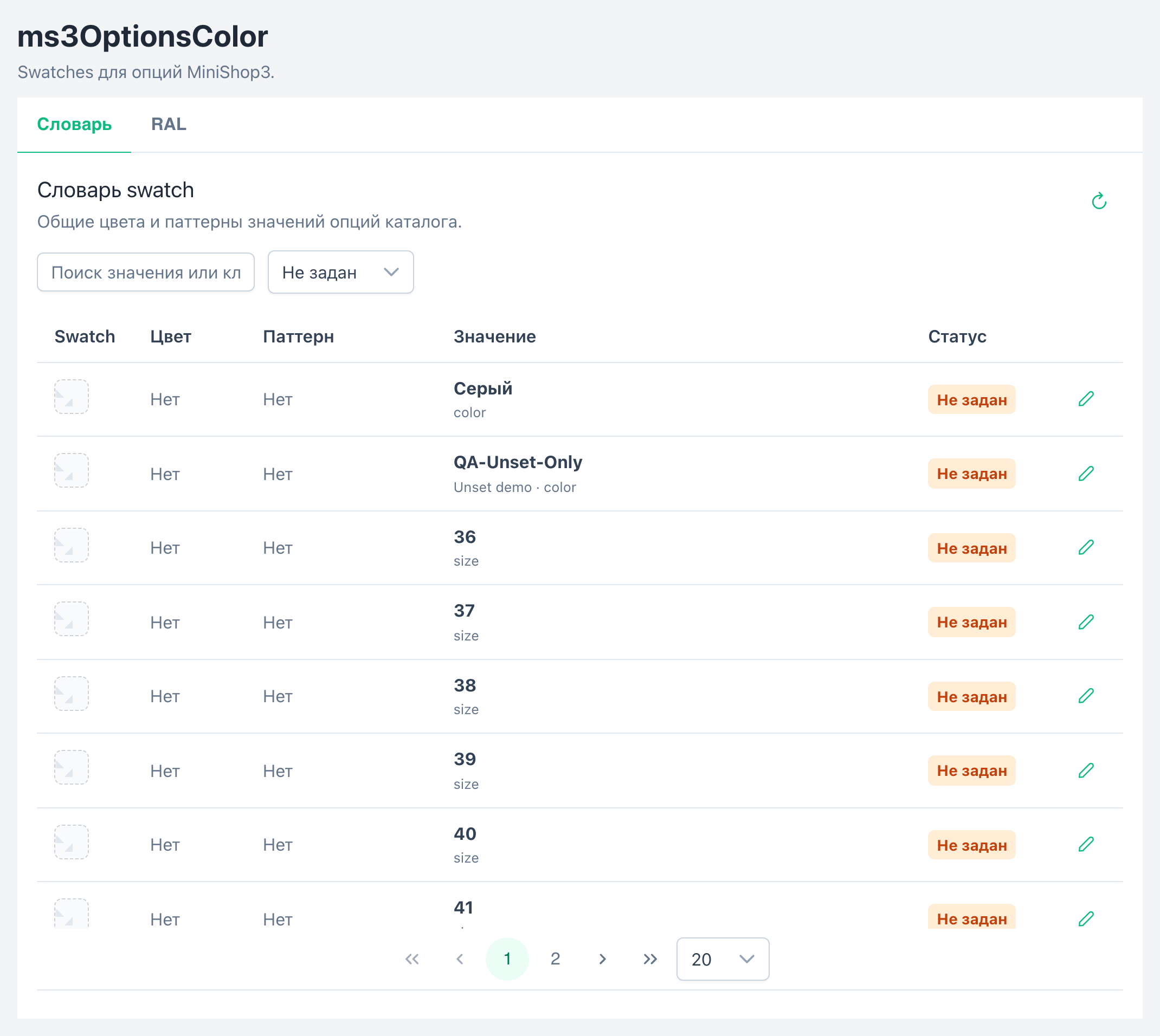
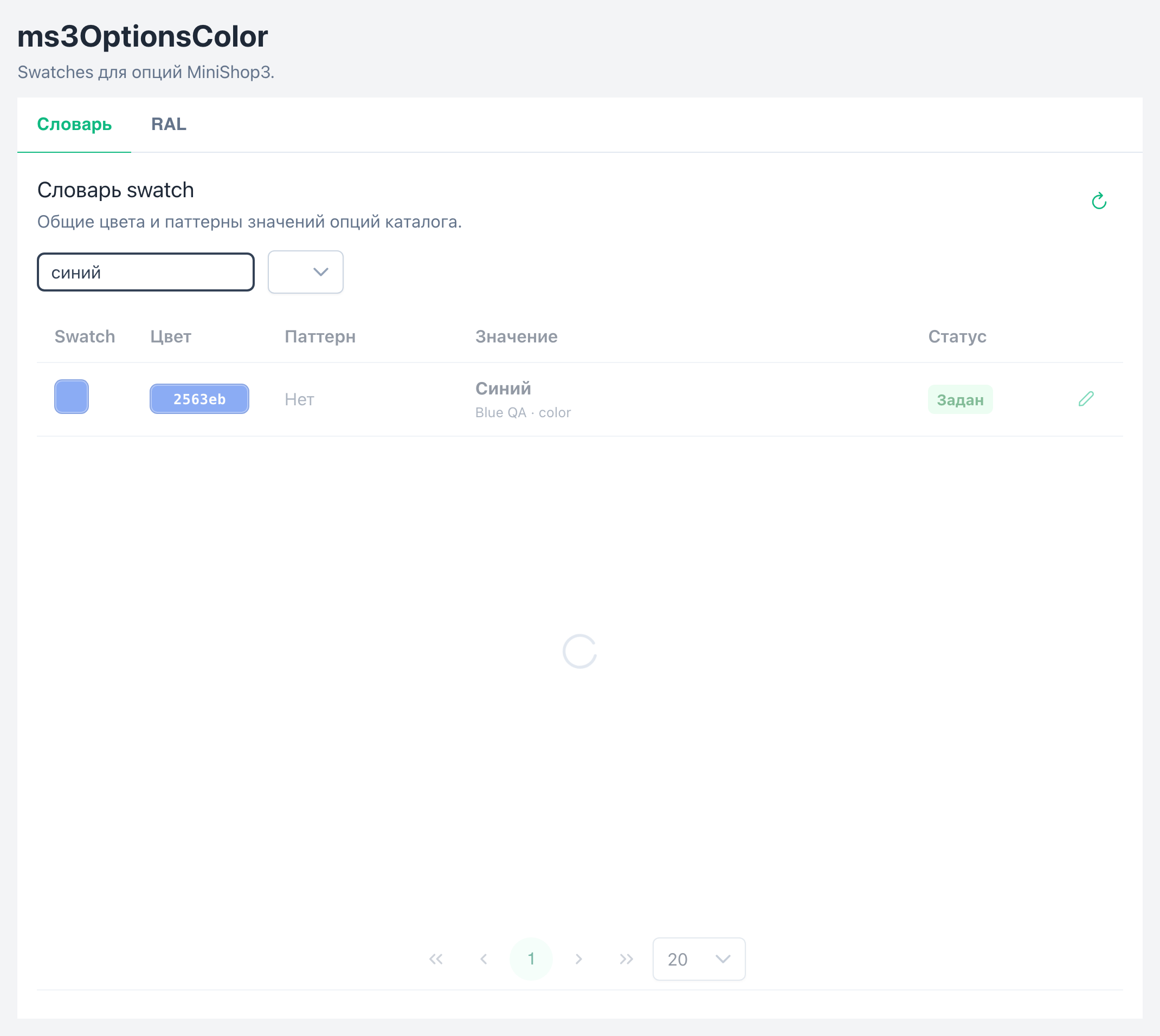
| C | Find unset in the dictionary and assign |
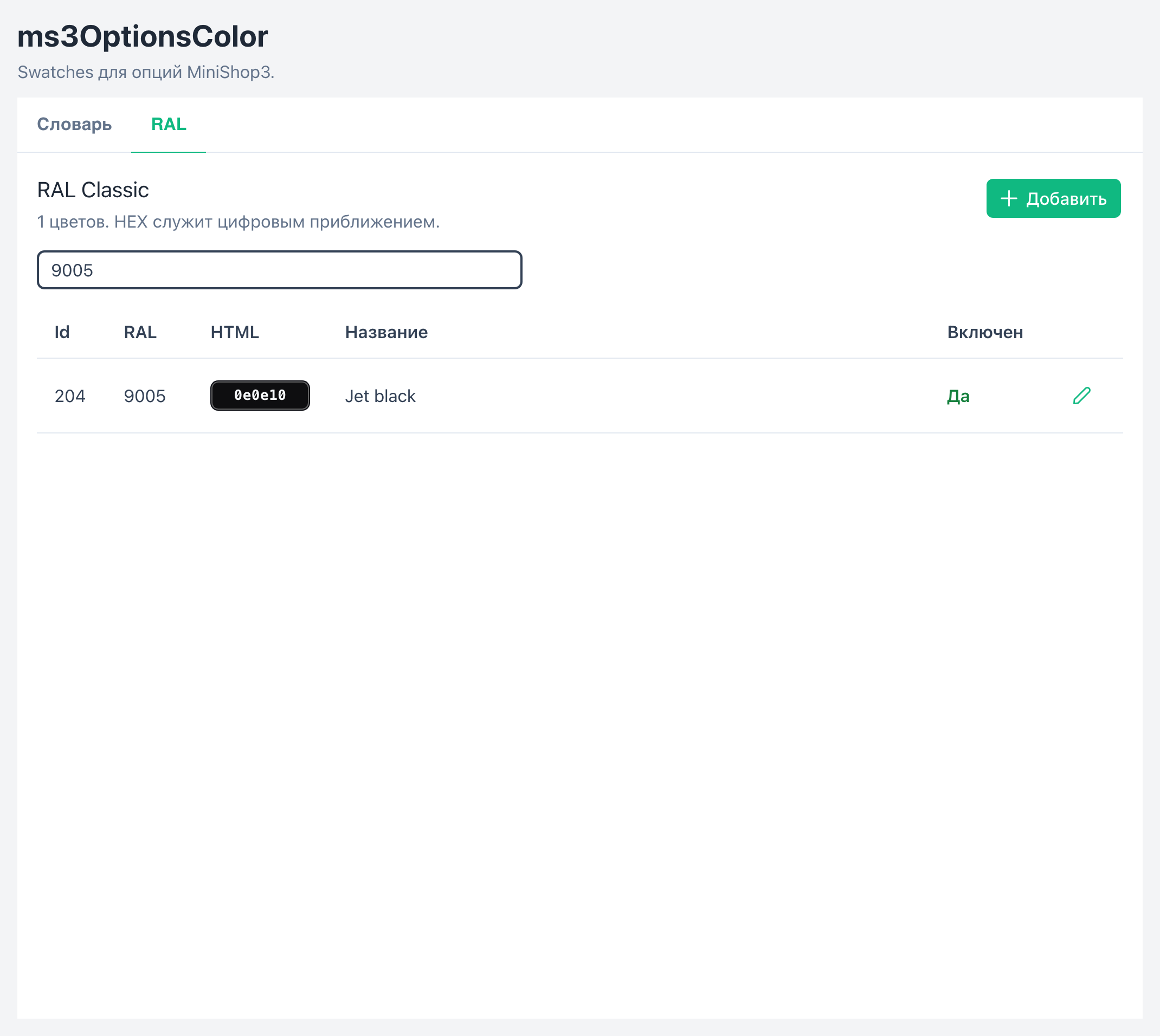
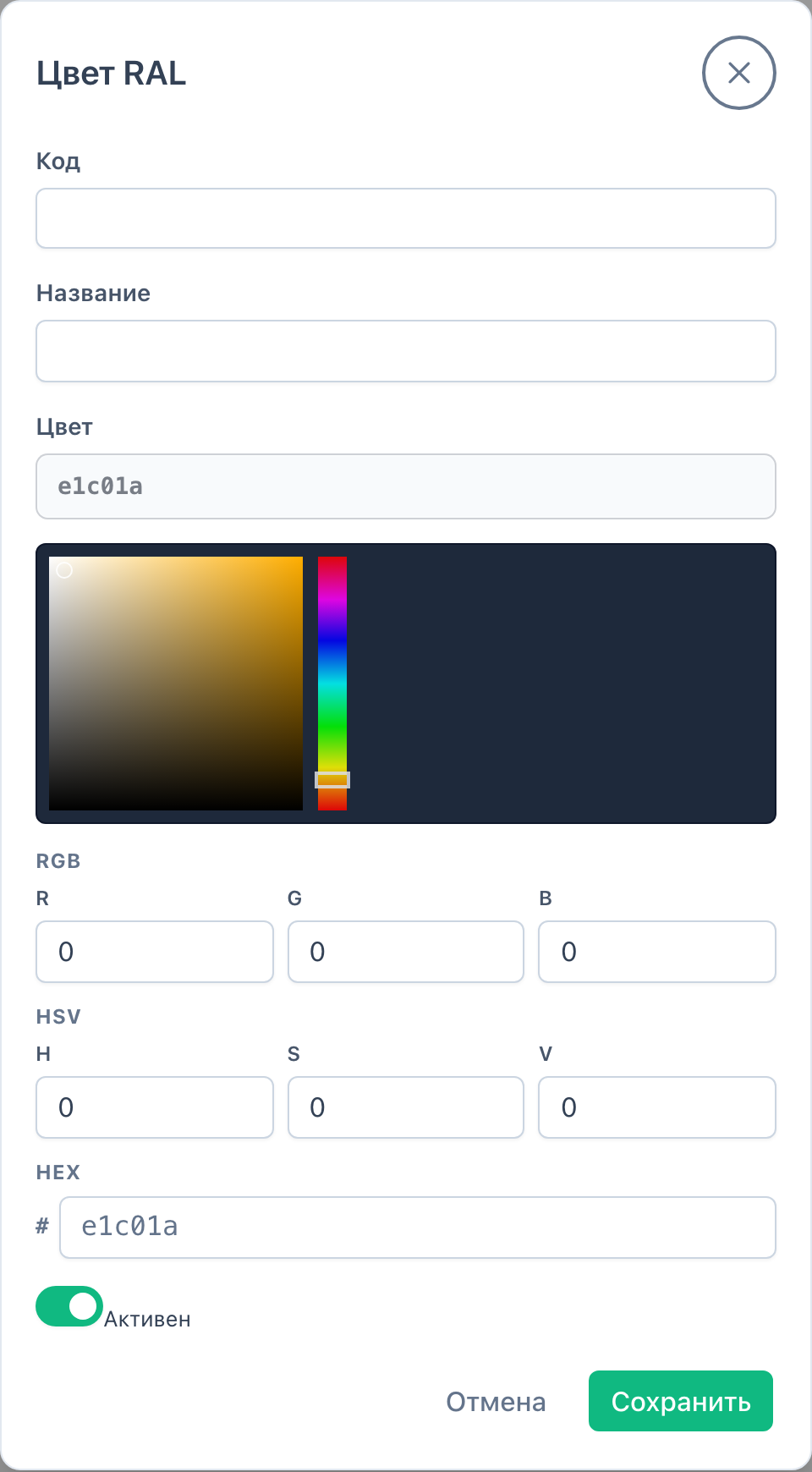
| D | Add a color to RAL |
| E | Select on the product page |
| F | Cart via byOptions |
| G | Catalog filter with mFilter |
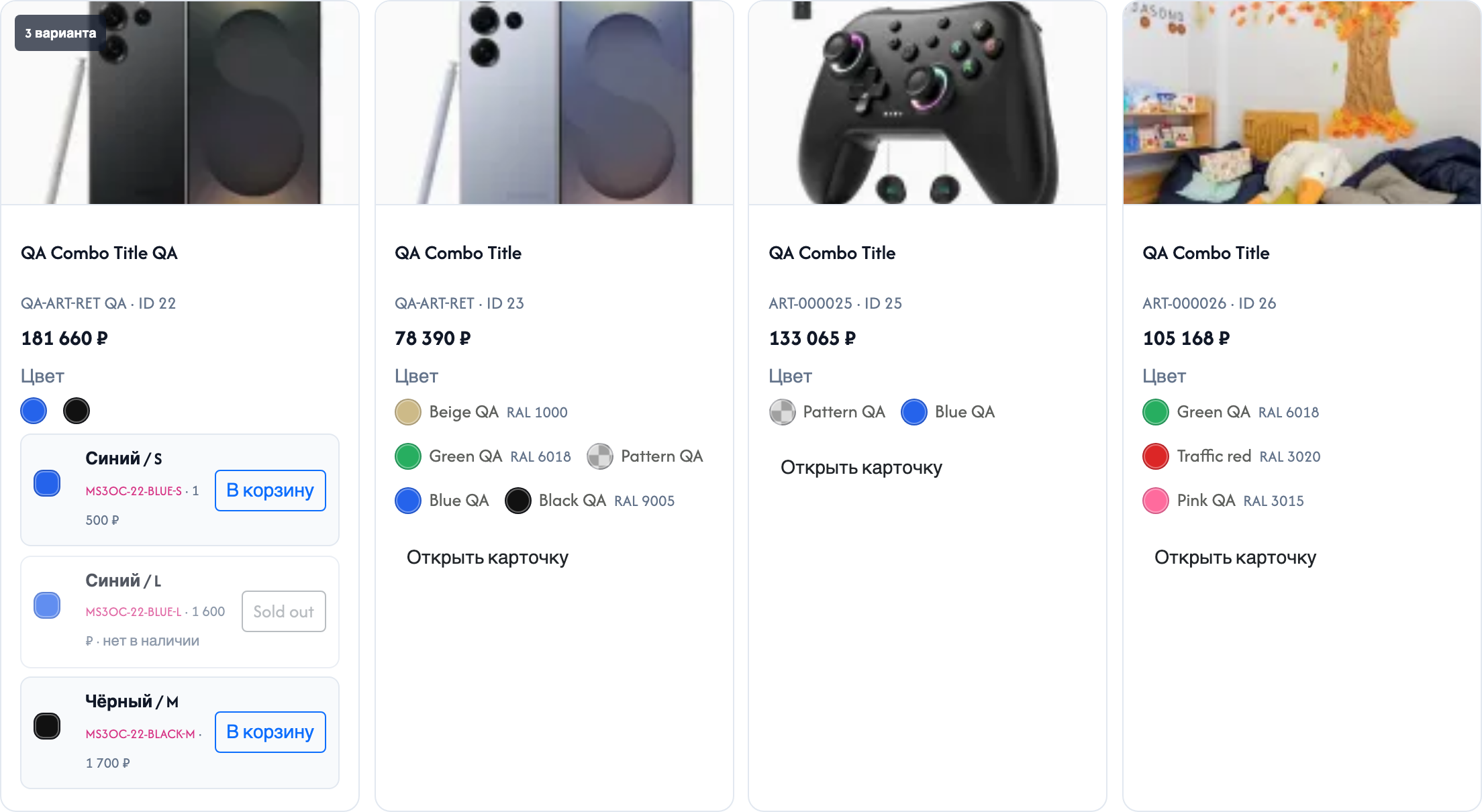
| H | Catalog card grid |
| I | Variant colors in the catalog (ms3variants) |
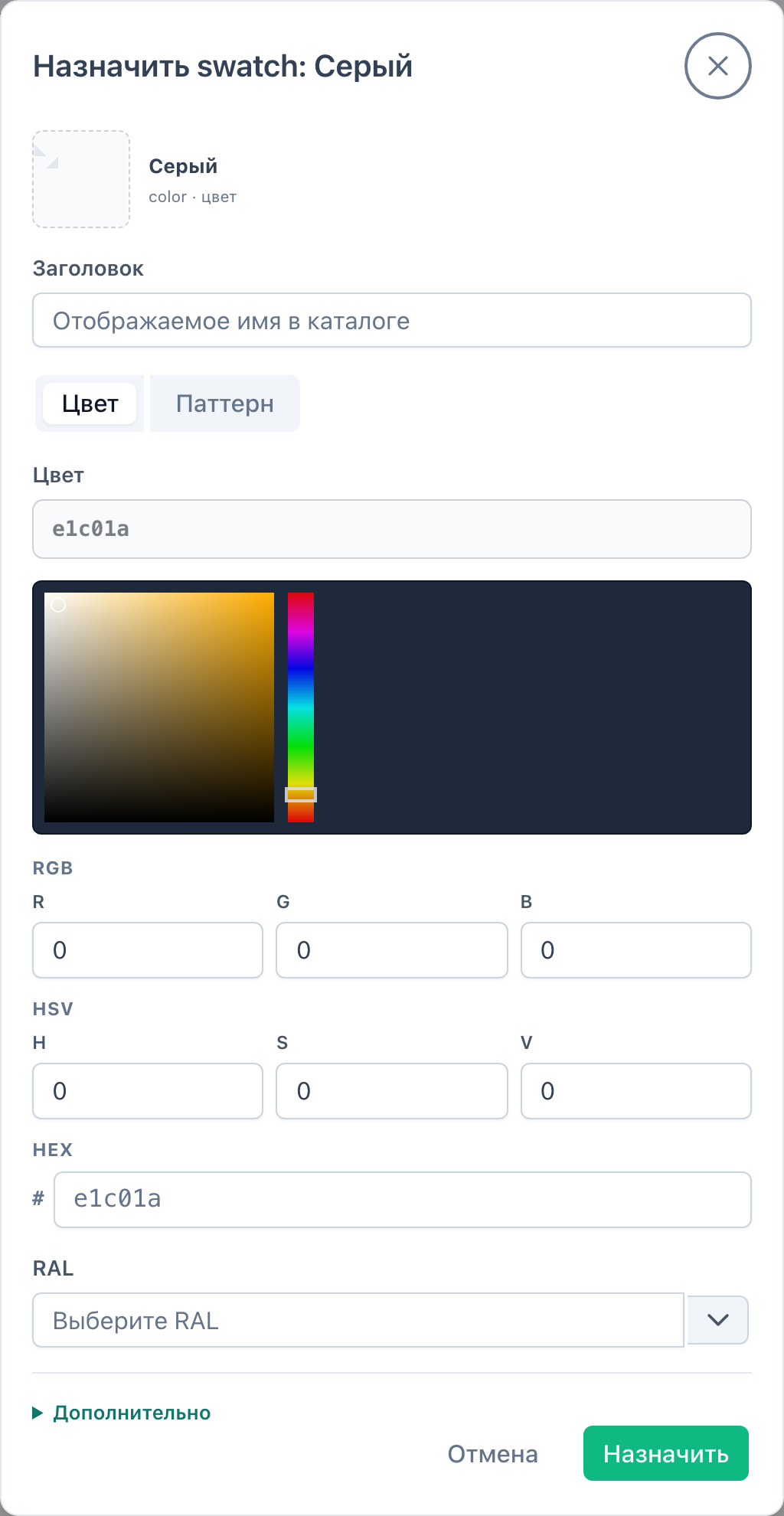
color → save.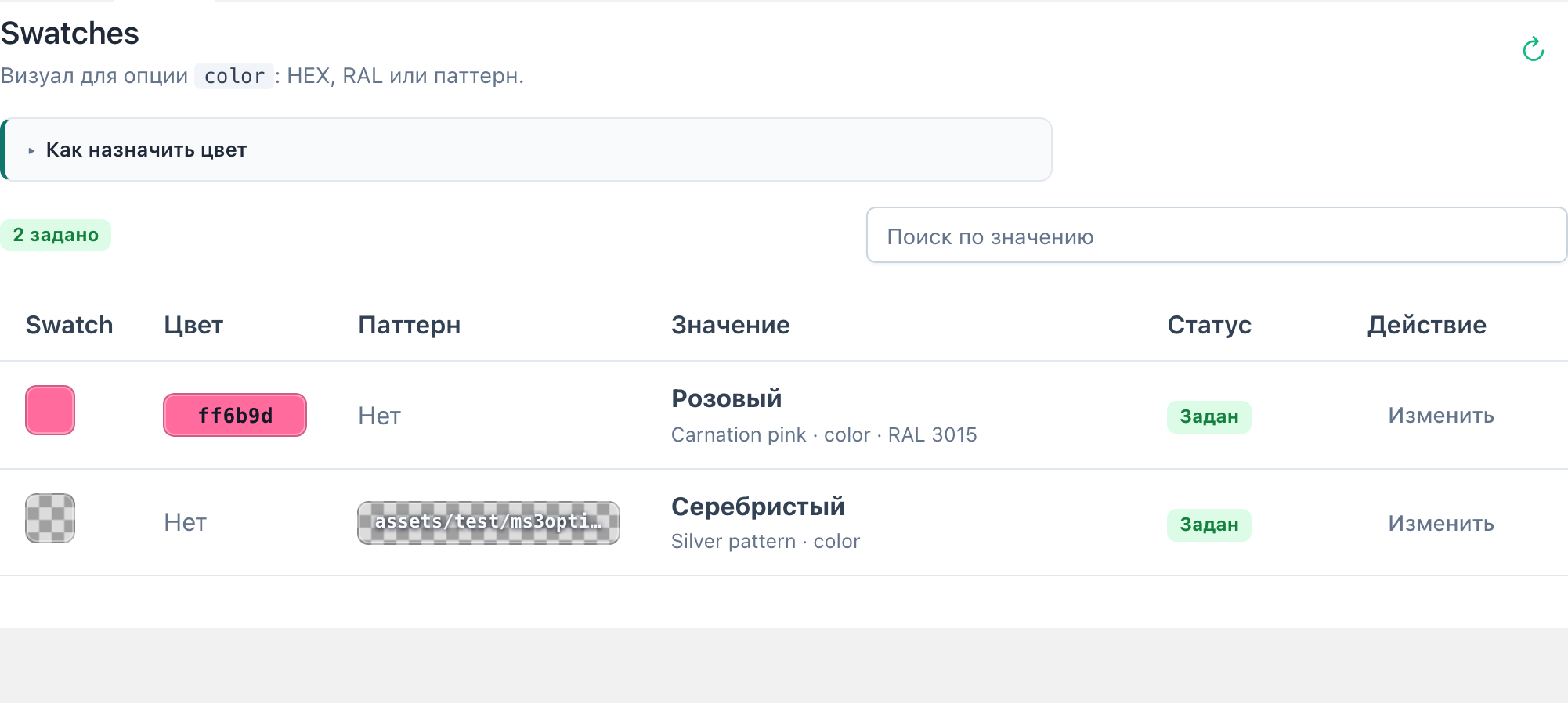
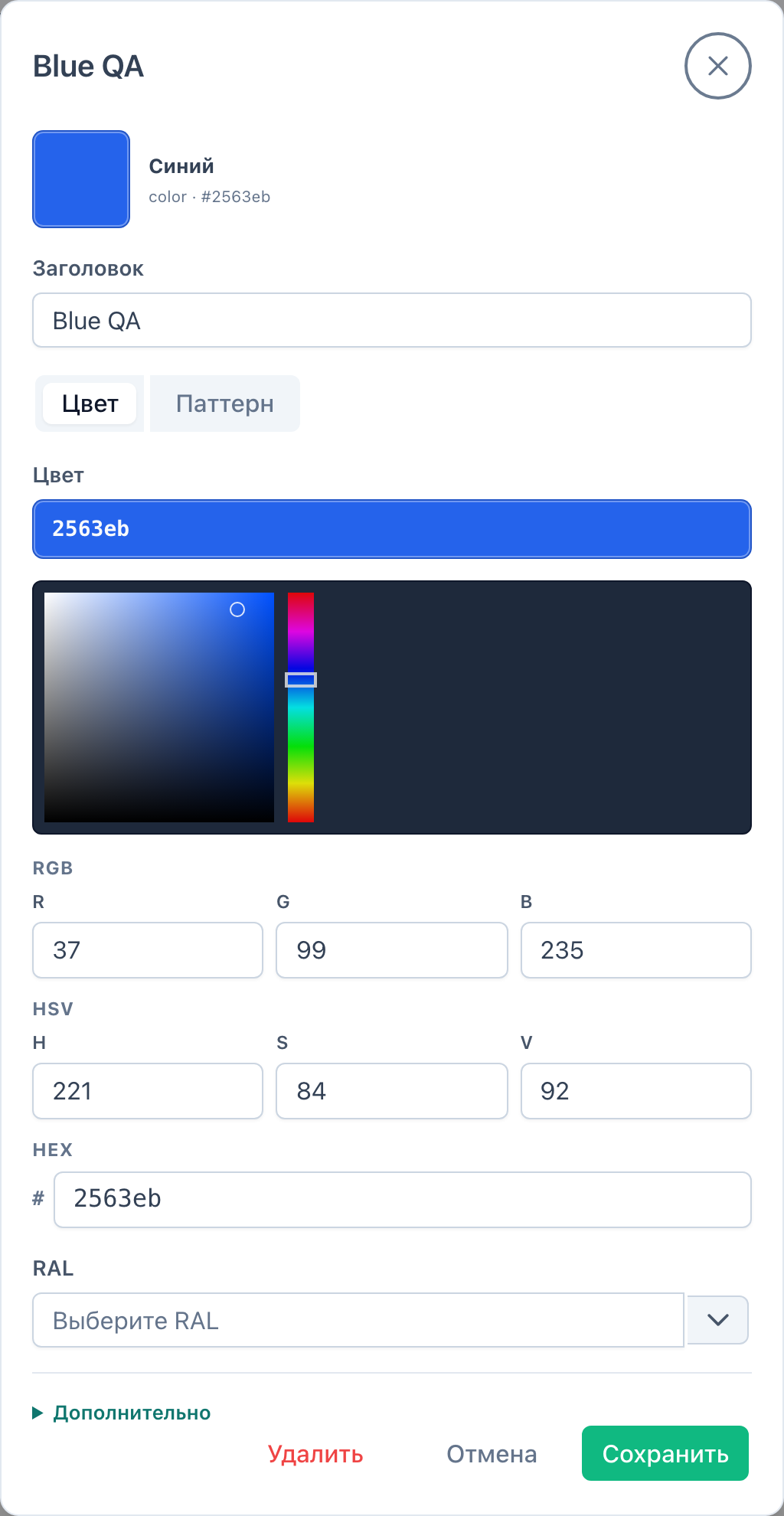
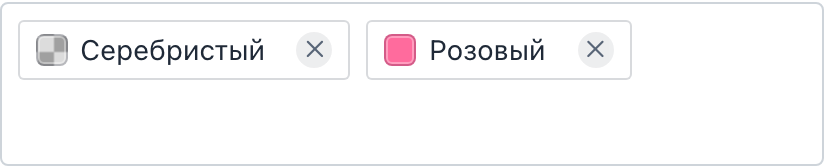
An active record appears in the dictionary. Other products with the same option_key + value show the same swatch. On Product properties, assigned values get a color square in the chips:
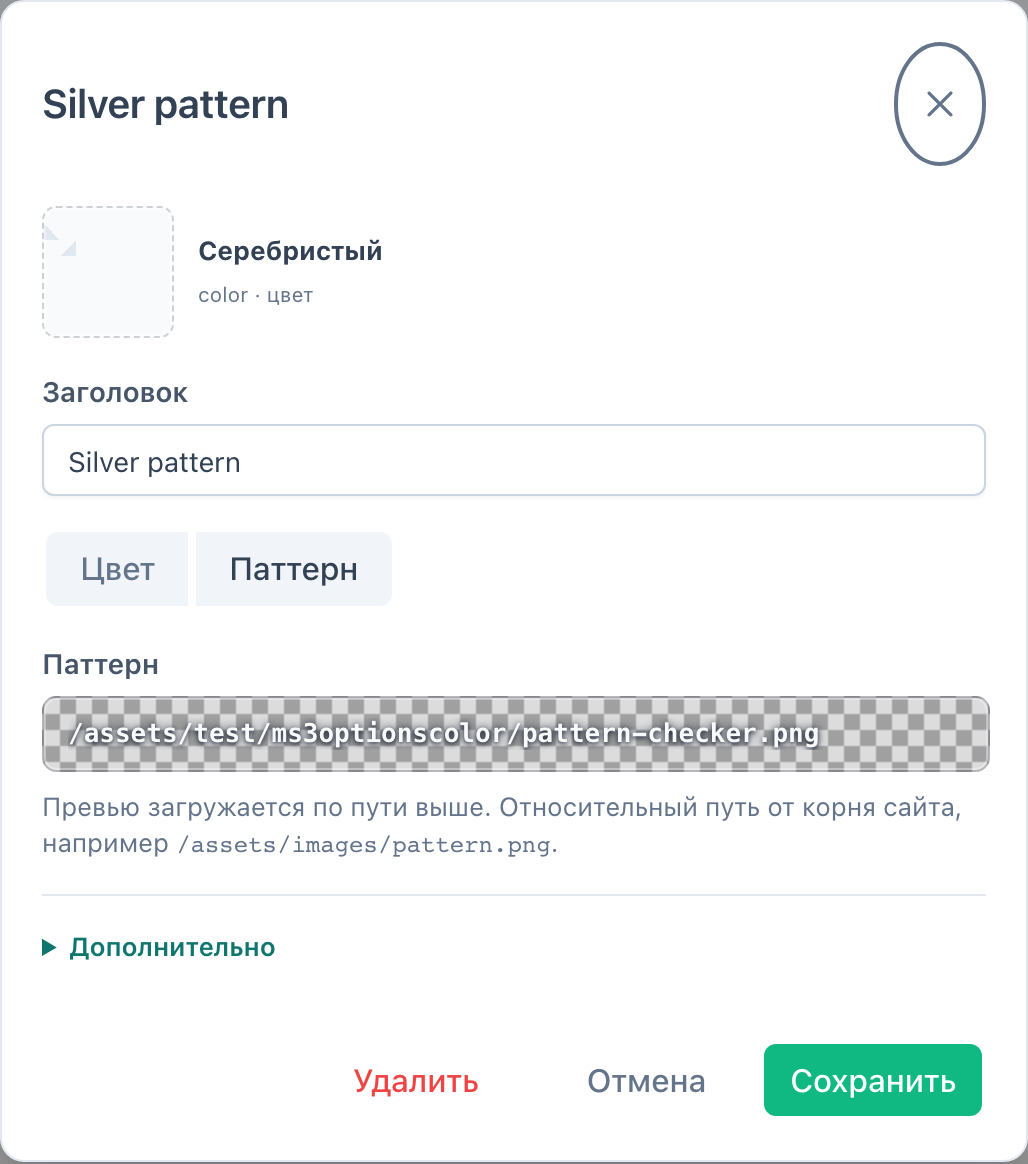
When you switch to Pattern mode the form removes the previous RAL from the record. On the storefront the chunk draws background-image. Select reads data-pattern.
ms3optionscolor_frontend_css is enabled (or load CSS manually).js/web/select.js.tplMs3OptionsColorSelect.<script src="{'assets_url' | option}components/ms3optionscolor/js/web/select.js"></script>
{$_modx->getChunk('tplMs3OptionsColorSelect', [
'product' => $_modx->resource.id,
'option_key' => 'color',
'caption' => 'Цвет',
'native' => 1
])}<script src="[[++assets_url]]components/ms3optionscolor/js/web/select.js"></script>
[[$tplMs3OptionsColorSelect?
&product=`[[*id]]`
&option_key=`color`
&caption=`Цвет`
&native=`1`
]]
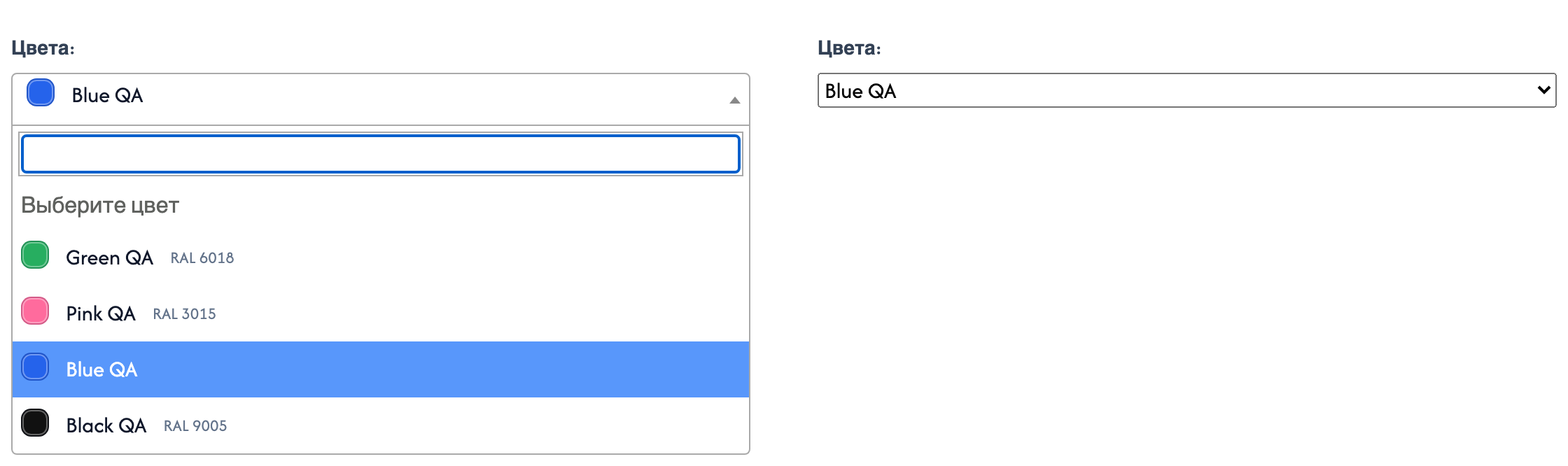
The value goes into options[color] with the miniShop3 form.
In the cart row chunk values already sit in $product.options. Do not read options from the database again:
{set $colors = $_modx->runSnippet('!ms3OptionsColor', [
  'product' => $product.id,
  'byOptions' => json_encode($product.options),
  'return' => 'data'
])}[[!ms3OptionsColor?
&product=`[[+id]]`
&byOptions=`{"color":["Синий","Чёрный"]}`
&return=`data`
]]Ready chunk: tplMs3OptionsColorCart. Frontend.

In the filter set JSON:
{
  "color": {
    "type": "ms3oc",
    "source": "option",
    "field": "color",
    "label": "Цвет",
    "tpl": "tplMFilterMs3OptionsColor"
  }
}
The built-in colors type is unchanged. Use ms3oc for dictionary swatches. mFilter.
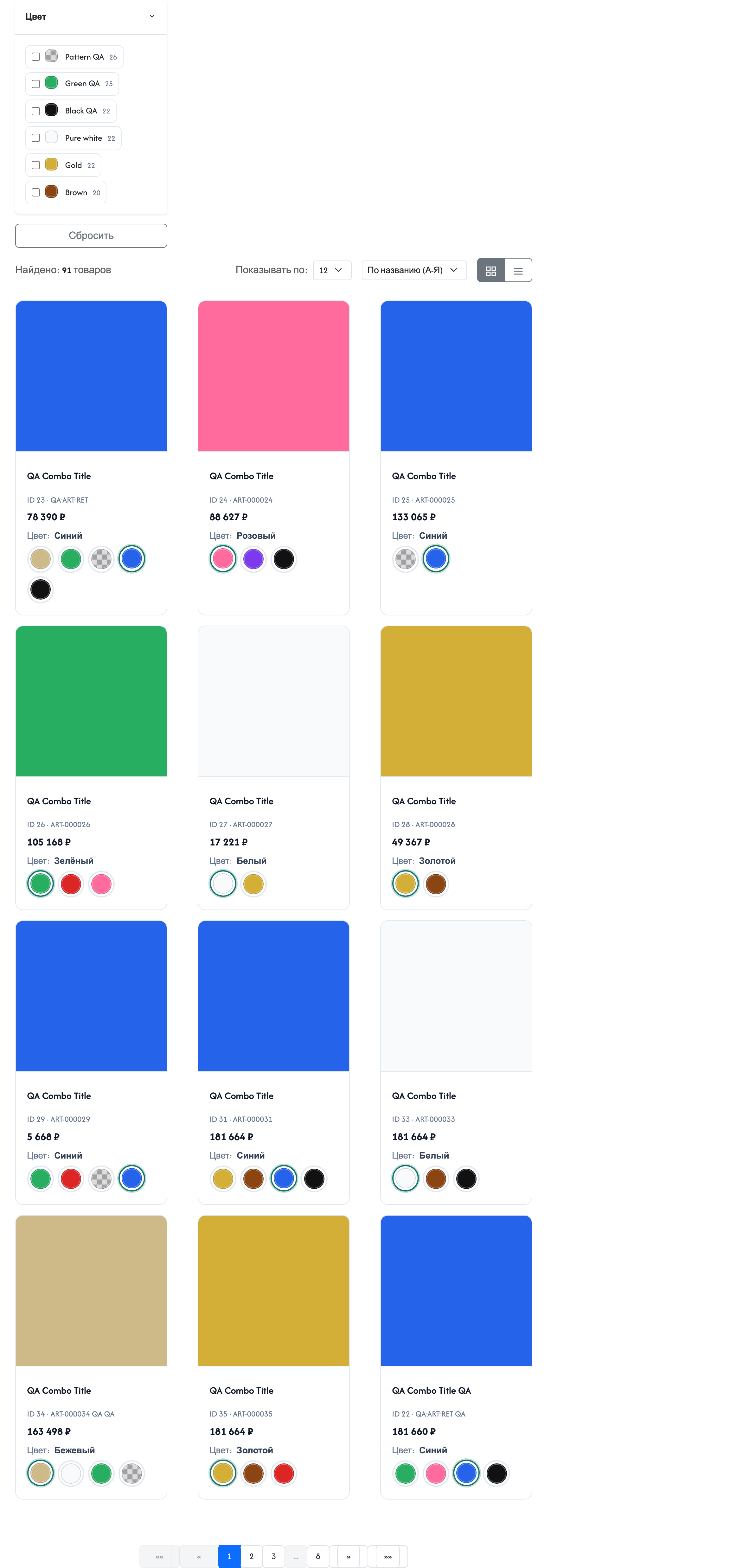
On listing rows call the snippet with product = the row product ID:
{'!ms3OptionsColor' | snippet : [
  'product' => $id,
  'options' => 'color',
  'tpl' => 'tplMs3OptionsColor',
  'limit' => 6
]}[[!ms3OptionsColor?
&product=`[[+id]]`
&options=`color`
&tpl=`tplMs3OptionsColor`
&limit=`6`
]]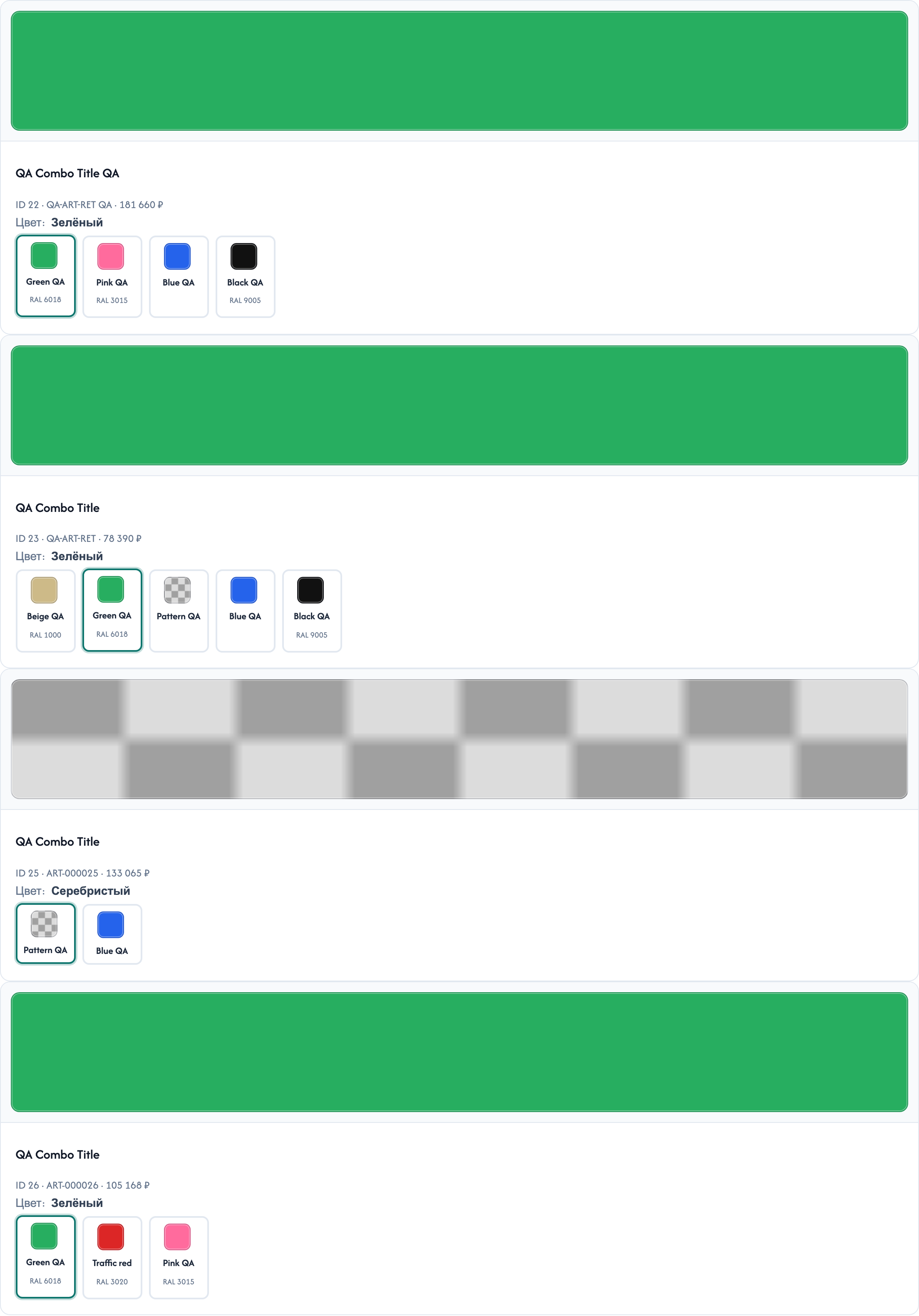
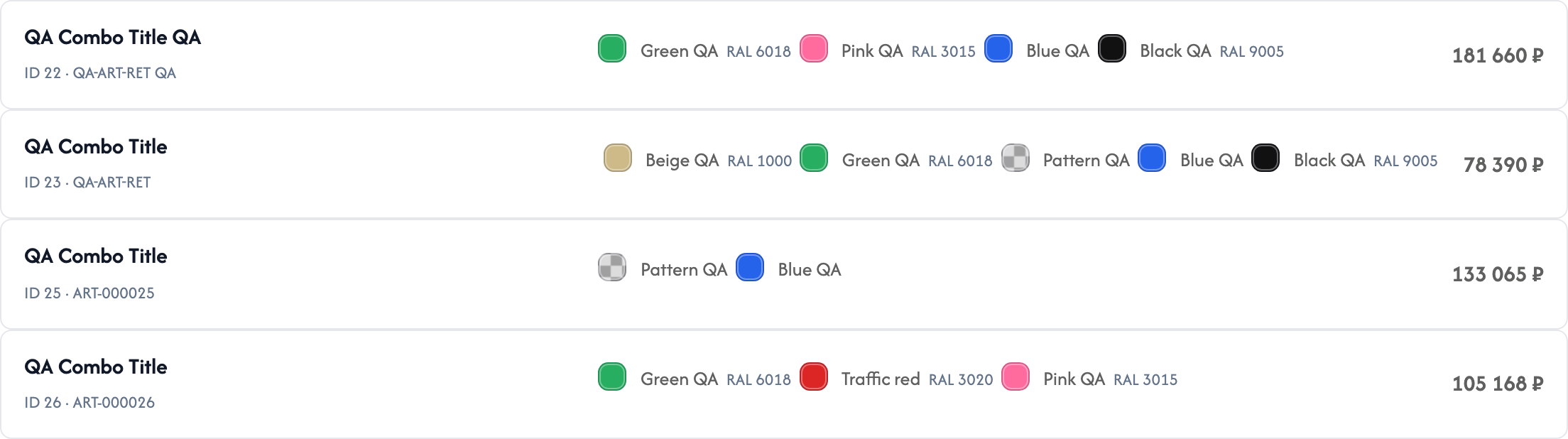
In msProducts set usePackages=ms3Variants. Catalog variants get colors from the dictionary. ms3variants.