


EasyCookies
A cookie banner for MODX 2 and 3 — a simple notice or law-compliant consent, with counters and a consent log

A profile is the banner visitors see: its text, look and the counters it switches on. You can have as many profiles as you like; the site shows the active one.
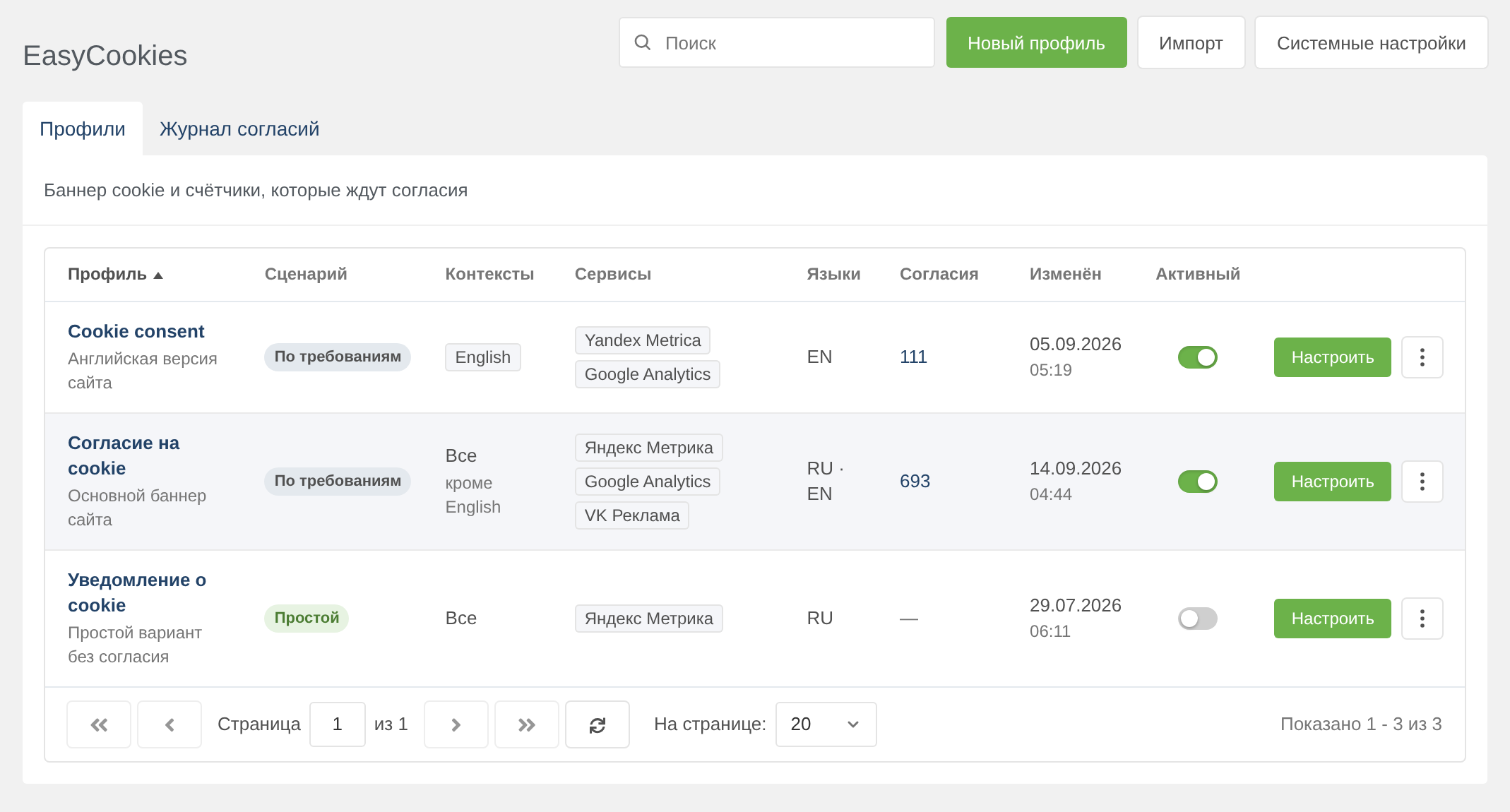
A profile row shows the kind of banner, contexts, services, languages, the number of consent log entries and the date of the last change. The number of consents links to the log filtered by this profile. The "Contexts" column appears when the site has more than one context.
A copy is created inactive, so you can try changes without touching the site. Removing the active profile asks for a separate confirmation: without it the site has no banner, and the counters it switched on stop working.
The table sorts by name, number of consents and date of change.
| Simple | Compliant | |
|---|---|---|
| Counters | work right away (opt-out) | wait for consent (opt-in) |
| Buttons | "Got it", optionally "Decline" | "Accept all", "Reject all", "Manage preferences" |
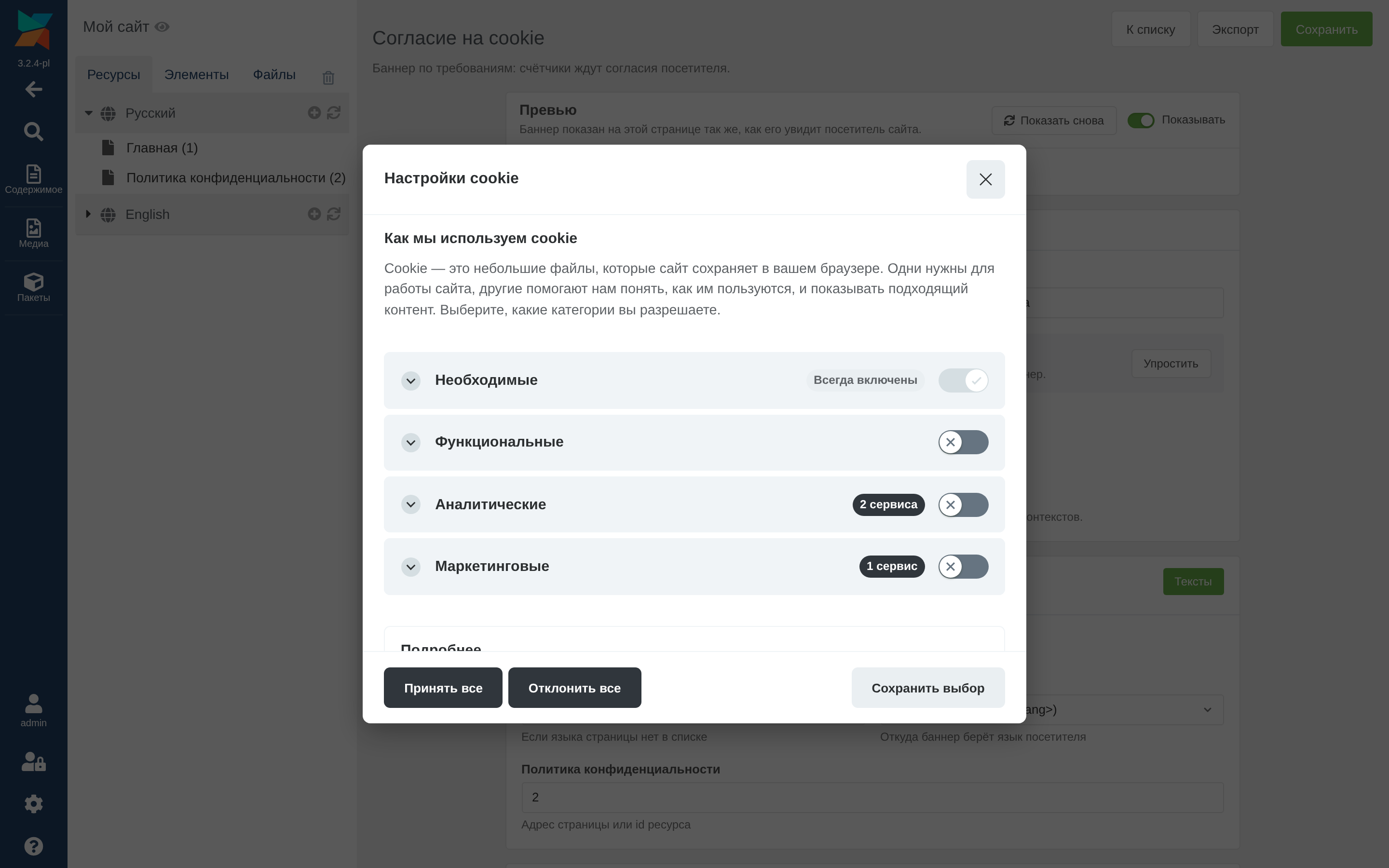
| Categories and preferences window | — | yes, with a cookie table |
| Languages | the site's language, more can be added | any set, texts for each |
| Revisions, Google Consent Mode, consent log | — | yes |
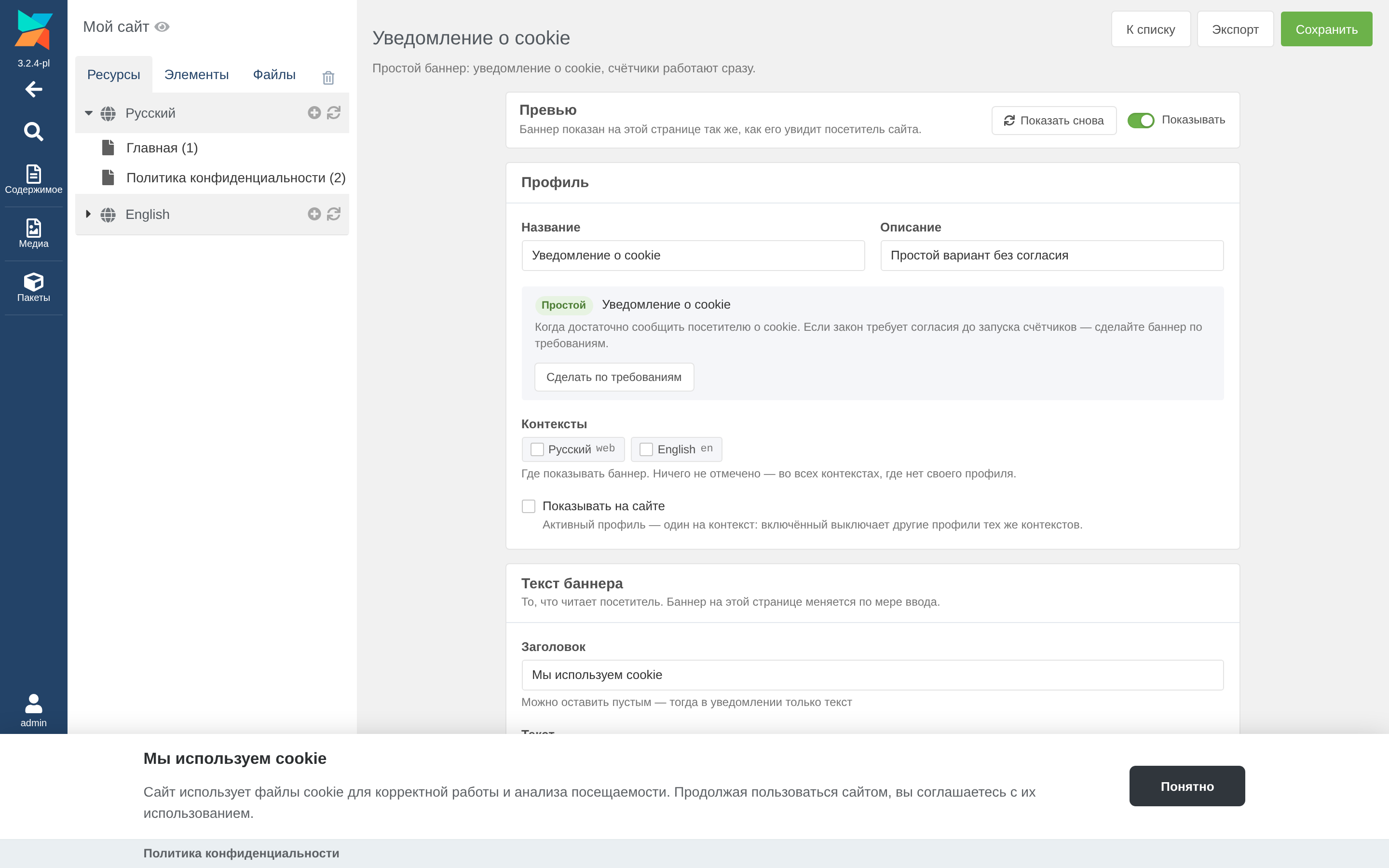
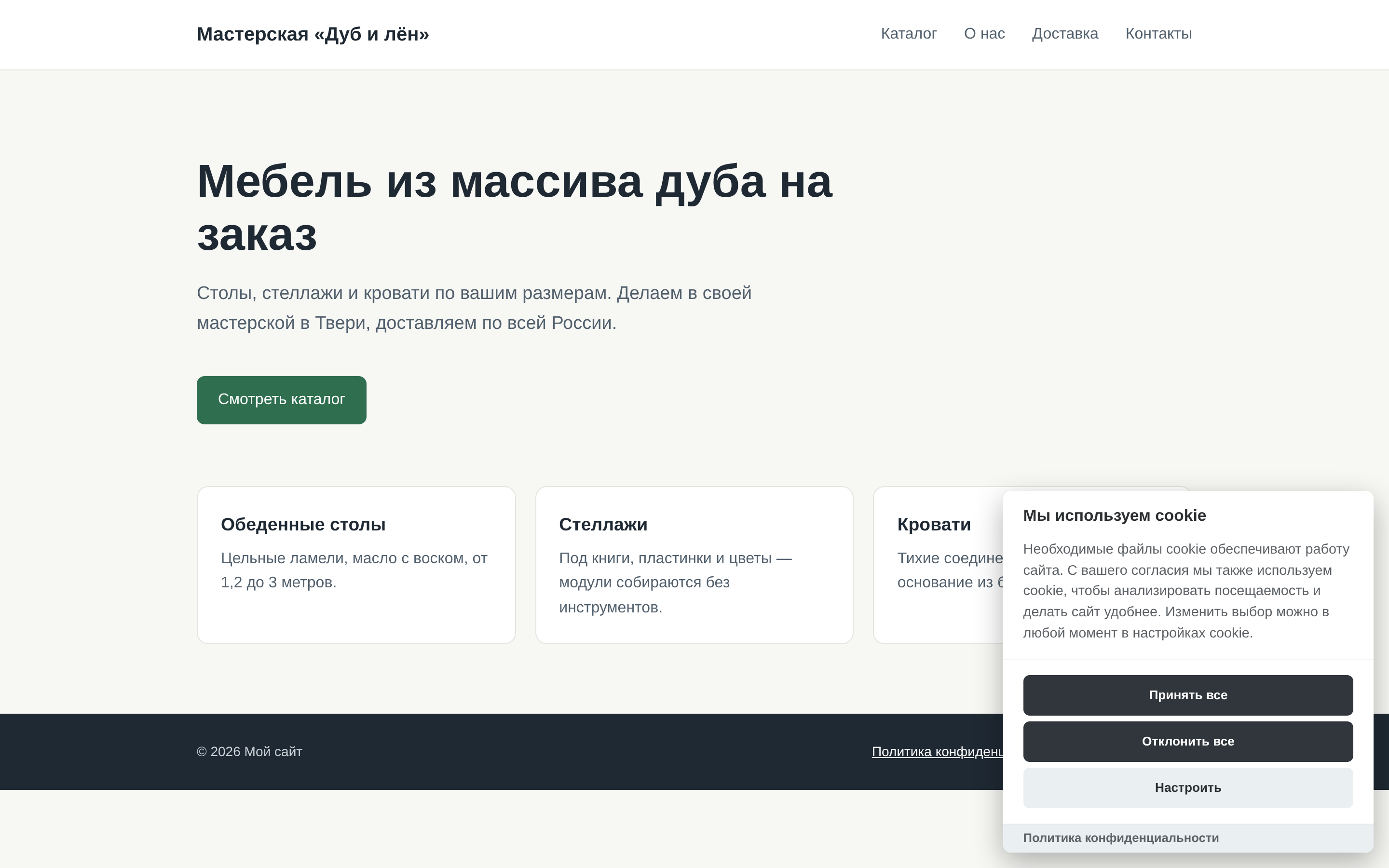
A simple banner only tells about cookies. Declining (the "Decline" button is optional) turns the counters off from the next page on and deletes their cookies.
Switch the kind in the "Profile" card with "Make it simple" and "Make it compliant". Settings are not lost; only what the form shows changes.
The form is a narrow column in the centre, and the preview banner sits at the edges of the window — where it will appear on the site. Save with "Save" or Ctrl+S. Leaving the editor with unsaved changes asks for confirmation.
The preview runs the same script as the site, so the banner looks the same in the manager and on the site. The differences: its own ec_preview cookie, no counters, no page dimming.
A banner at the top or bottom edge of the window would cover part of the form, so the editor page gets padding on that side as tall as the banner: any field can be scrolled out from under it. With the banner at the top, the "Back to the list", "Export" and "Save" buttons move below it. A banner in the middle and the preferences window add no padding.
Name (visible only to you), description, kind of banner, contexts and "Show on the site". One active profile per context: switching one on switches off the other profiles of the same contexts. More: Contexts and languages.
A simple banner has a title, text, button, "Decline" button, privacy policy and a line under the text. A compliant banner keeps its texts in the "Edit texts" window of the "Languages and texts" card:
Texts may contain HTML. {policy} is replaced with the privacy policy address, and a line linking to {policy} is not shown without an address. "Restore the ready texts" replaces the language's texts with the originals.
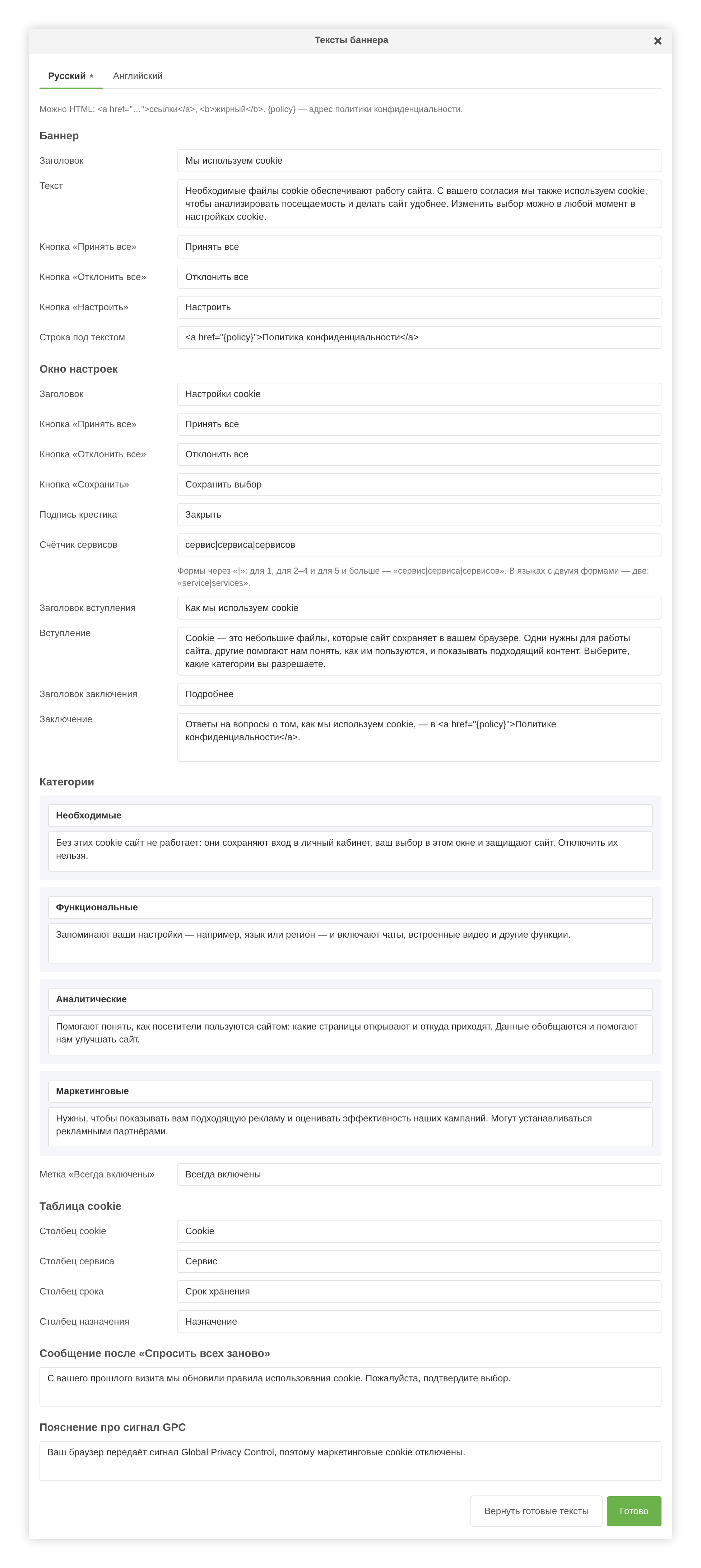
Compliant banner only. "Strictly necessary" is always on; "Functionality", "Analytics" and "Marketing" are switched on in the profile. Each category lists the services it contains. Services of a switched-off category never run, and the form warns about it.
Covered in a separate section: Counters and services.
| Field | Options |
|---|---|
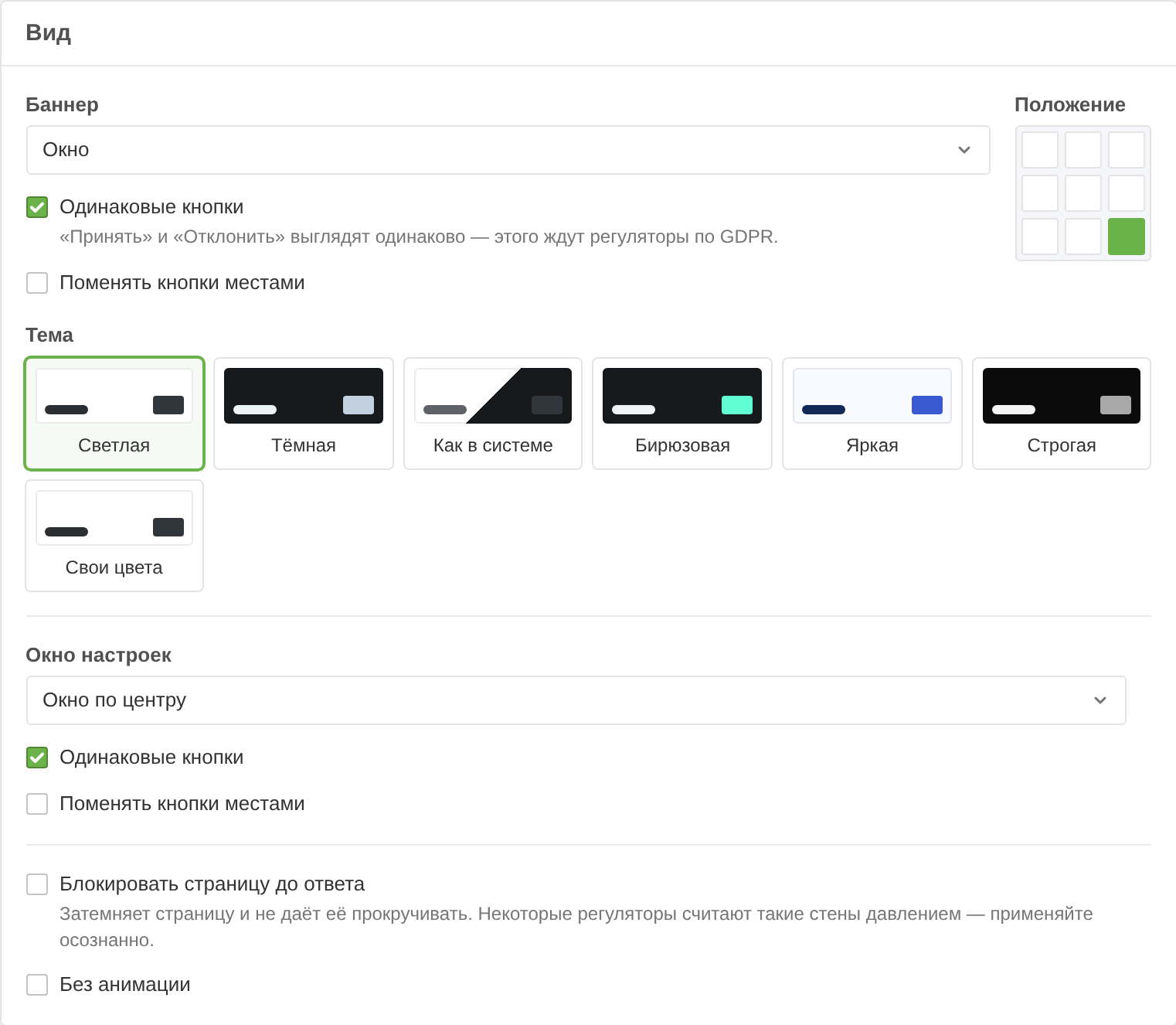
| Banner | window, wide window, window with buttons in a row, cloud, compact cloud, full-width bar, bar with buttons alongside |
| Position | window and cloud — any of nine points, bar — top or bottom |
| Theme | light, dark, as in the system, turquoise, funky, elegant, own colours |
| Own colours | based on light or dark, background, text, button, button text, corners |
| Preferences window | window in the centre, side panel, wide side panel; a panel goes left or right |
A compliant banner also has "Equal buttons" (GDPR regulators expect "Accept" and "Reject" to look the same), "Swap the buttons", "Block the page until the visitor answers" and "No animation".
Внимание
"Block the page until the visitor answers" dims the page and stops scrolling. Some regulators consider such walls pressure on the visitor.
Compliant banner only.
| Field | Default | Description |
|---|---|---|
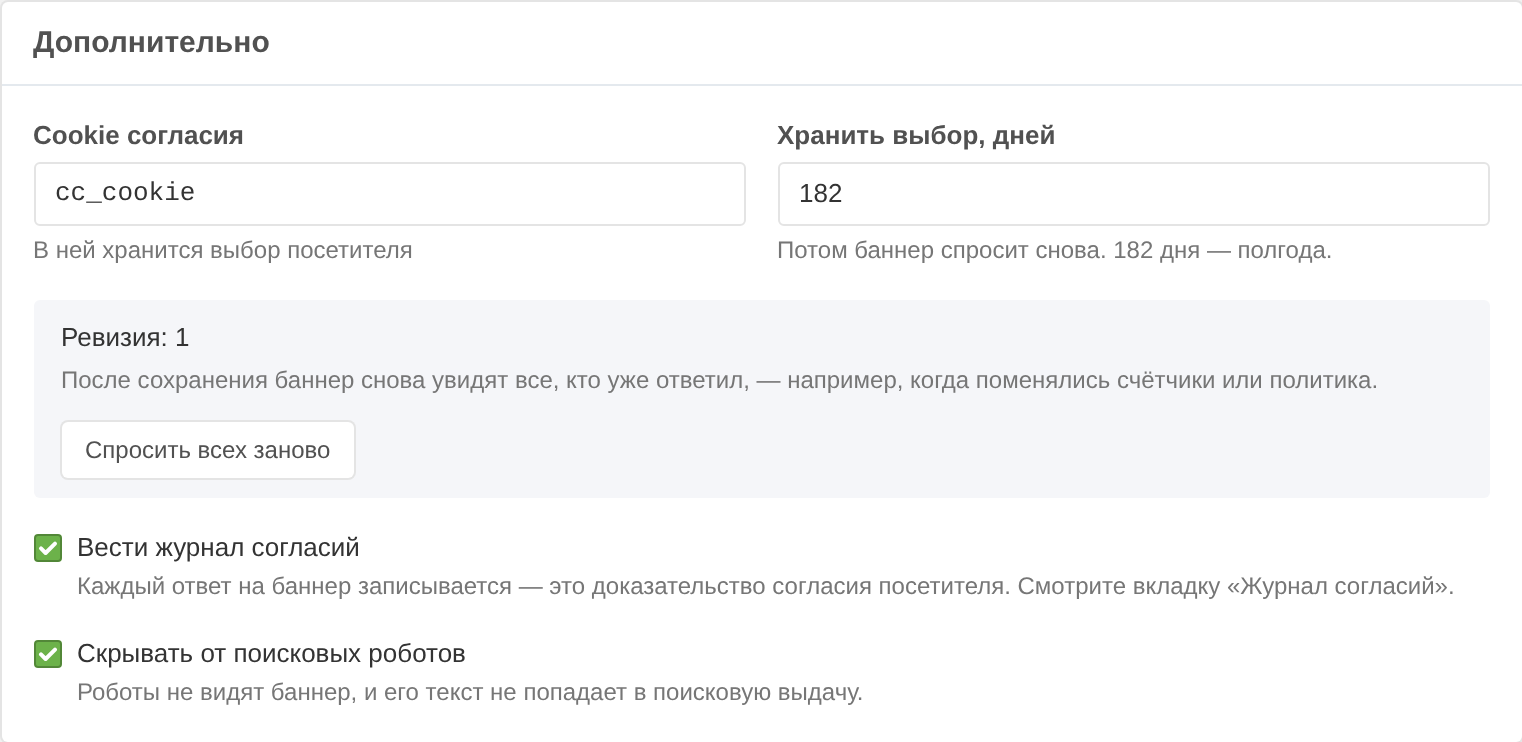
| Consent cookie | cc_cookie | Where the visitor's choice is kept |
| Keep the choice, days | 182 | After that the banner asks again |
| Keep a consent log | Yes | Every answer is recorded, see Consent log |
| Hide from search robots | Yes | Robots do not see the banner, and its text stays out of search results |
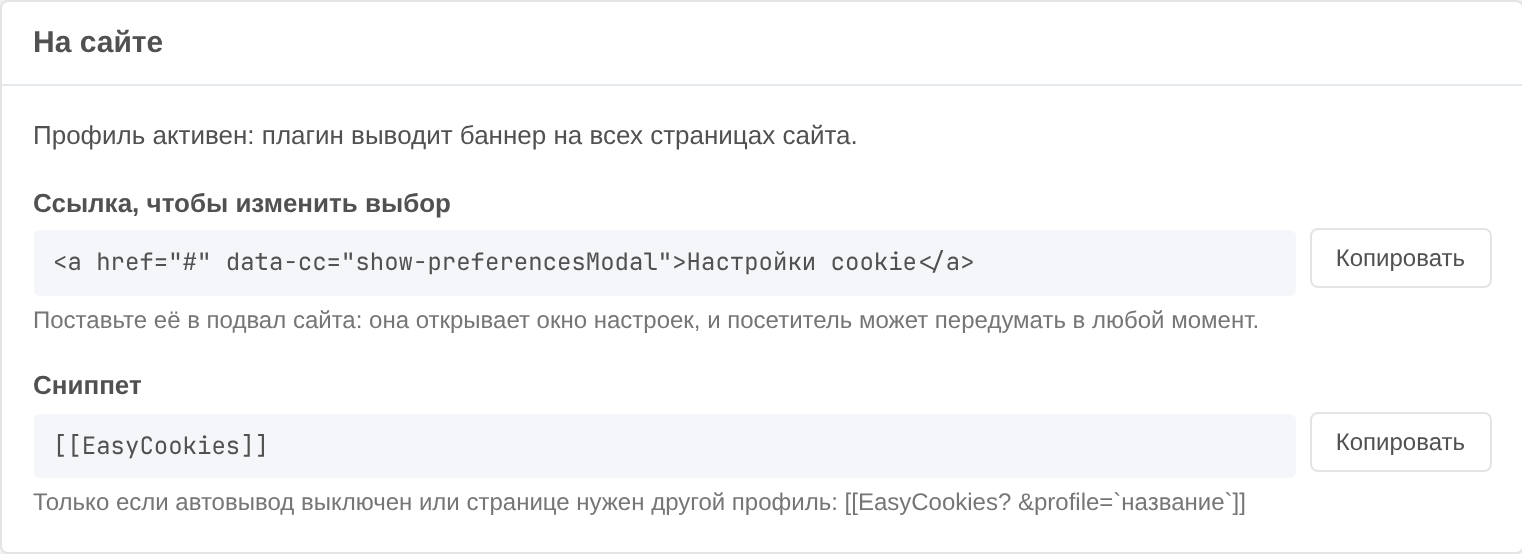
Shows whether the profile is output on the site and lets you copy the "Cookie settings" link and the snippet call.
When counters or the policy change, consent should be asked again. "Ask everyone again" in the "More" card raises the revision number, and after saving everyone who already answered sees the banner again. A message about updated rules is added to the banner text; you can edit it in the "Edit texts" window.
The revision block appears only for a saved profile: a new one has not asked anyone yet.
"Export" in the editor saves the profile to a JSON file: name, description, contexts and all settings. "Import" in the list opens such a file as a new inactive draft — check it and save.
Contexts that do not exist on the site are dropped on import. Counters, texts and look are carried over as they are.