Skip to content
msBundles
Product bundles for miniShop3 with shared pricing, discounts, and cart sync
  1. Extras
  2. msBundles
  3. Interface
  4. Flows

Flows

Five short walkthroughs for the manager and storefront. If the package is not installed yet, start with Quick start.

FlowScenario
ACreate a bundle and show it on a product
BConfigure price modes and an optional line
CDuplicate a bundle
DCheck stock and preview
EAdd to cart and remove the bundle

Flow A. Create a bundle and show it on a product

  1. Open Extras → msBundles (manager/?a=index&namespace=msbundles).
  2. Click Add bundle.
  3. Fill name, description, image. Turn on Active.
  4. Add ≥ 2 products via search. Set quantity and price mode per line.
  5. Save.
  6. Call the snippet on the product template:
fenom
{'!msBundles' | snippet : [
  'product' => $_modx->resource.id,
  'tpl' => 'tplMsBundlesItem',
  'wrapperTpl' => 'tplMsBundlesList'
]}
modx
[[!msBundles?
  &product=`[[*id]]`
  &tpl=`tplMsBundlesItem`
  &wrapperTpl=`tplMsBundlesList`
]]
  1. Load CSS/JS with msBundles.initialize and call msCart with selector. See Frontend.
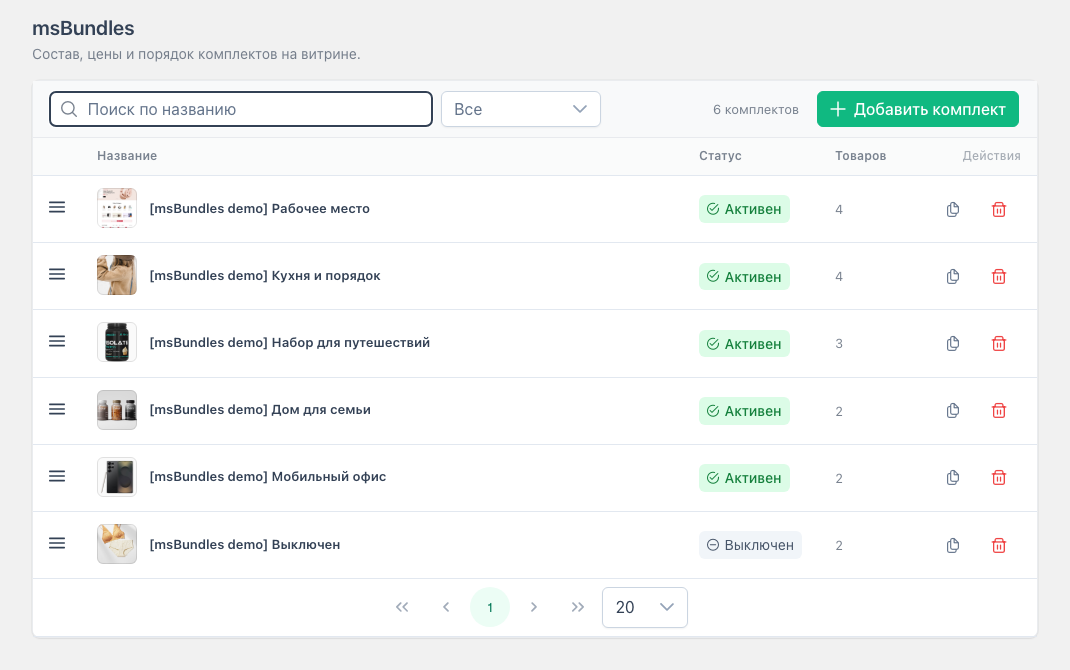
Bundle list

The bundle appears on pages for every product in the set.

Flow B. Price modes and optional lines

  1. Open a bundle by clicking its name in the list.
  2. Pick a mode per line:
ModeValueResult
OriginalminiShop3 price
FixedamountUnit price
Discount %0–100Percent off product price
Discount amountamountSubtracted from price
Free0
  1. Uncheck Required on a line the shopper can lose when stock is short. On add that line goes to warnings. The rest of the bundle still adds.
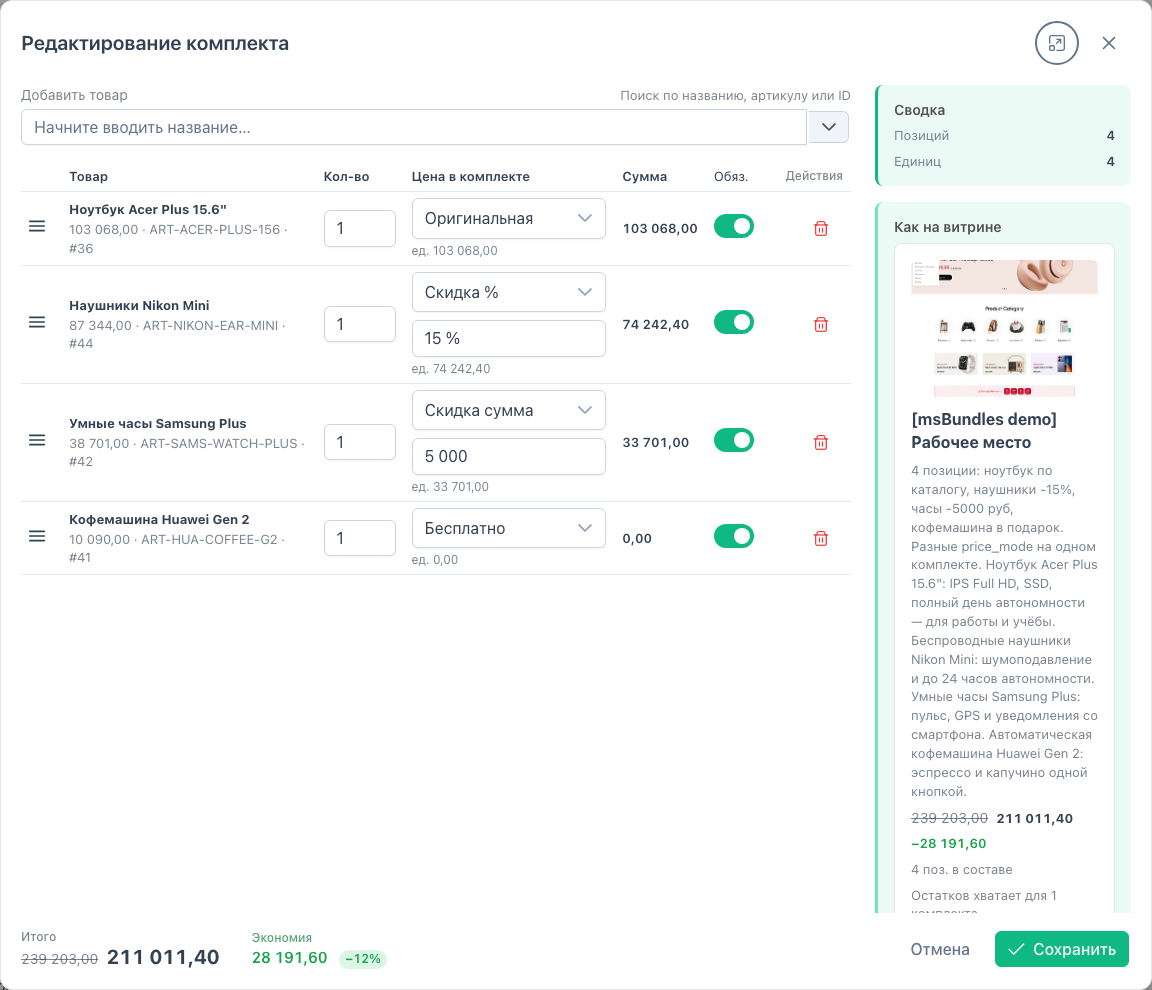
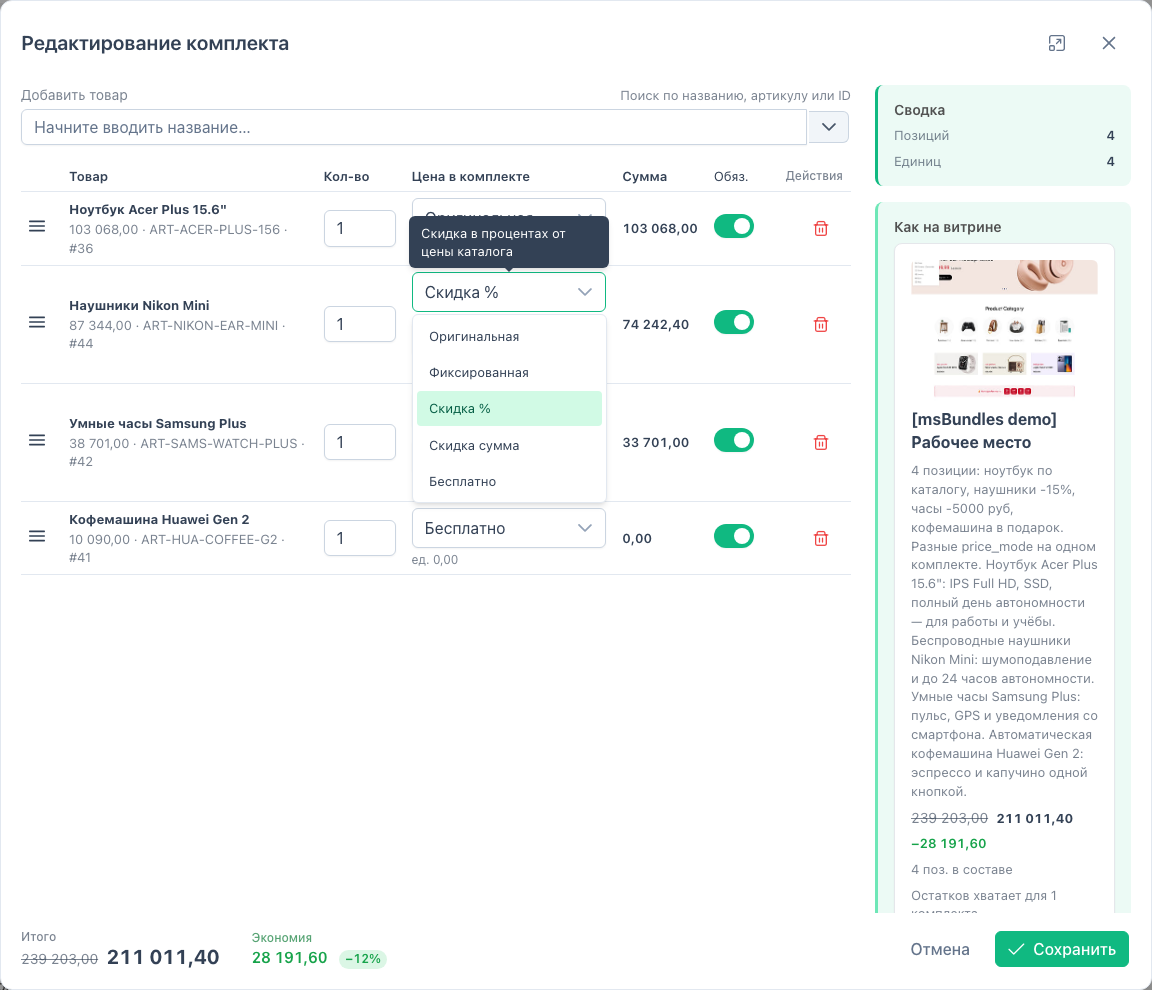
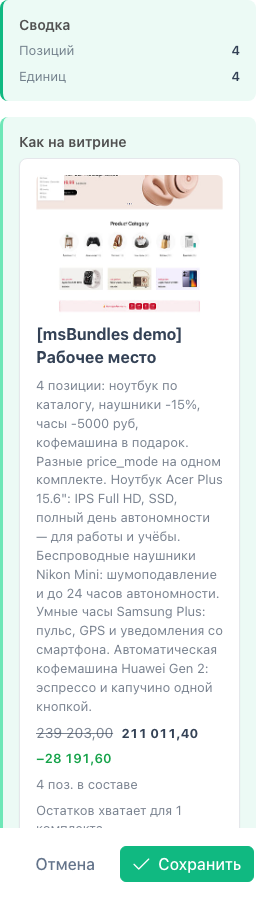
  2. Check Total and Savings in the footer. On the right — As on storefront.

Bundle editor

All price modes in the select

Summary and preview

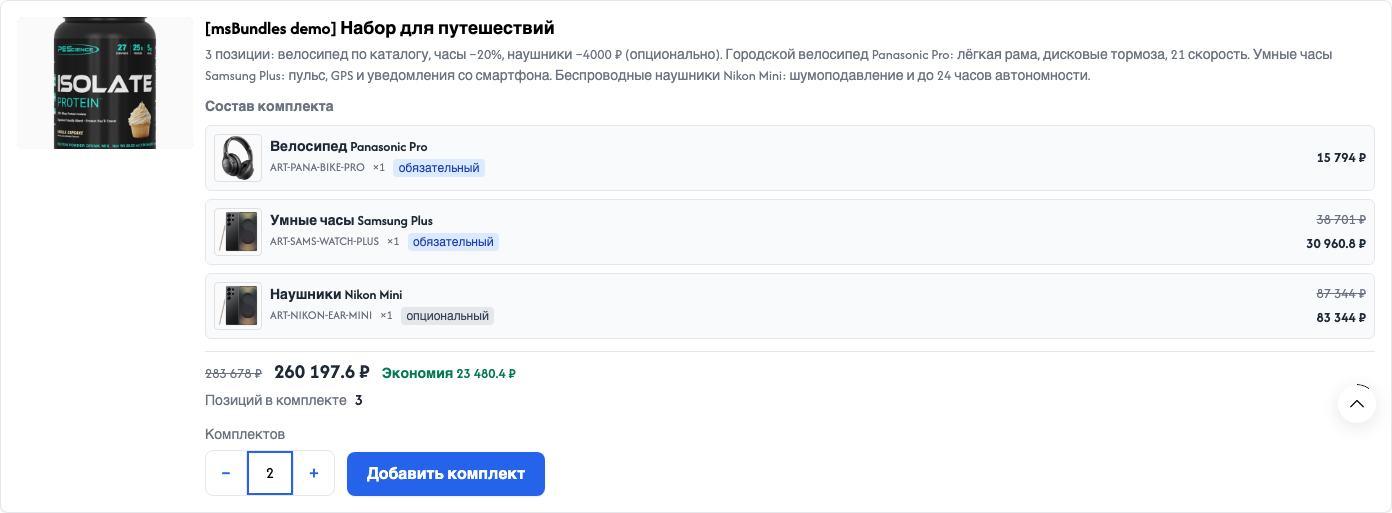
On the storefront, qty changes the total (Travel set example):
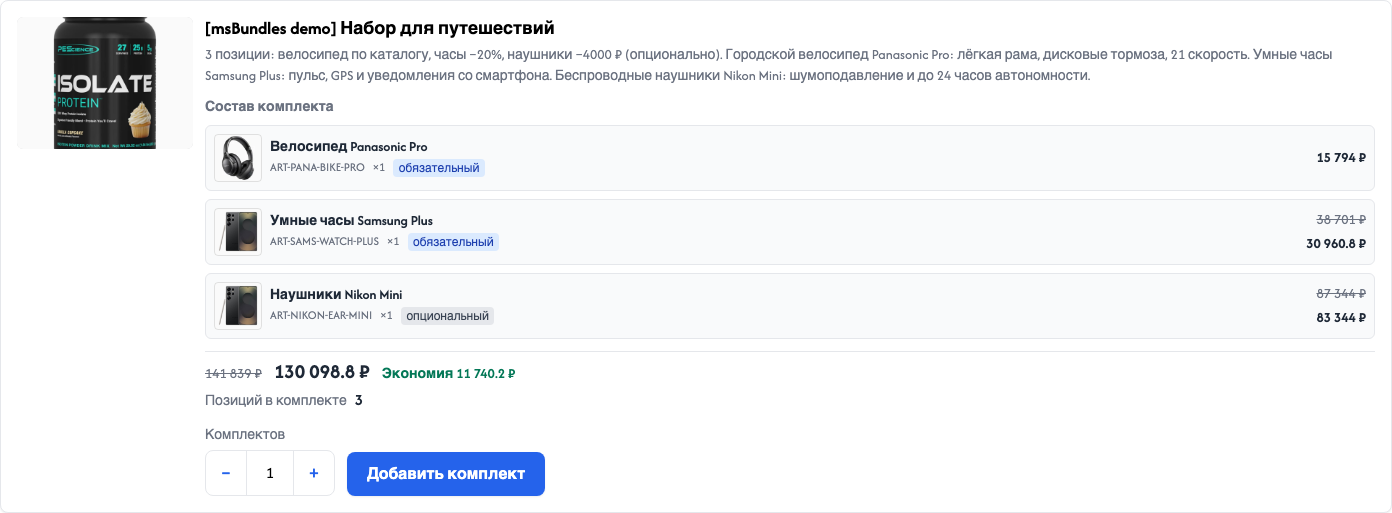
Storefront: travel, qty=1

Storefront: travel, qty=2

Flow C. Duplicate a bundle

  1. Click the copy icon in the list row.
  2. The editor opens for a copy: inactive, same name with a copy suffix, same composition and image.
  3. Fix the name, turn on Active, save.

Needs msbundles_save.

Flow D. Stock and preview

  1. Change the composition in the editor. Preview updates on each change.
  2. If a required line is out of stock, a warning appears above the form. Status follows msbundles_stock_behavior.
  3. Saving with stock issues asks for confirmation.

Setting: System settings (block / message / hide).

Flow E. Add to cart and remove the bundle

  1. On the storefront, set quantity on the card and click “Add bundle”.
  2. Check that msCart has selector and the cart template calls tplMsBundlesCartInfo. Otherwise you get a toast and a stale on-page block.
  3. In the cart table:
    • the main row shows a “Bundle” badge, set name, and “Remove bundle”
    • other lines show “Part of bundle…”, quantity locked, per-item × hidden
    • the bundle block ([data-msbundles="cart-info"]) draws the badge and remove button
  4. Change quantity on the main row. The other products in the set follow.
  5. Remove any row of the set or click “Remove bundle”. The whole set leaves. No confirm() by default, like a normal miniShop3 product. Enable the dialog with confirmRemoveBundle: true.

Full chunk and CSS notes: Frontend.