


modSizeControl
How much space a MODX 2 or 3 site takes, what exactly takes it and how much is left before the limit

The page opens from Extras → modSizeControl or with the Details link in the widget. It needs the settings permission.
The header has the Scan again and System Settings buttons. While a scan is running, its progress is shown above the tabs, and a Stop button appears. About the scan itself: Scanning and cron.
All the figures on the page are as of the last scan. The exceptions are the file list of a folder in the explorer and the Cleanup block: they are read from the disk.
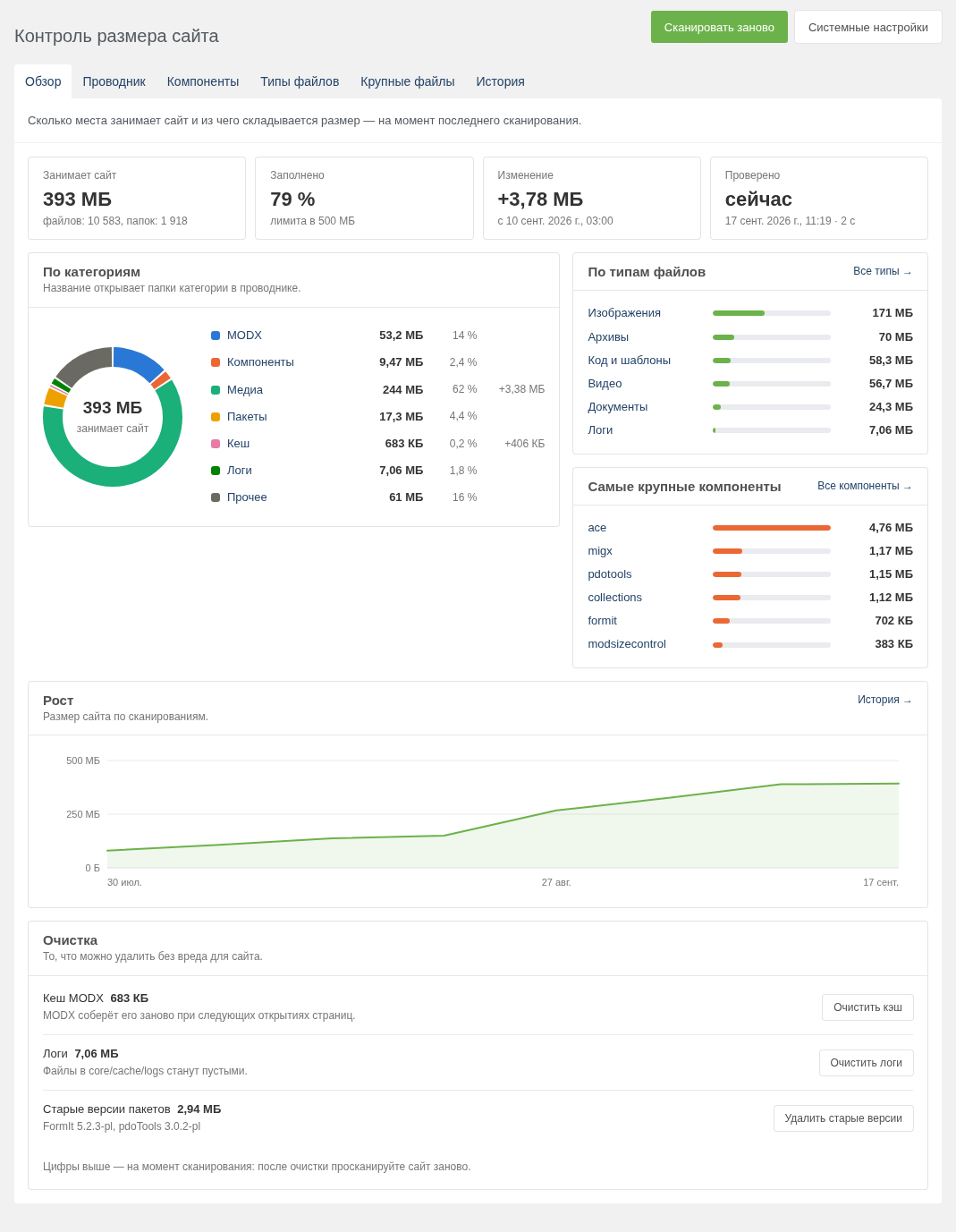
The folders and files of the site, largest first: the size, the share of the current folder, the number of files and the modification date. If a folder belongs to a different category than the one you are in, it gets a category tag — so it is clear right away that core/components is not MODX any more, but components.
Above the table are the breadcrumbs with a button that copies the current folder path, a name filter, a category and a file type. With a type filter, sizes count only the files of that type: handy for finding where the videos or archives are.
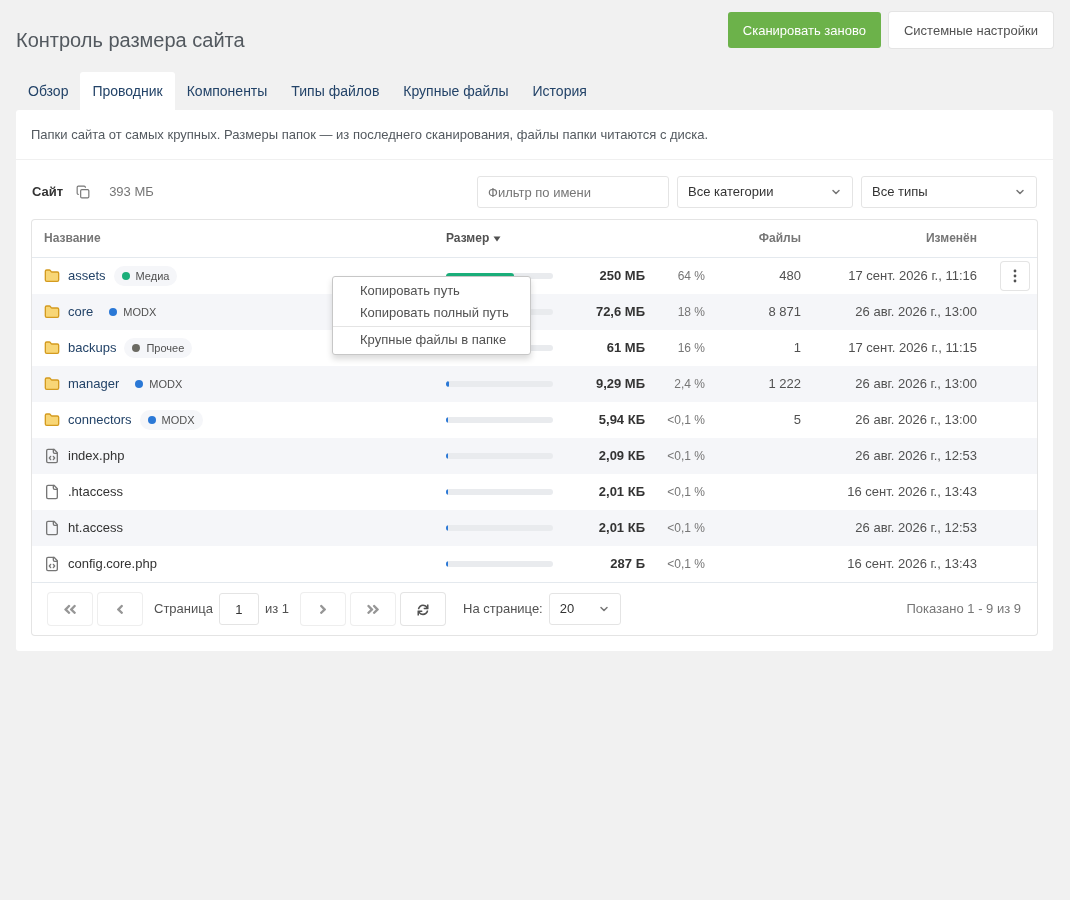
Every row has a menu — the button at the end of the row or a right click, as in a MODX grid:
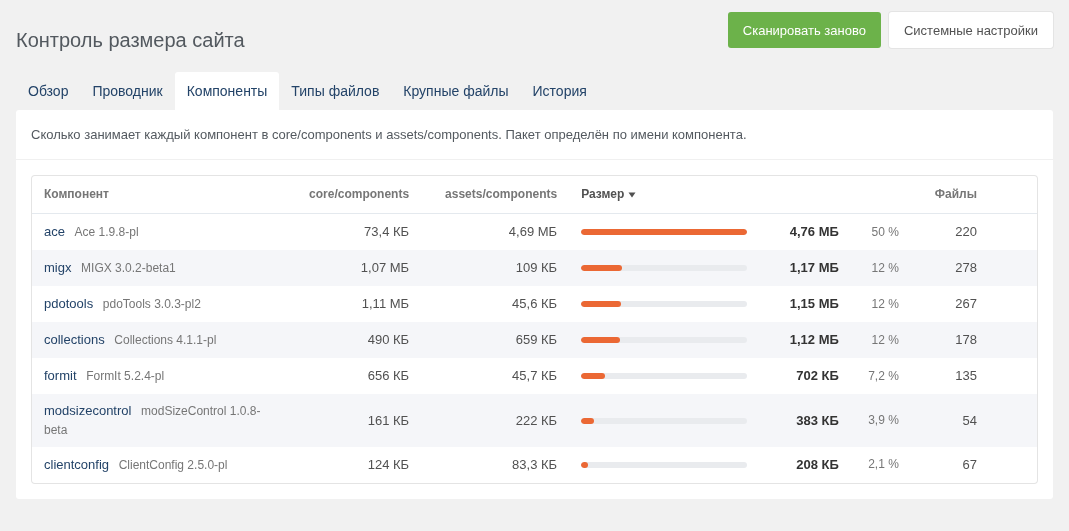
How much each component takes in core/components and assets/components, separately and together. Next to the name is the installed package and its version: the package is matched by the component name.
The component name opens its folders in the explorer. The row menu copies the paths of both folders and has Large files of the component.
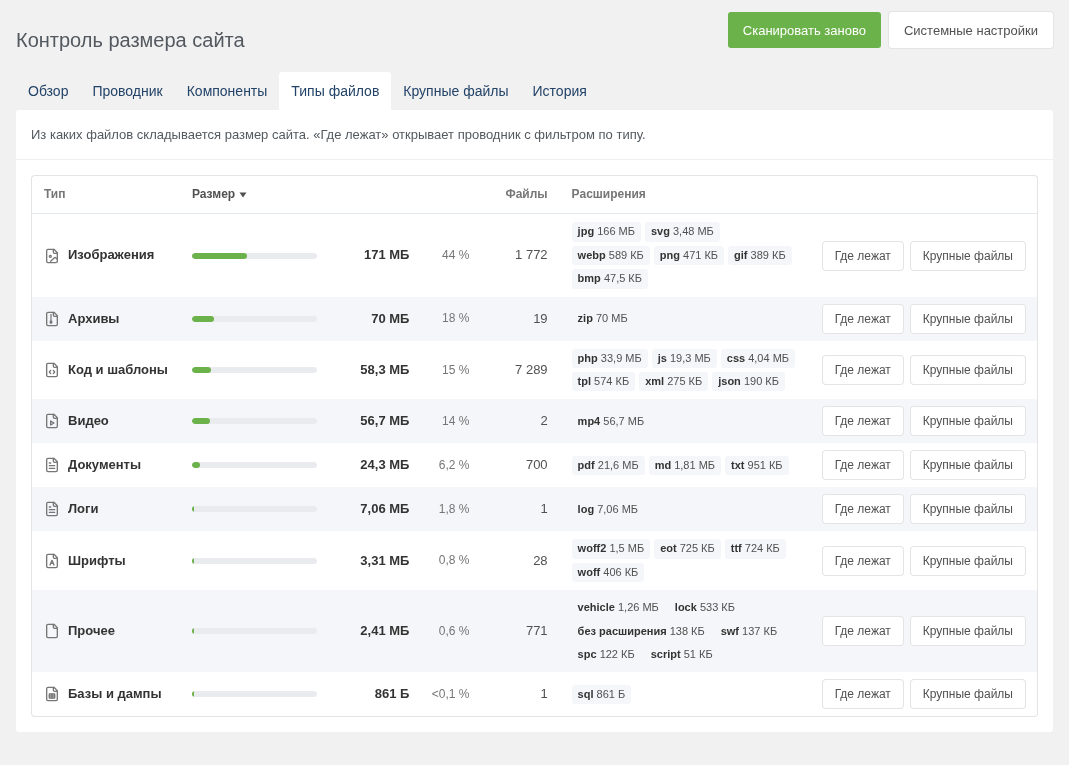
What kinds of files the site is made of: images, video, audio, documents, archives, code and templates, fonts, databases and dumps, logs and other. Each type lists its largest extensions.
Where opens the explorer filtered by the type, Large files opens the large files of that type.
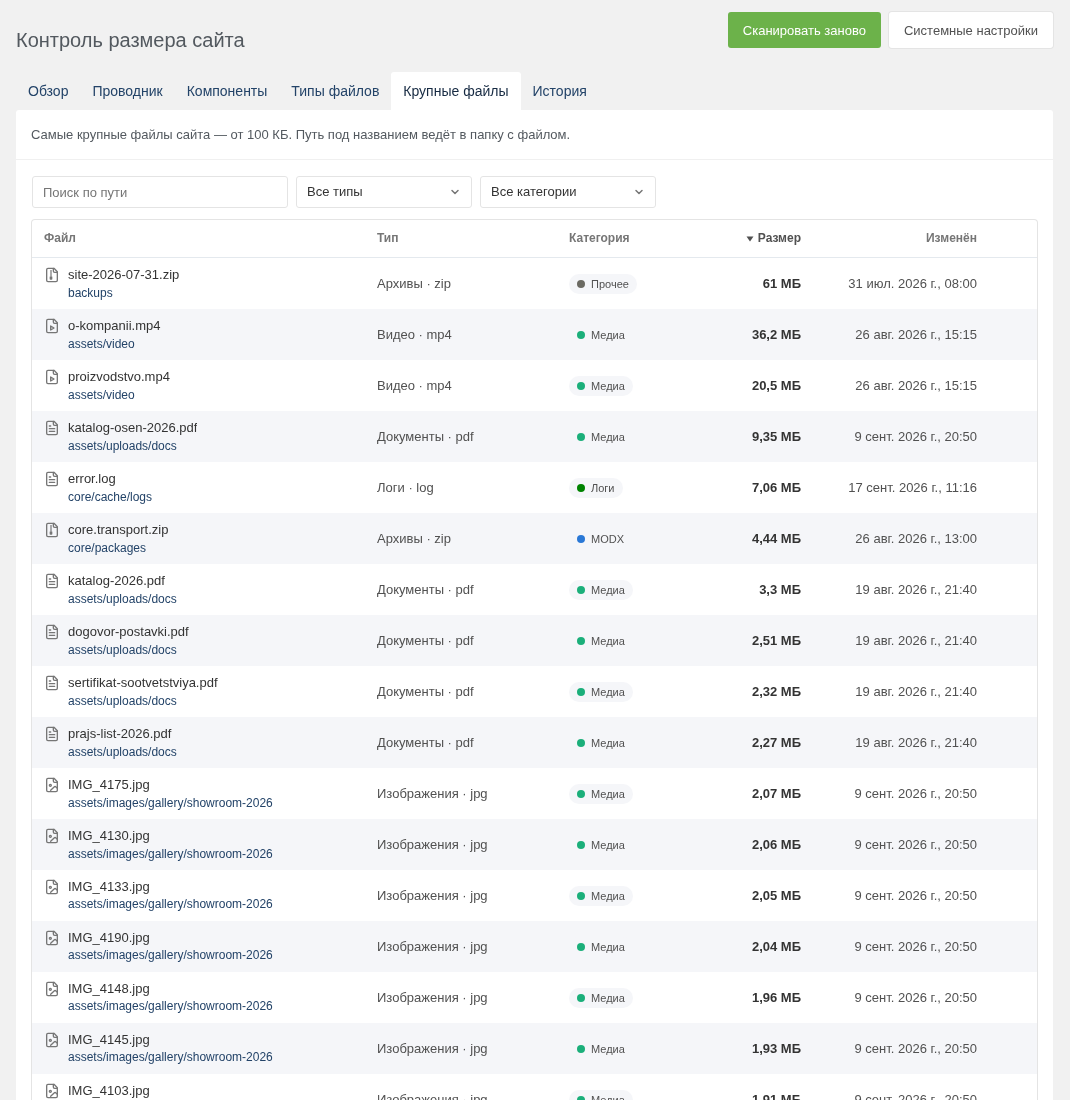
The largest files of the site — from 100 KB. Search by path, filters by type and category. If the list was opened from the explorer or the Components tab, the folder or component filter is shown above the table and is cleared with the cross.
The path under the file name leads to its folder. The row menu copies the paths and has Open in the browser and Show in the explorer.
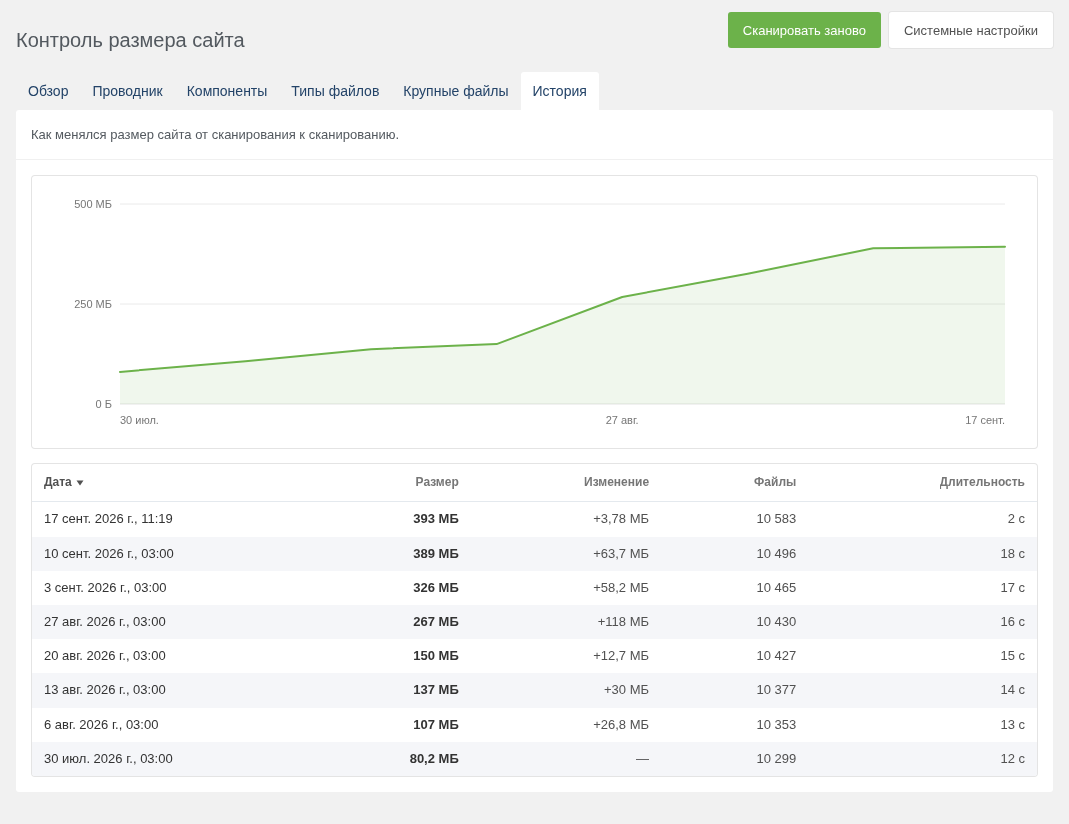
A chart and a table of all scans: the date, the size, the change from the previous one, the number of files and the duration. The last 500 scans are kept.
Every table sorts by its columns: a click on a header sorts by that column, another click reverses the order. When the explorer is sorted by name, folders come before files.
The tab, the explorer folder and the filters are kept in the page address. They survive a reload, you can share the link, and the browser's Back button returns to the previous folder.